User’s Manual
93
NOTE: Temperature data is not retrievable for some specific models.
Under Temperature column, it will show “Not available”.
6.7.2 PC System Info.
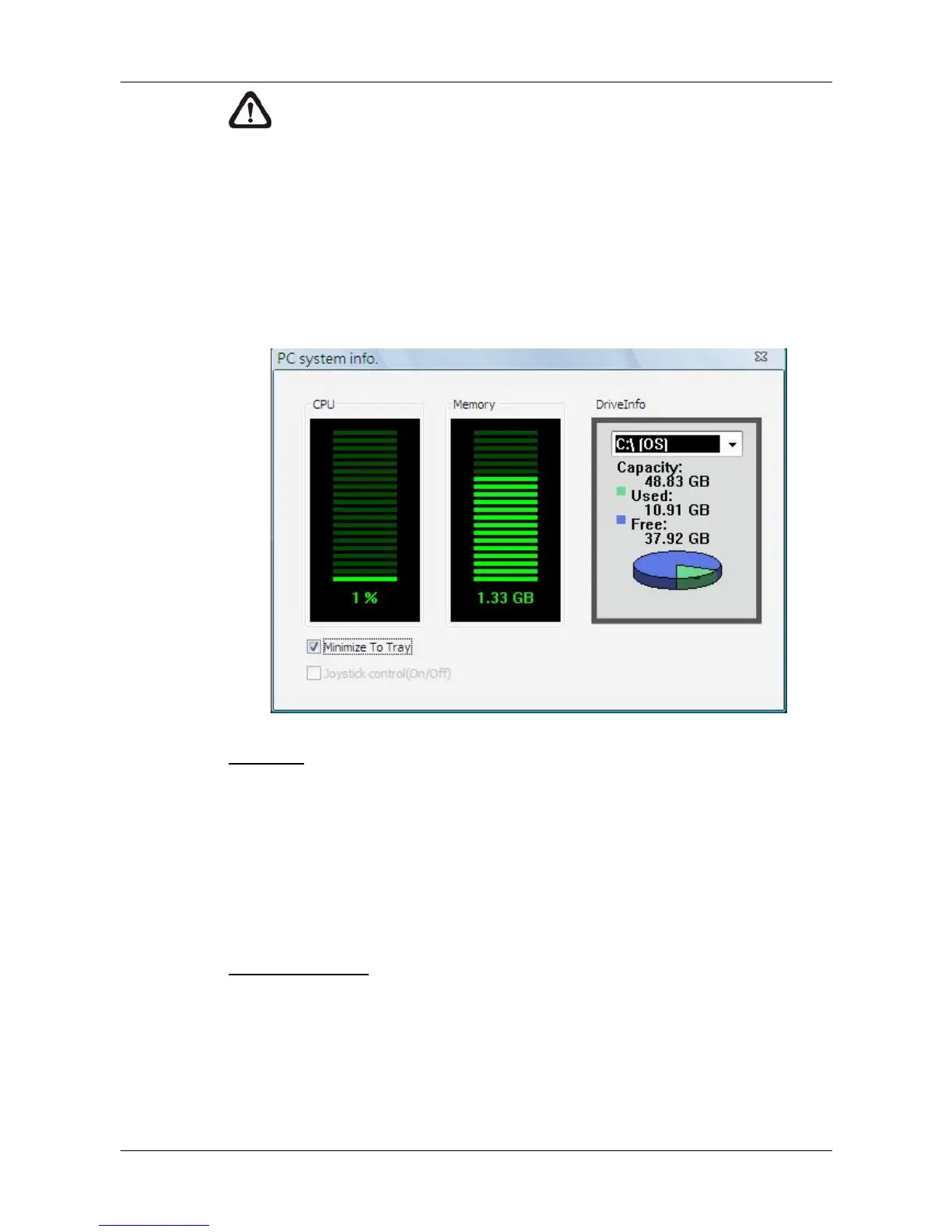
Select <PC system info.> and the following window will be displayed. The
information provided includes CPU usage, Memory usage and HDD info. In
addition, there are two more options at the bottom for users to enable/disable
minimization to tray icon and joystick control. Refer to the following for more
details.
HDD Info
The pie chart displays the HDD information. This is especially useful when
users use CMS to record the video to the local computer. Scroll down the
menu to see the information of all the HDD(s) installed on the local computer,
such as C drive, D drive, etc. The information will be updated every 30
seconds. If file circular is enabled, the circulation will as well be updated every
30 seconds.
Minimize To Tray
If <Minimize To Tray> is checked, CMS window will shrink to CMS icon in the
system tray when users click on the Power button and select <Minimize>. The
taskbar button will also disappear. To restore CMS window, click on CMS icon
and the task button will appear again. Then click on the task button to restore
CMS window. Alternatively, if <Minimize To Tray> is not checked, CMS will
only minimize to the taskbar button.



 To Next Page