User’s Manual
94
Joystick Control
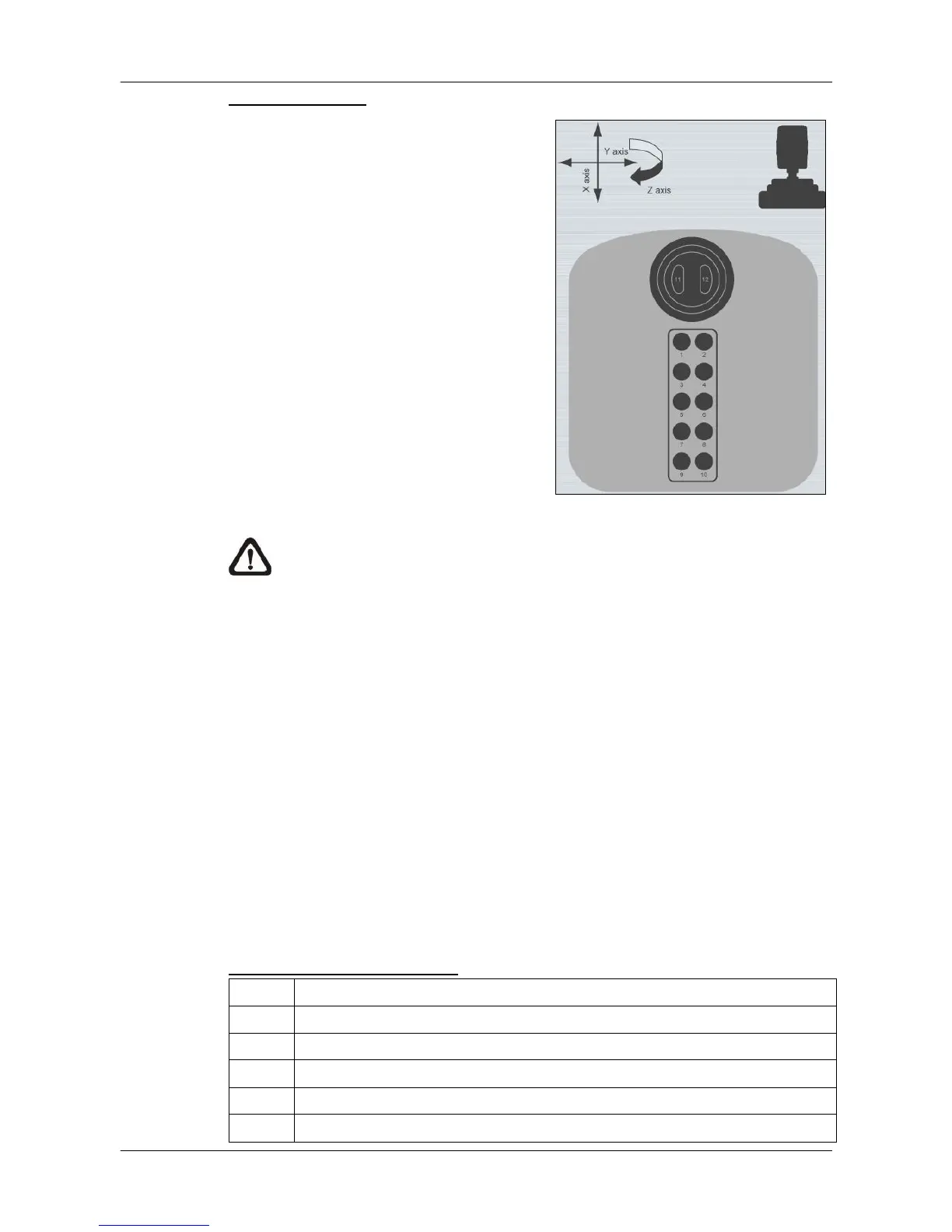
When a joystick is connected, it can
work in Mouse Control mode and Dome
Camera Control mode. Refer to the
picture on the right for a sample of a
joystick. The requirement of the joystick
is as the following:
1. 12 buttons
2. X, Y, and Z axis
Press the button “8” to change between
mouse or dome camera control modes.
Note that if the selected camera is not a
dome camera, the joystick will only work
in mouse control mode.
NOTE: Only the first launched CMS server can use joystick control
function.
When CMS detected an available joystick, CMS icon in the system tray icon
will change to a joystick icon. In addition, a message will be shown to tell
current control mode: mouse control or dome camera control. Click on the
<System Information> icon and select <PC system info.>. Then check the box
in front of <Joystick control (On/Off)> to switch on joystick control.
Users can click on the Start menu and access <Joystick> to display the quick
instruction picture of dome camera or mouse control mode.
Whenever the joystick control mode changes, a message will be shown at the
system tray to inform users. Refer to the following tables for the joystick
controlling options:
Under Mouse Control Mode
X axis



 To Next Page