User’s Manual
115
7.2 Image Adjustment
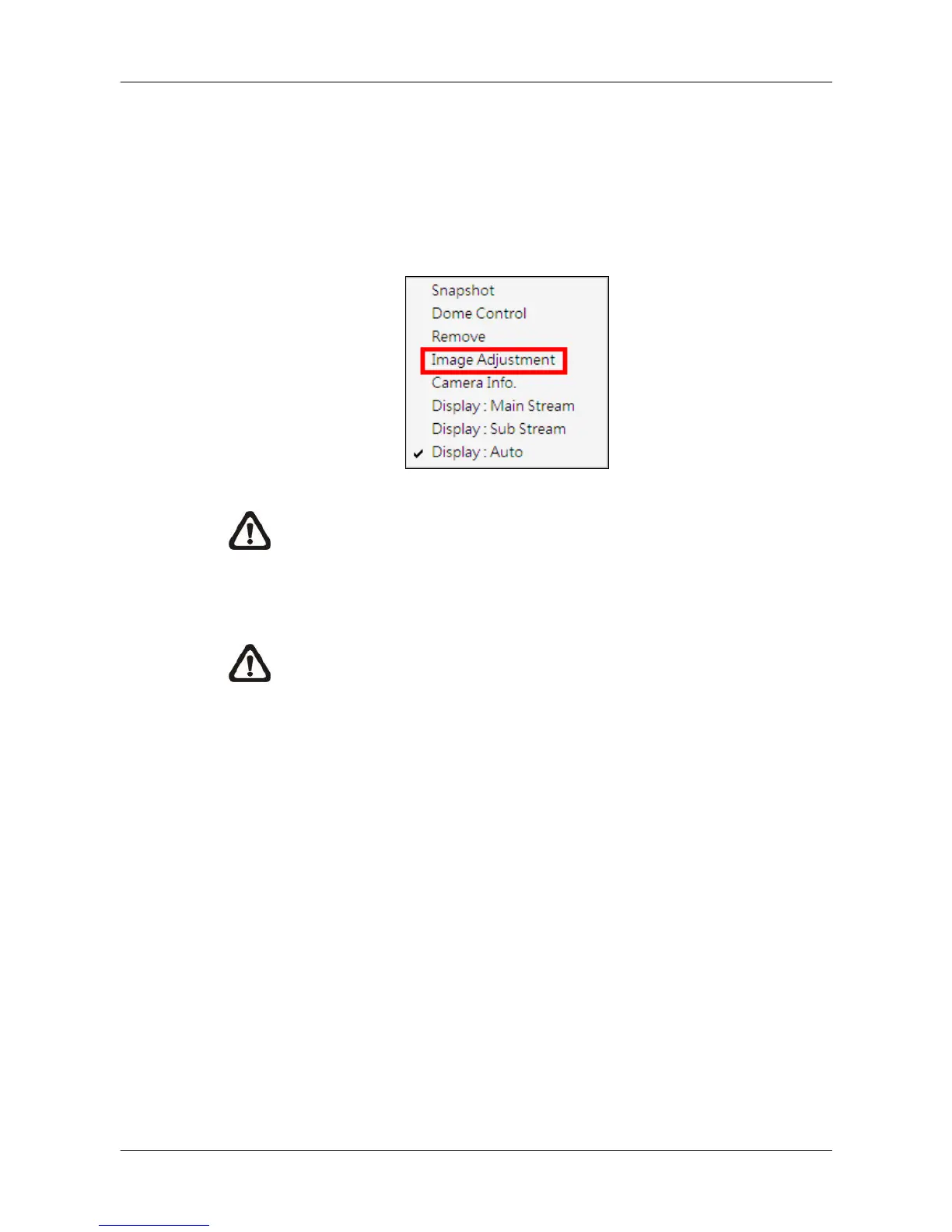
Both CMS and CMS player provide the image adjustment function. Double
click on a channel to view in 1x1 mode, then right click on it. Select <Image
Adjustment> from the pull-down menu, and the image adjustment window will
be displayed. Users can change the brightness, saturation, hue and contrast
value of the channel.
NOTE: The <Image Adjustment> option will only be available when
viewing in single-channel mode.
Click the <Default> button to reset the adjustments to the default values.
NOTE: The image adjustment function has no effect to the recorded
video. Whatever changes made here will not apply to the recorded
video.



 To Next Page