User’s Manual
114
Zoom
This is used to zoom in / out to preferred objects. Click on the <Zoom In> /
<Zoom Out> icons to adjust the lens. It can also be adjusted by moving the
scroll wheel of the mouse. Scroll toward users to zoom out and away from
users to zoom in. CMS zoom function will be disabled in dome camera control
mode.
A.F. (Auto Focus)
Click on to focus the camera automatically.
Go Preset Point
Click on to go to any preset point.
Direction Button
Click on the arrows to pan/tilt the dome camera.
Set Preset Point
Click on to set the current position as a
present point. As shown on the right, specify
the preset point number and give it a name.
The setting will apply to the remote site as
well.
ID
Click on to setup the Dome ID and Dome Protocol.
Speed Slider Bar
The slider bar is used to adjust the speed of the pan/tilt movement. 0 is the
slowest and 100 is the fastest.
Mouse Control
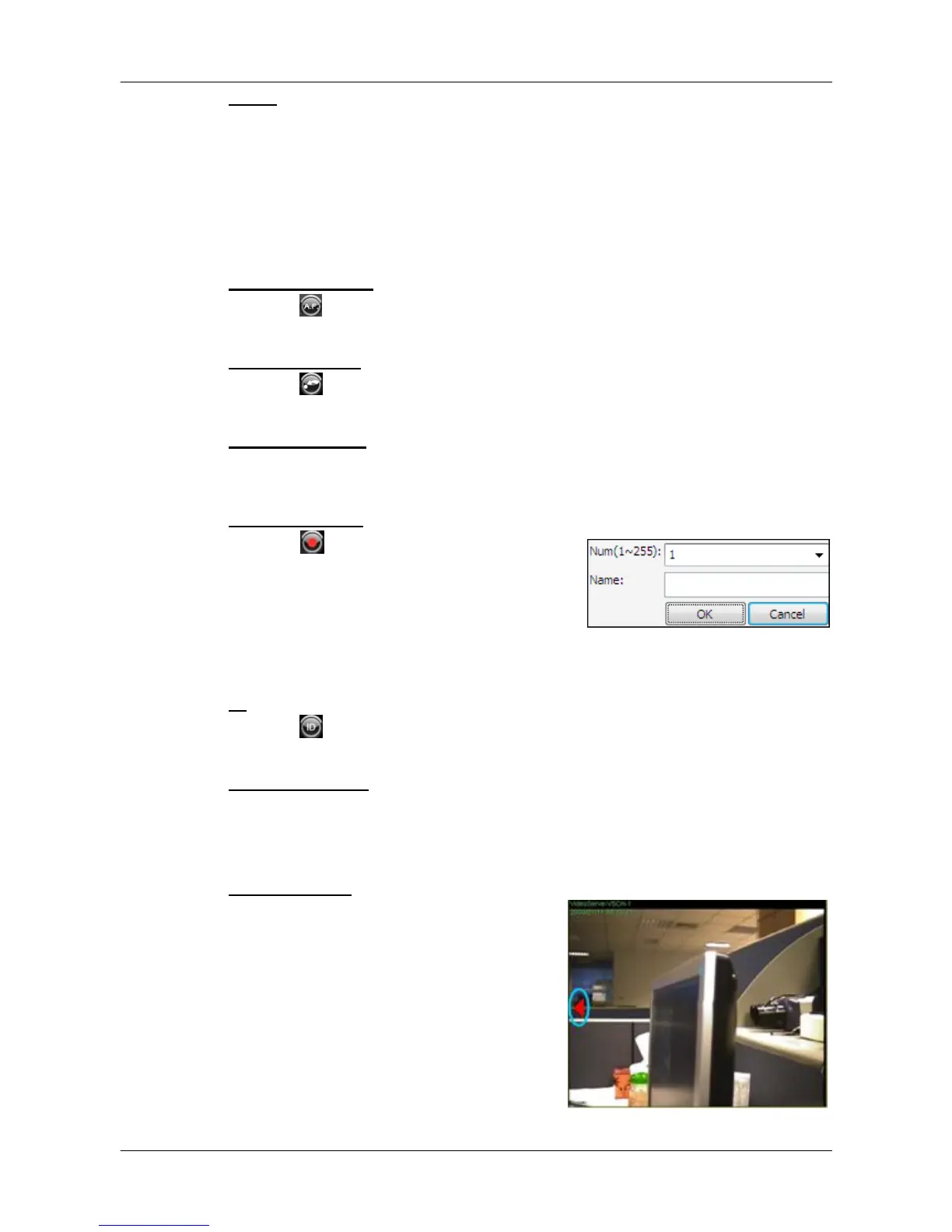
If the mouse is moved to the top / bottom /
left / right edge of the screen, a red
triangle as in the picture on the right will
show up. At this time left clicking the
mouse to move the screen toward the
direction where the red triangle points to.



 To Next Page