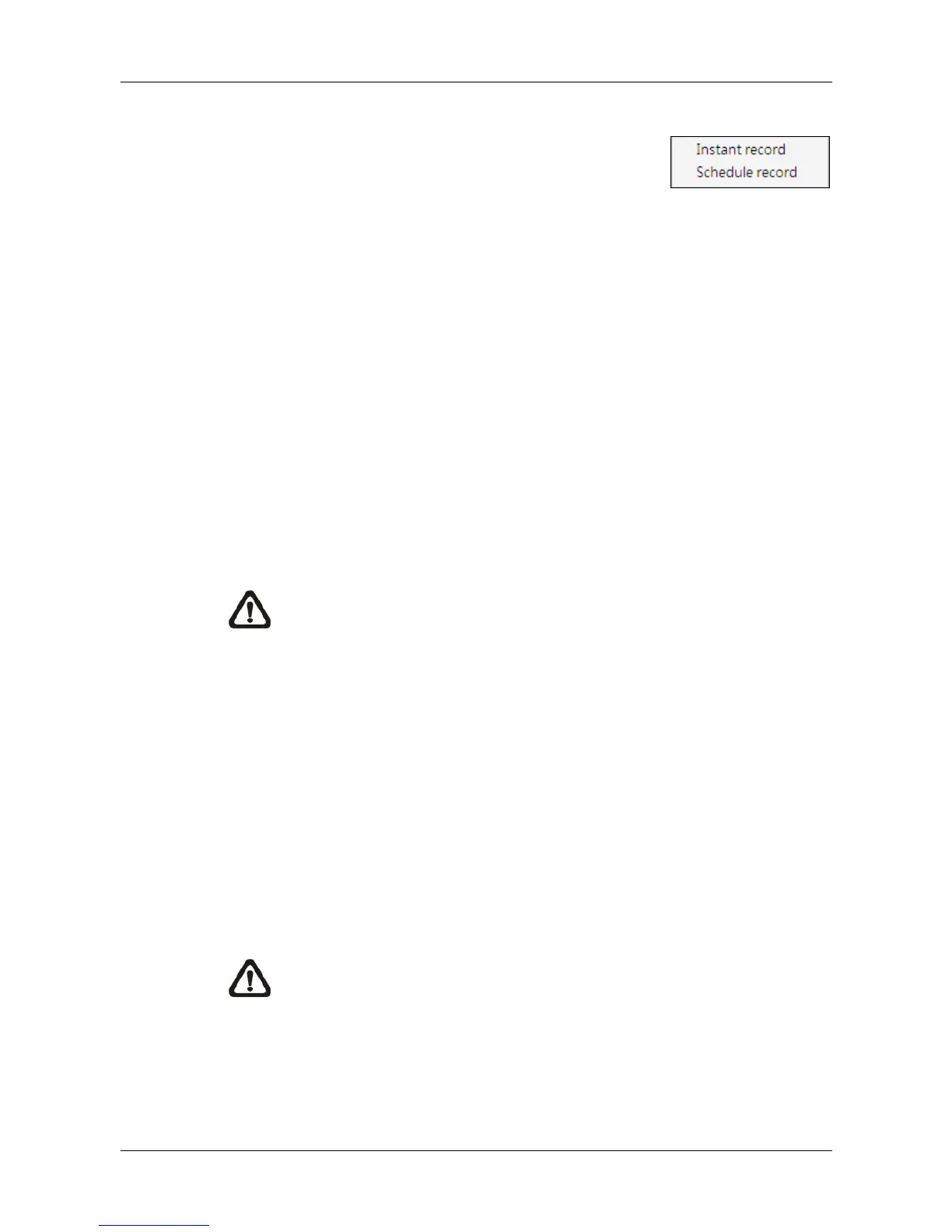
6.5.1 Instant Record
While the videos are usually recorded to the connected DVR, users can also
choose to instantly record current “Live” videos to the local computer. Select
<Instant record> to start recording. A check will be shown in front of <Instant
record>. To end instant recording, select <Instant record> again and the
check mark will disappear.
If time difference between CMS and the recording site is more than 1 day, a
message will be displayed. Select <Yes> to start recording. Or select <No> to
abort recording.
NOTE: Only videos of the displaying channels will be recorded. When
the displaying channels changed, the recording video will follow the
change as well. The channels not selected to be displayed will not be a
part of the instant recorded video.
When the channels are being recorded, the title of the channels will show a
capital letter “R” at the end. The recorded files will be saved to the default
folder “\CMS\Record\”.
If users want to switch from Live mode to Playback mode while CMS is
recording videos, the recoding has to be terminated. A message dialog will be
displayed for confirmation. However, the recording will be resumed from
stopping point once “Playback” mode is ended and returns to “Live” mode.
NOTE: If the connection to the recording site is disturbed and then
reconnected, the recording will be terminated without resumption.



 To Next Page