User’s Manual
52
6.1 Power Button
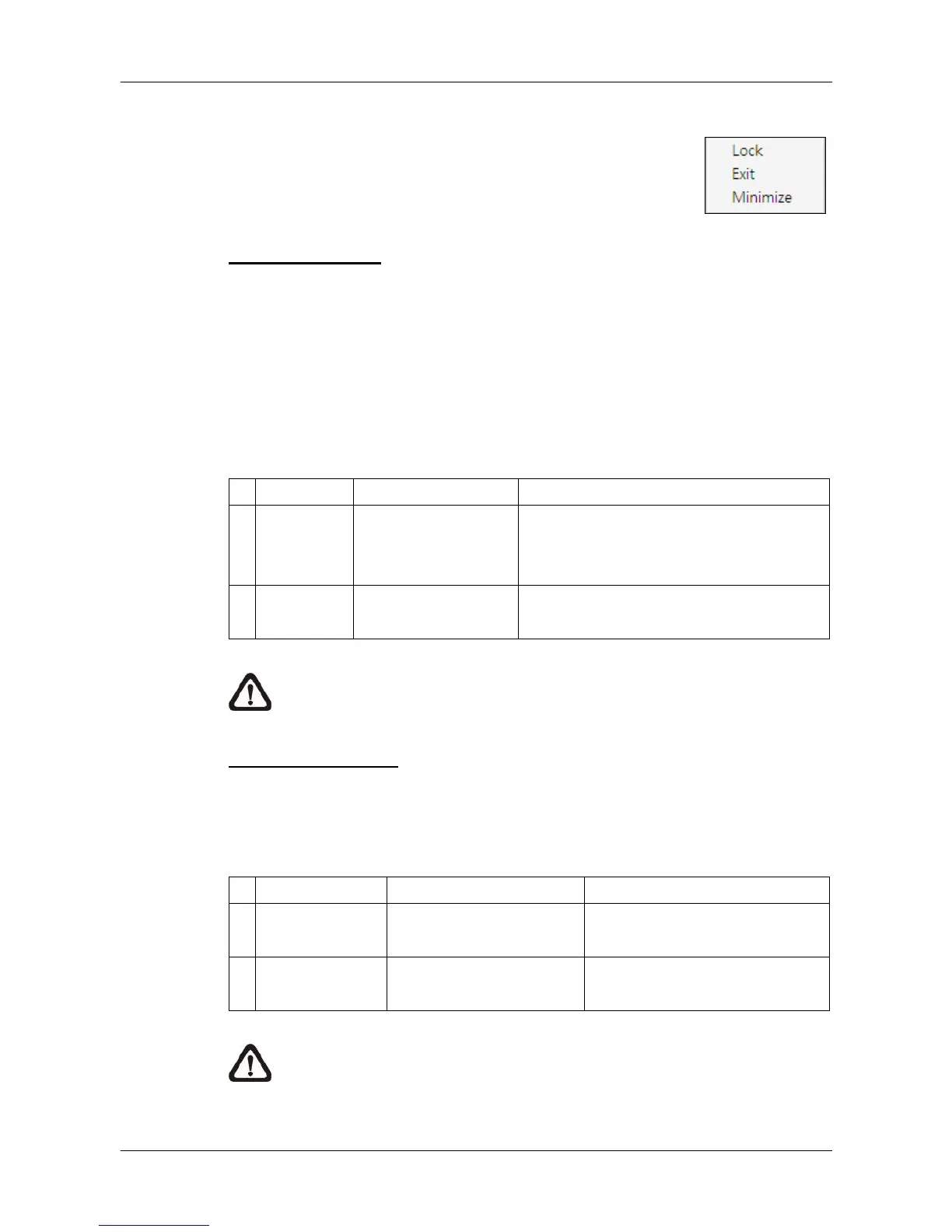
Click on the Power button and the pull-down menu are
<Lock>, <Exit> and <Minimize>. Users can lock CMS
system, exit CMS system, or minimize CMS main window.
Lock CMS System
The Lock function helps users to protect CMS from unauthorized use when
there is need to be away from the computer for a while. Closing CMS is not
allowed and other functionality will be limited as described below.
Click on the Power button and select <Lock>, then a confirmation message
will be displayed. Click “Yes” to confirm locking up CMS system.
When CMS is locked, windows control will be as the following two types:
Type Example Windows Control
1
Setting Settings, Schedule
Record, Emap,
Dome Control, etc
The windows will be closed without
saving changes. It is recommended to
save settings before locking up CMS.
2
Archive, Alert, etc. It is not allowed to close the window
but just minimize it.
NOTE: If CMS is forced to be closed while it’s locked, CMS system will
still be locked when it is started up again.
Unlock CMS System
Click on the Power button and select <Unlock>, then a login window will be
displayed for users to enter username and password to unlock CMS.
To unlock, the following are two scenarios:
Login Account Unlock Account Note
1
User - Login User
- Any Administrator
The access authority will still
be User’s limit.
2
Administrator - Login Administrator If password is changed, use
new password to unlock.
NOTE: If the password of the current login account is changed, use the
new password to unlock.



 To Next Page