User’s Manual
54
After sequence display is started, users can still change the split mode by
clicking on the display mode icons for 4-windows, 9-windows, 16-windows or
25-windows. However, the initial split mode set in <Sequence Setting> will
remain the same. Note that icons for any other display modes will not be
accessible because they are not allowed to be shown in sequence mode.
The following functions are disabled in sequence mode:
1. Right click to see channel menu
2. Zoom In/Out
3. Page up / Page down
4. Drag and drop channels or sites to the display grids
5. Remove any channel grids on the display windows
NOTE: If users enabled the <Event Full Screen> function and an event
is triggered while running the sequence, CMS will display event full
screen. The sequence will not resume until event full screen ends.
Click on the <Sequence> icon again to exit the sequence mode.
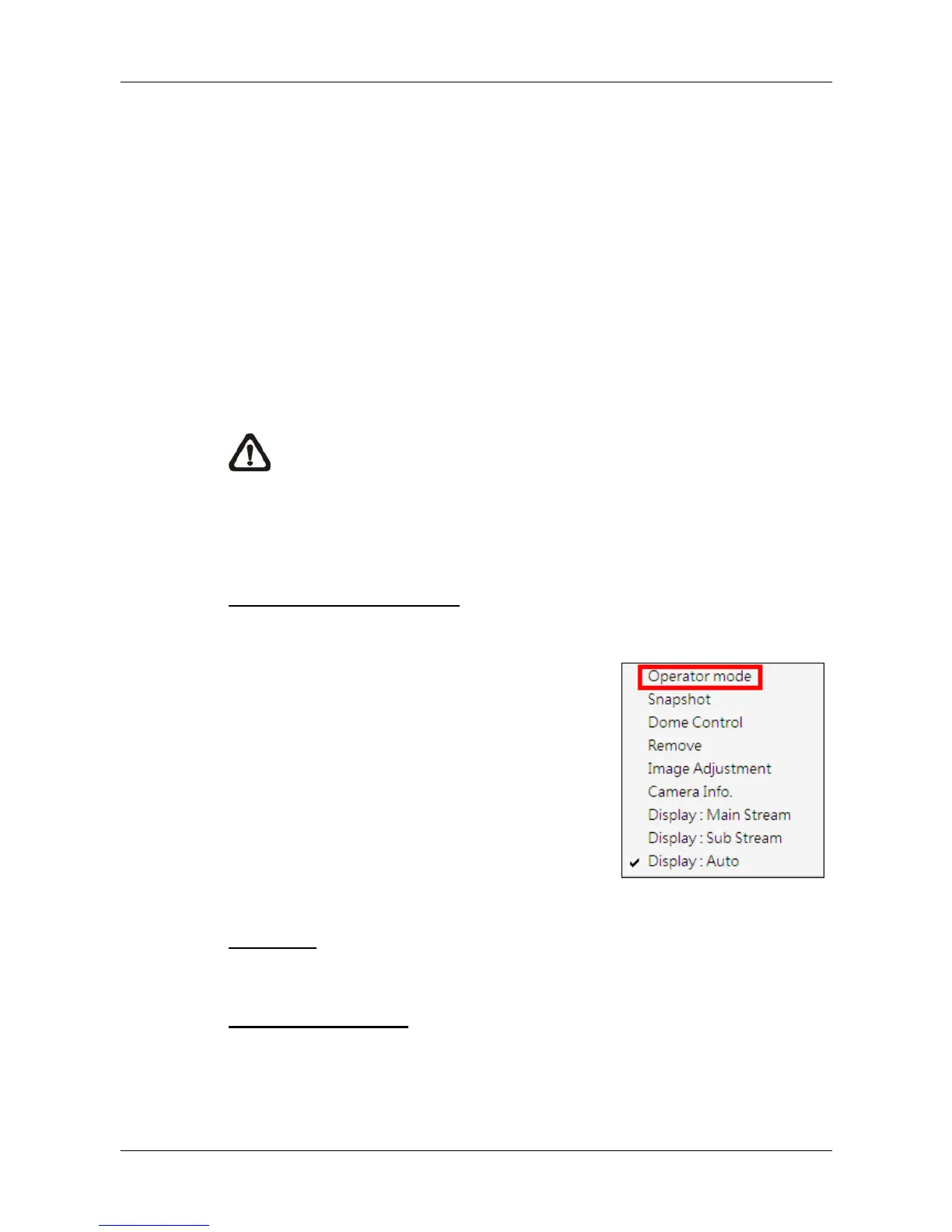
Full Screen/ Operator mode
Click on the <Full screen> icon to view the display window in full screen.
To exit from full screen mode, right click and
select <Operator mode> in the pull-down menu.
Users will be able to return to the operation
layout. Note that <Operator mode> will only
appear in the pull-down menu under full screen
mode.
Alternatively, users can also press ESC key on
the keyboard to return to the operation layout.
Last mode
<Last mode> allows users to quick return to last display mode.
Page Up / Page Down
Click on the <Page up> button to display images of previous cameras in the
site tree. On the other hand, click on the <Page down> button to display
images of next cameras in the site tree.



 To Next Page