User’s Manual
74
Functions of the buttons will be described in the following paragraphs.
Power Button
Click on the Power button and users can choose to exit or to minimize CMS
Player window.
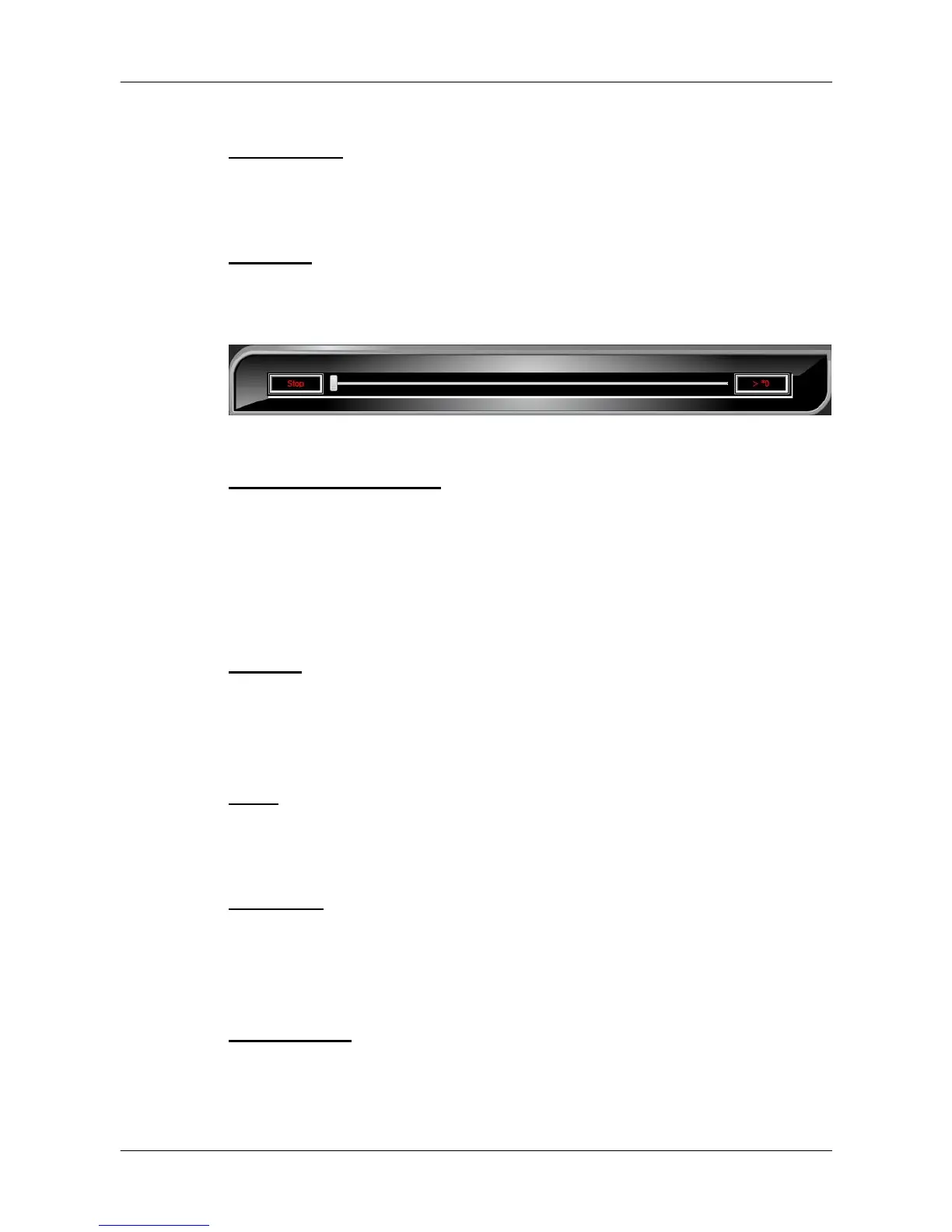
Slider Bar
Click and drag the slider bar to search through the video.
▼Slider Bar
Playback Speed Indicator▲
Playback Speed Indicator
The playback speed indicator shows playback speed in forward or backward
direction.
“>” indicates forward playback while “<” indicates backward playback.
Playback speed can be faster or slower: 1, 2, 4, 8, 16, 32, 1/2, 1/4, 1/8,
1/16 or 1/32.
Site Tree
The site tree shows the channels of the opened DRV file. Double click on a
channel to view the selected channel in one screen. Right click on the site
tree can choose to expand or collapse site tree.
Audio
Click on the <Audio> icon located underneath the site tree to enable or
disable the audio of the opened DRV file.
Full Screen
Click on the <FULL SCREEN> icon will enlarge CMS Player window to fit full
screen. Click on the <FULL SCREEN> icon again or press <Esc> key on the
keyboard to return to normal screen mode.
Display Modes
Users can click on <2X2>, <3X3>, <4X4> or <5X4> icons to view in multiple
window modes.



 To Next Page