User’s Manual
120
Dual 180 Degree
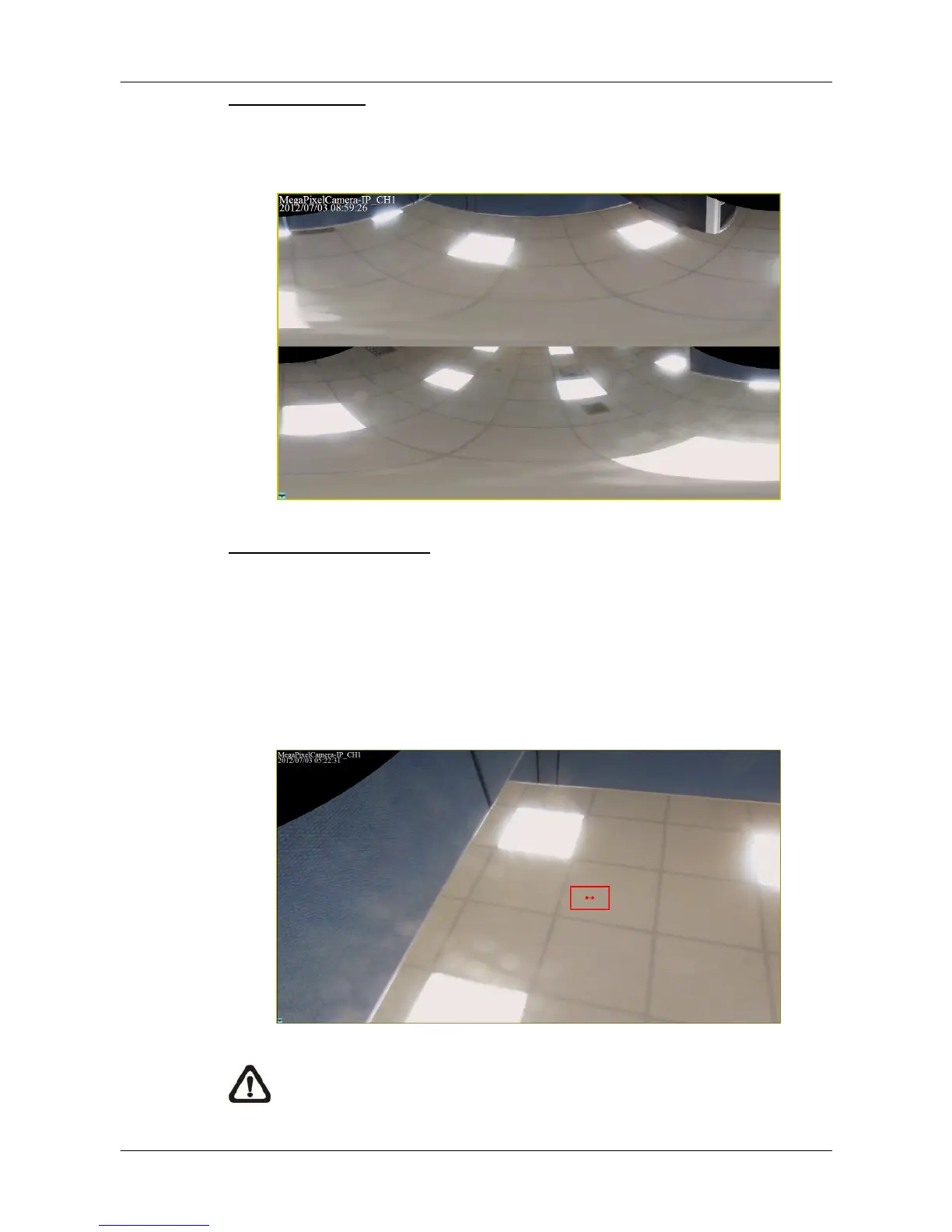
This camera mode will cut the original video source into half and expand each
half into a rectangle picture, as shown below. This allows users to monitor the
whole source view, but the pictures may be a little bit distorted.
Change Displaying Area
Under single view, quad view and dual 180 degree modes, users can click on
any spot to make the position at the center of the displaying image. This will
change to a different displaying area.
In addition, users can also click and hold the left key of the mouse to drag the
camera image to change the displaying area. A red arrow will be displayed on
the screen to show the moving direction.
NOTE: Whatever type of camera mode is displayed for monitor
purpose, the recorded video will always be in source video view.



 To Next Page