3-2
Chapter 3 Using the CF card Data Backup/Copy Using the CF Card
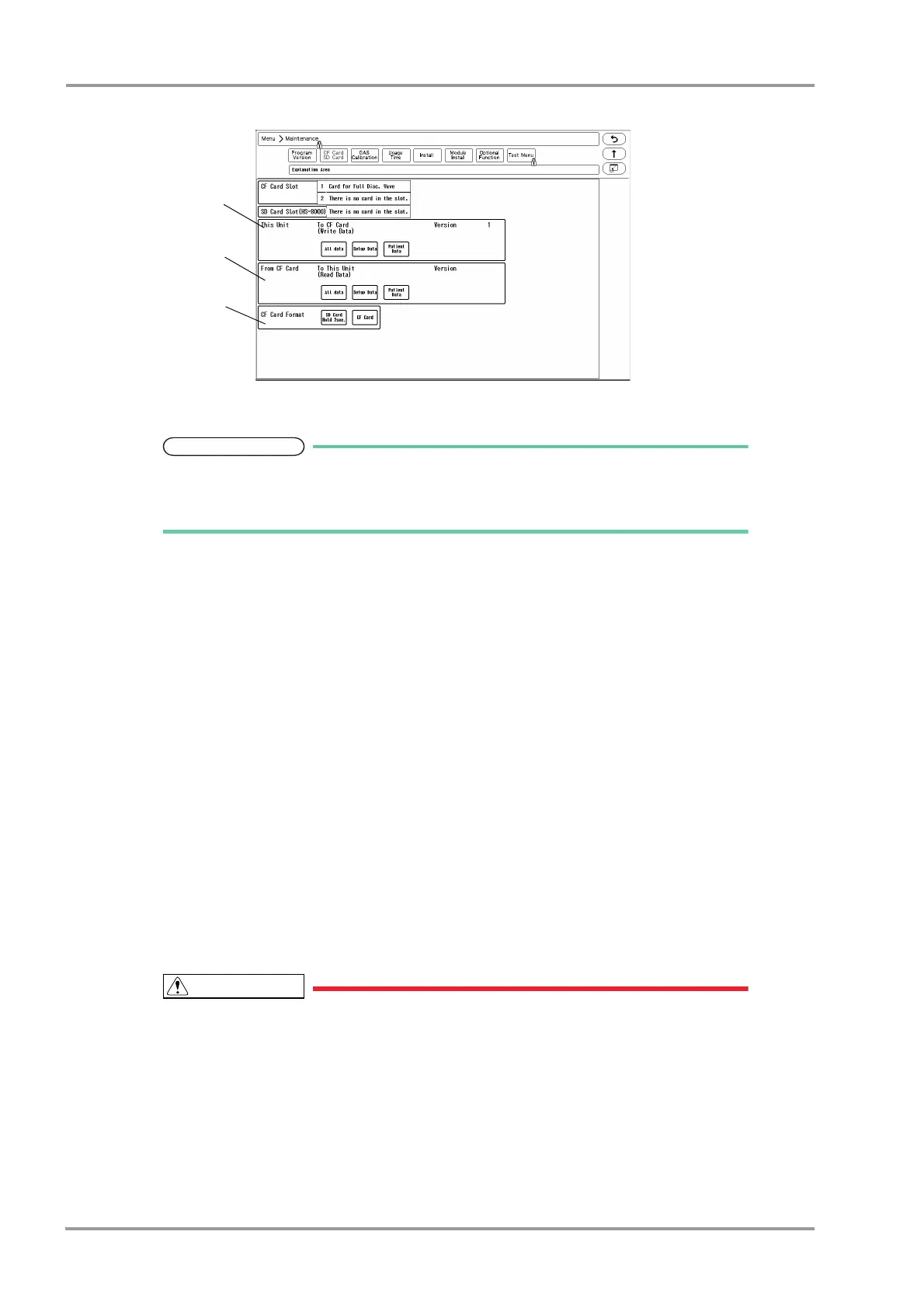
The CF card menu will be displayed.
Format the CF card.
If the card is unformatted, it is necessary to first format the CF card.
Make sure to power cycle the main unit when the CF card format has been repeatedly
performed.
2Write the data to the CF card.
1 Verify the CF card is inserted in the CF card slot.
2 Select the data type to write to the CF card.
[All Data]: Both setup data and patient data will be written to the CF card.
[Setup Data]: Setup data will be written to the CF card.
[Patient Data]: Patient data will be written to the CF card.
3 Press the [Yes] key if OK to write the data to the CF card.
3Read the data from the CF card.
1 Verify the CF card is inserted in the CF card slot.
2 Select the data type to read from the CF card.
[All Data]: Both setup data and patient data will be read from the CF card.
[Setup Data]: Setup data will be read from the CF card.
[Patient Data]: Patient data will be read from the CF card.
3 Press the [Yes] key if OK to read the data from the CF card.
During access to the CF card, all keys will become inoperative until the process is
complete.
The trend data and recall data during access to the CF card will not be recorded on
the CF card as updating of the data base is suspended during the access.
The CF card access duration will depend on the amount of data (number of trend
types, recall data) to write/read.
Make sure to power cycle the system after the setup data is read from the CF card.
By power cycling the system, the read data will become effective.
Reading the patient data from the CF card will erase all previous patient data stored



 To Next Page