GE MEDICAL SYSTEMS
DIRECTION 5184024-100, REVISION 5 LOGIQWORKS BASIC SERVICE MANUAL
3-174 Section 3-5 - Configuration
3-5-8-2 Logging
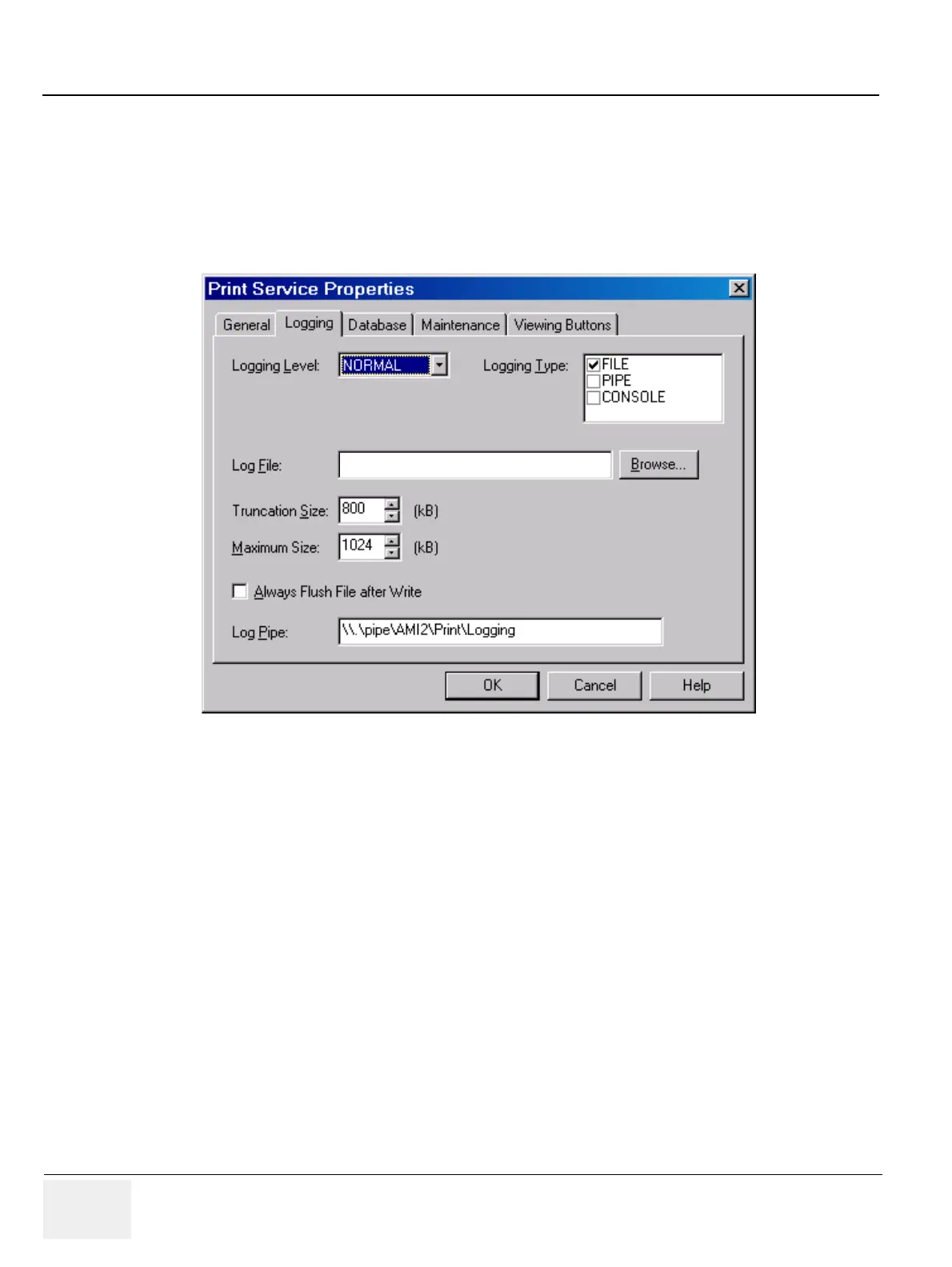
To set and view RA600 logging properties:
1.) Select Configuration > Print Service... from the Data Selector menu.
2.) Select the Logging tab from the Print Service Properties page.
• Logging Level: Set the level of logging messages. If set to ALL, all messages will be logged. If set
to NORMAL (the typical setting) only error messages will be logged.
• Logging Type: Set the types of logging used by the RadWorks application. (Default: File)
- File: If this check box is checked, RadWorks will write general information about its operation
to the RadWorks.log file, which you can view in the Log folder.
- Pipe: Used in combination with the listening tool in the X:\AMI_61\bin folder. Among other
things, it enables you to observe DICOM transmissions in a pipe. Consult the technical
reference manual or contact technical support for additional information.
- Console: If this check box is checked, RadWorks will display a window that continuously
shows the actions RadWorks is performing. This is useful when troubleshooting.
• Log File: Set the name of the log file. Each Service has its own default log filename.
• Truncation Size (kB): Set the truncation size of the logging file. The truncation size is the size the
log file will be shortened to when its maximum size has been exceeded. (Default: 800 kB)
• Maximum Size (kB): Set the maximum size of the log file. (Default: 1024 kB)
Set the Maximum Size of the log file to 0 to disable log file truncation. This can be very handy for
troubleshooting.
Figure 3-147 Print Service Properties - Logging (Default settings)
D:\AMI_61\LOG\Print.LOG



 To Next Page