7. Electrical and Control System - Crease Control Software Updates though a PICkit 2 Programmer
246 Morgana DocuMaster MFC - Service Manual
7.8.3 Update the Creaser Control Software
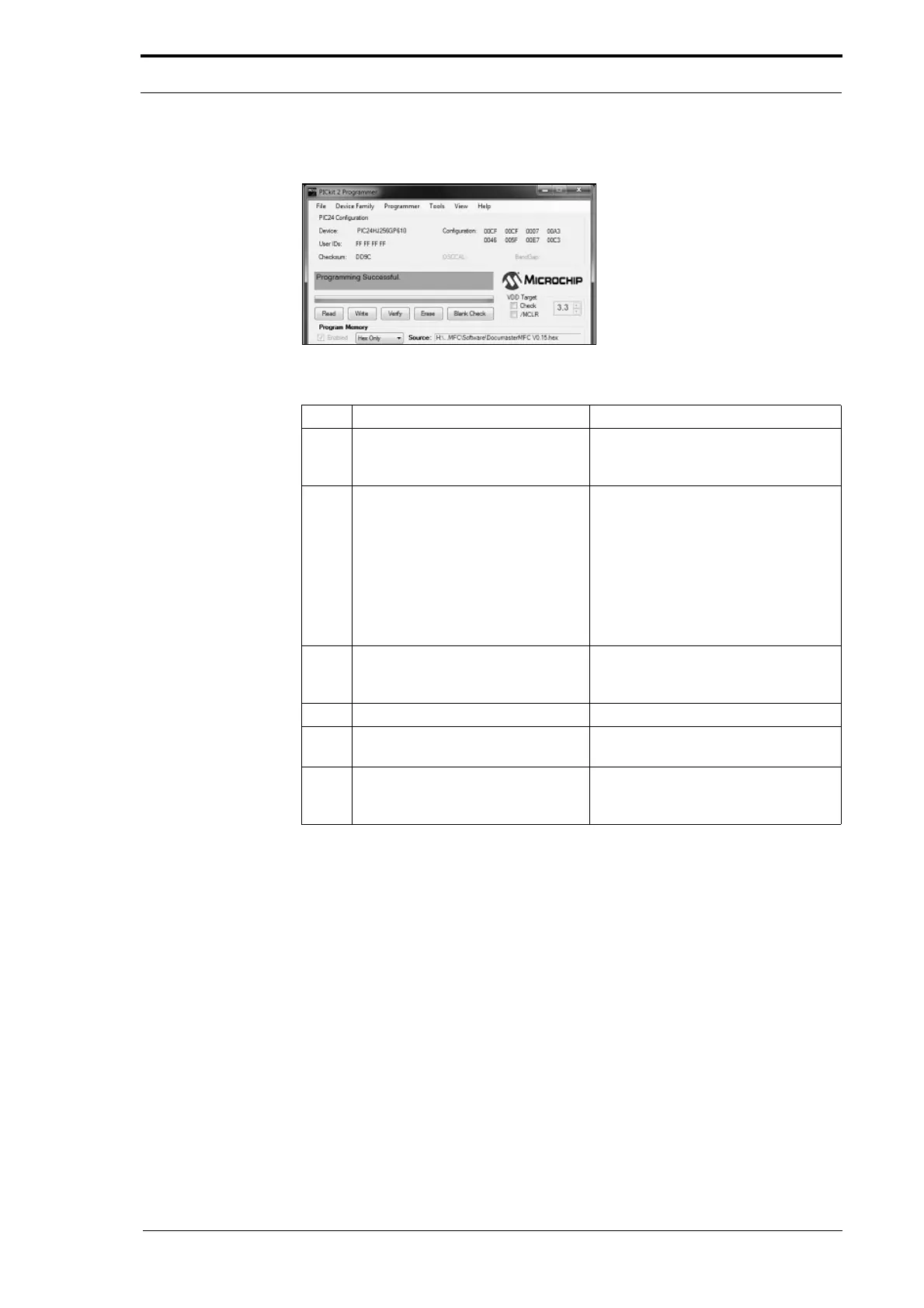
Figure 7.46 The Software Update Was Successful
Step Action Information
1 Transfer the creaser control
sof
tware to the PICkit 2
programmer.
(See Section 7.8.2).
2 Click on the Wr
ite action button to
start the software update.
The software update progress is
displayed in the status message box.
The PICkit 2 programmer will show
that it is 'busy' while the software is
updated.
Caution: Do not
turn off the MFC, or
remove the programmer when it is
busy.
3 Make sure that 'Programming
Successful'
is shown in the status
message box.
(See Figure 7.46).
4 Turn off the MFC.
5 Disconnect the PICkit 2
programmer from the MFC.
6 Write the creaser control software
version
on the processor PCB
label.
This action makes it easy to identify
the software version that is installed.
7.8.4 Update the Creaser Control Software - Replace the Processor PCB
The creaser control software can be updated if you replace the processor PCB (see
Section 4.12.1).


 To Next Page