PTS 400.3 PLUS Operation Manual_R02 Page 36/306
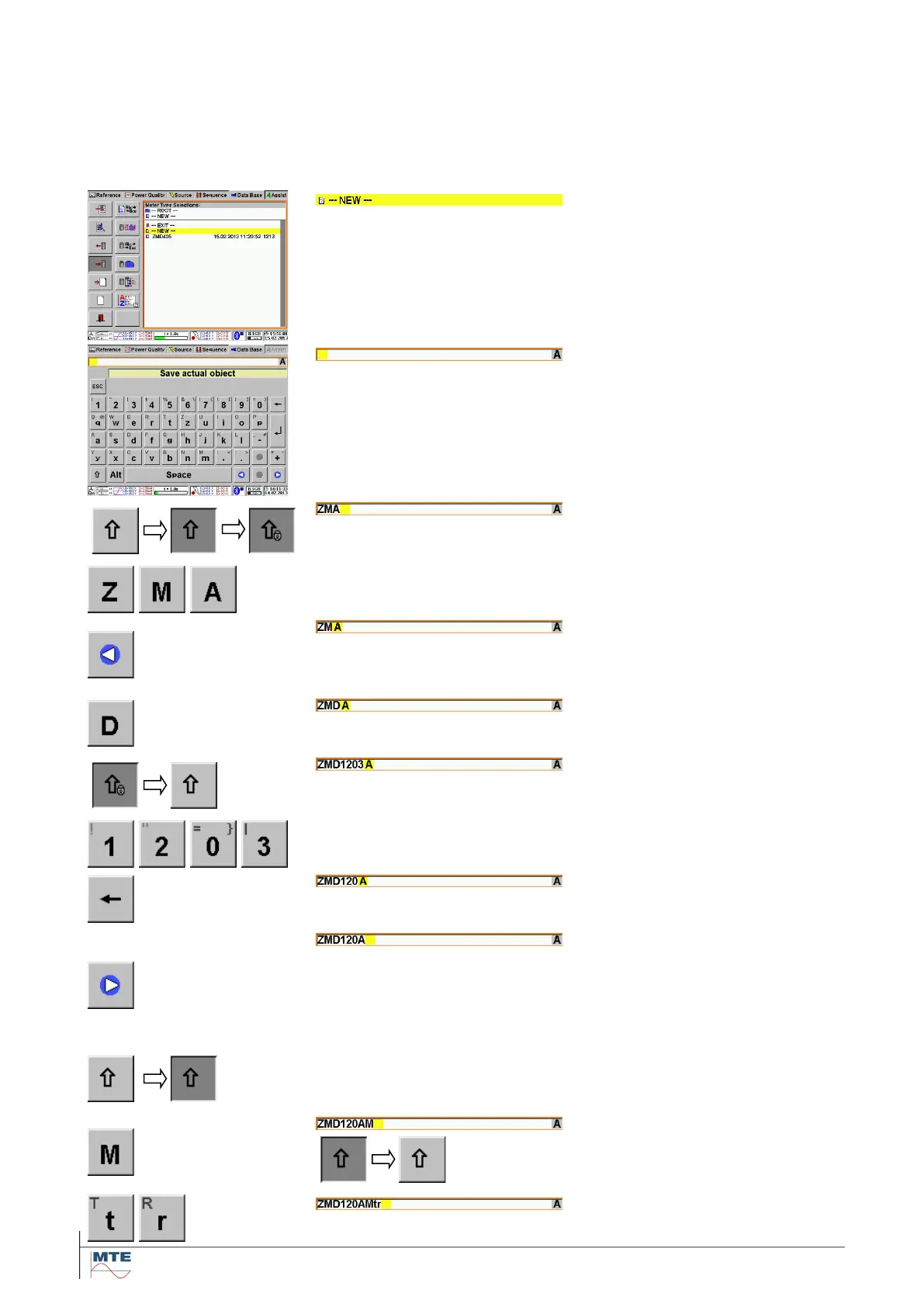
4.3.2 Alphanumerical line input
The virtual keyboard for alphanumerical inputs is displayed, if a line input of numbers and/or text is
required.
The input can also be made with an external keyboard (option) connected to the USB type A con-
nector.
Example: Input of meter type name
Activate input
Touching the yellow line ---NEW--
- activates the input of the meter
type name.
The virtual keyboard for alphanu-
merical inputs is displayed. An
empty input field with a yellow
cursor sign is displayed on top.
An A at the end of the line indi-
cates that this is an alphanumeri-
cal input.
Input of characters
Input several capital letters
Touch the shift key twice to lock
input of capital letters. Enter sev-
eral capital letters. The yellow
cursor key is moved to the right
Move cursor to the left
Move the cursor over the charac-
ter A by operating the left cursor
key once.
Insert character
The character is inserted at the
position before the cursor.
Change back to input of lower
case letters and numbers
Touch the locked shift key once.
Delete character
Touch the delete key to delete
one character left to the cursor
Move cursor to the right
Operating the right cursor key
moves the cursor one position to
the right. Further cursor key oper-
ations move the cursor to the end
of the line.
Change to capital letters
Touch the shift key once to acti-
vate capital letters
After the input of one capital let-
ter, the input is automatically
changed back to lower case let-
ters.
Input lower case letters
This is the default input format.



 To Next Page