Editing a Form
96 Chapter 4
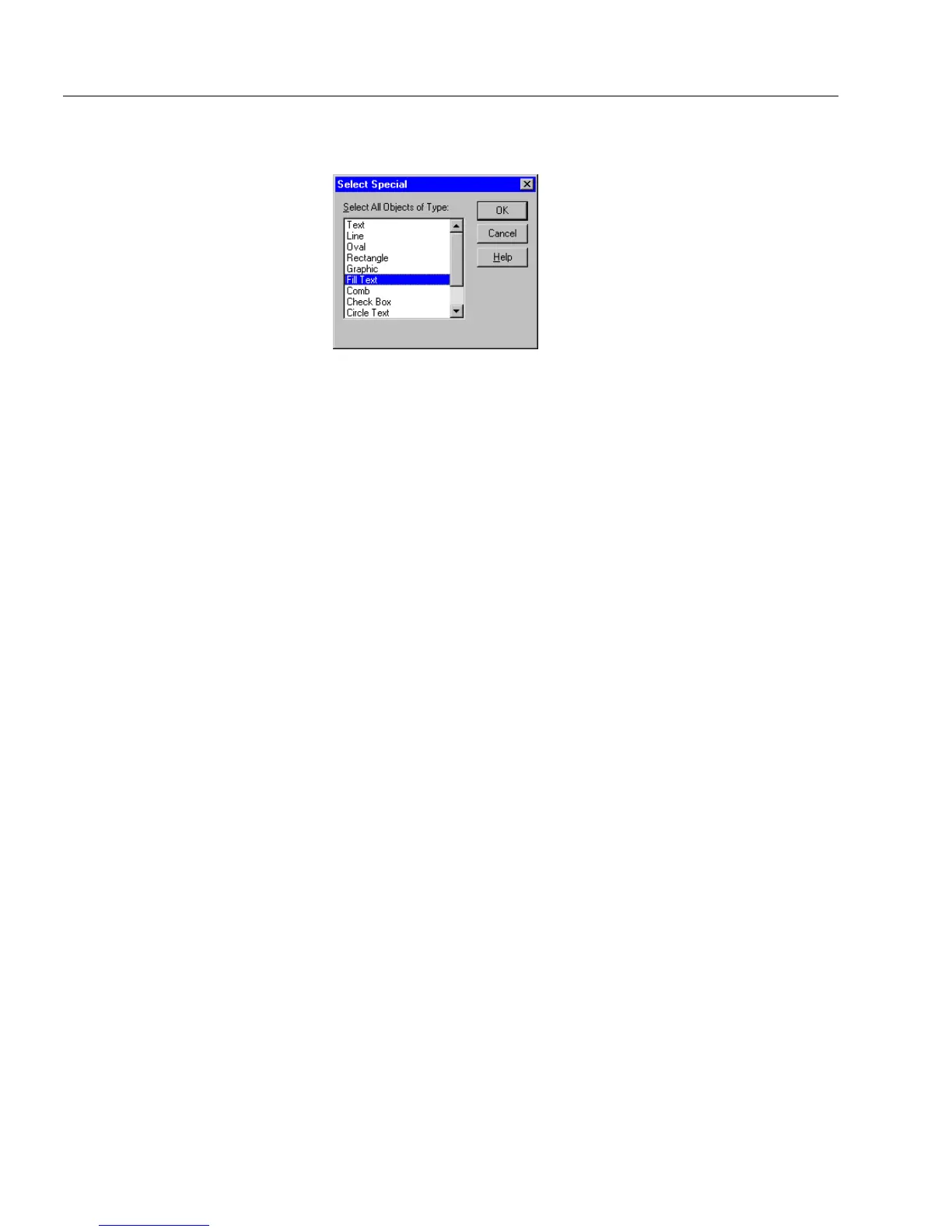
• Choose
Select Special...
in the Edit menu to select all objects of the
same type.
Moving an Object
You can move a selected object or objects in several ways.
• Hold down the mouse button and drag the selected object to
another location.
• Choose
Size and Position...
in the Format menu to position the
selected object precisely on the form.
• Use the
Align
commands in the Format menu or the
corresponding button in the arrange toolbar to align selected
objects.
• Use the
Bring to Front
and
Bring to Back
commands in the Format
menu or the corresponding buttons in the arrange toolbar to layer
overlapping objects.
• Hold down the Shift Key and drag a line handle to rotate it in
45-degree increments.
• Use the nudge/arrow keys to move the object(s).
Resizing an Object
You can resize a selected object in the following ways.
• Click any handle on the selected object, hold down the mouse
button and resize the object as needed.
• Hold down the Shift key before clicking a handle to:
Constrain an oval or a fill circle object to a circle shape.
Keep a line object straight.
Constrain any other object to a square shape.
• Or, choose
Size and Position...
in the Format menu to enter exact
measurements for an object’s size.



 To Next Page