Filling Fields
162 Chapter 6
Shrink Text to Fit Fields
When filling a form, the text you enter may not always fit in the fill text
fields. You can make your text automatically fit your fields.
To shrink text to fit fields:
1 Choose
Options...
in the Tools menu.
The Options dialog box appears.
2Click the
Filling
tab.
• Select
Automatically shrink text to fit within fields
if you want
this option.
• Deselect
Automatically shrink text to fit within fields
if you do
not want this option.
3Click
OK
.
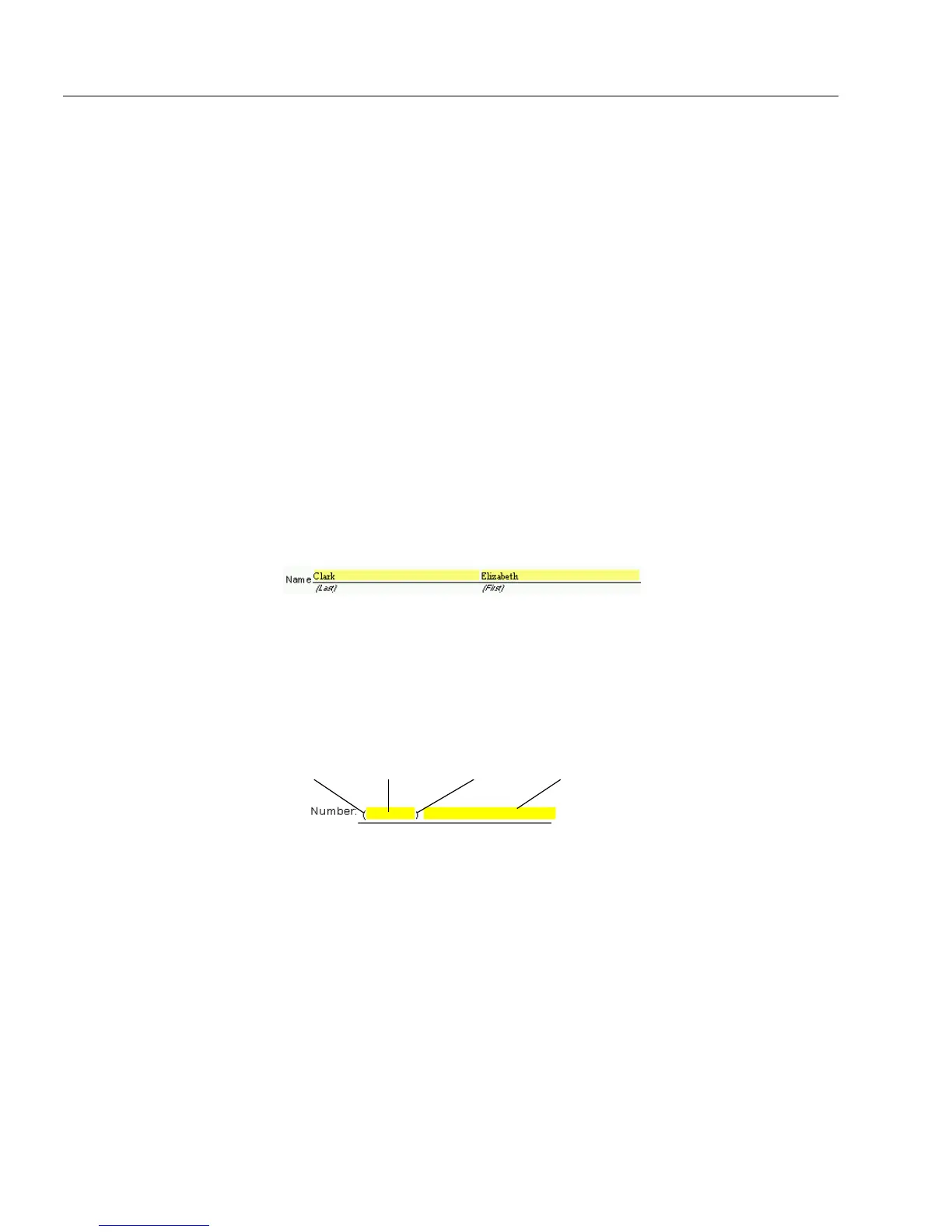
Fill Text
Enter characters in a fill text field: letters, numbers, symbols, dates, and
so forth. Fill text fields can contain any sort of textual information. The
example below shows
First
Name
and
Last Name
fill text fields.
Comb
Enter characters in a comb field: letters, numbers, or symbols
appropriate to the field. Phone numbers and zip codes are commonly
used comb fields. A comb field consists of individual comb
elements.
Each element can contain a different number of characters.
You do not have to tab from element to element in a comb field. Just type
the required amount of information and OmniForm automatically
moves the cursor to the next element as appropriate.
Check Box
Click a check box field to fill it. A check box field can contain one of three
elements: a check mark, an
X
, or a fill. The default value of a check box
is an
X
; but you can easily change it to a check mark or a fill.
prefill
element
3-character
element
prefill
element
8-character
element



 To Next Page