63
Define the display language of the Océ TCS500
How to change the display language of the controller applications
1. Open the 'View' menu of the controller application (Océ Settings Editor, Océ System
Control Panel, Océ Queue Manager).
2. Select 'Language'.
3. Select one of the languages.
The display language of the controller application changes to the selected language.
Note: If you connect to the controller from Océ Remote Logic
®
and you must change
the display language, all languages are available and only the display language of
your current application will change.
Note: If you use the controller applications locally on the controller you can only
toggle between the first language (default language) and the second language
(alternative language) and the display languages of all the controller applications
will change at the same time.
How to change the display language on the on-line screen of the printer operator
panel
Note: Only the first language (default language) and the second language
(alternative language) defined in the Océ Settings Editor are available on the
operator panels.
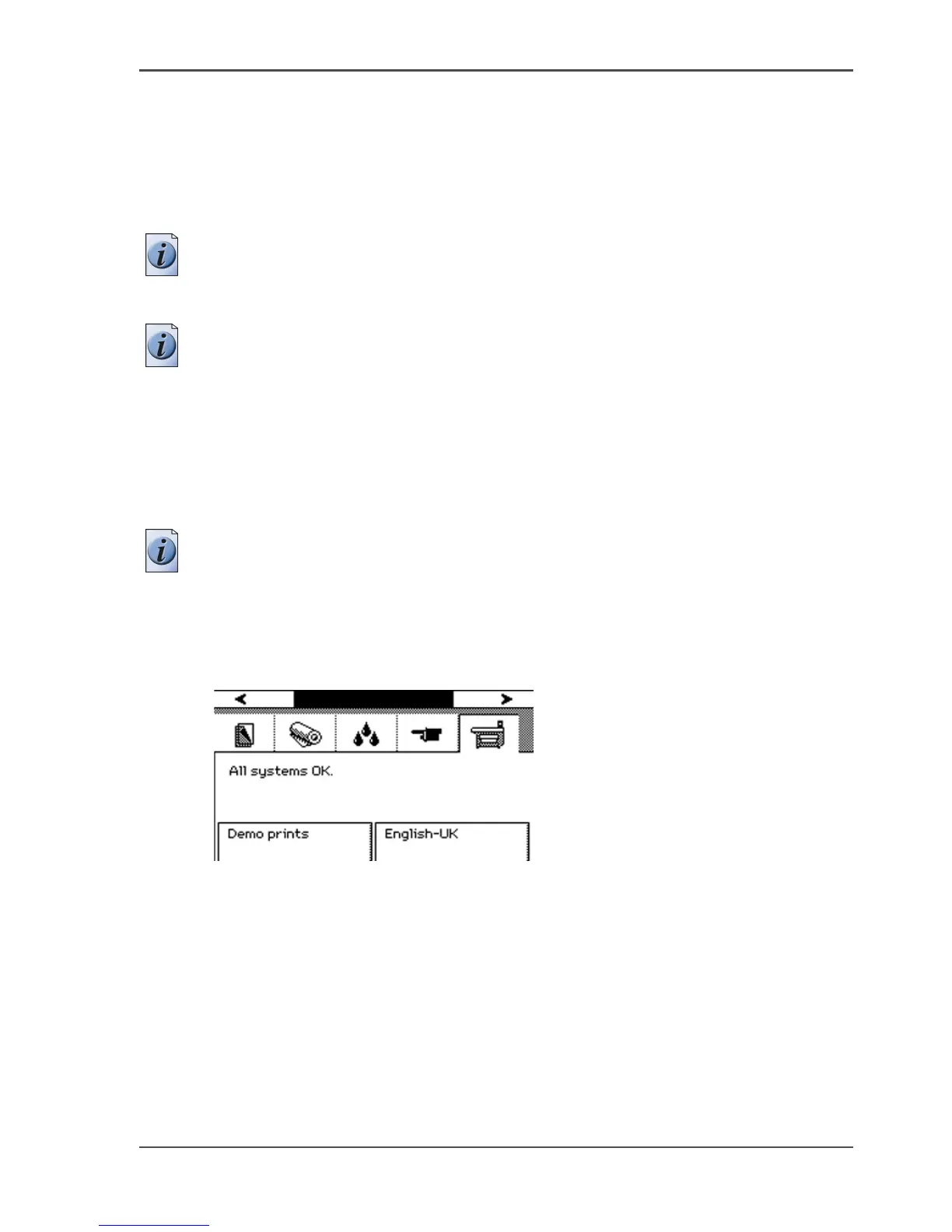
4. Use the upper softkeys to select the 'System' tab.
5. Press the lower right softkey to toggle between the first language and the second
language.
[37]
[37] Press the lower-right softkey to change the language



 To Next Page