67
Configure the network settings of the Océ TCS500
[40]
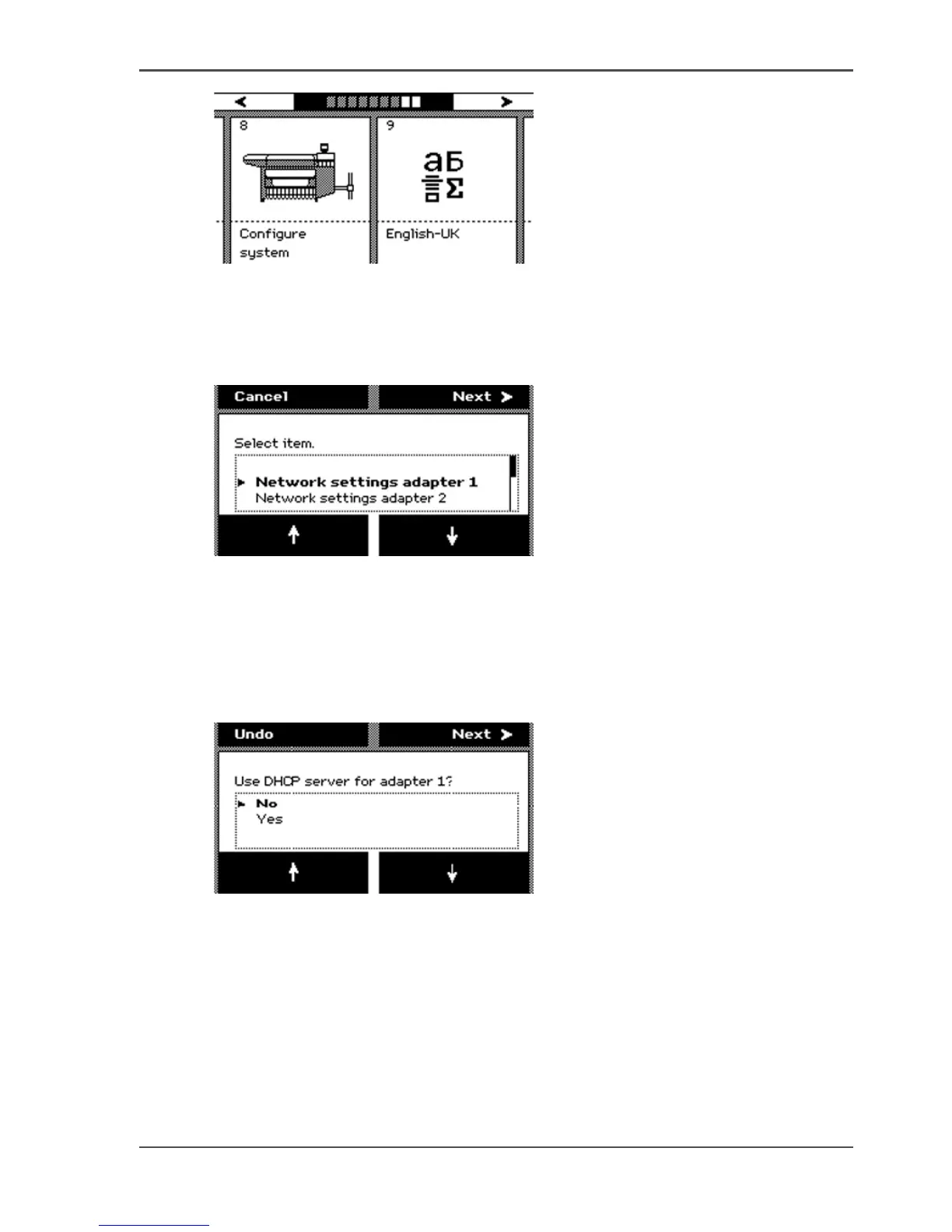
3. Press the softkey below the 'Configure system' card to enter the wizard.
The screen displays the message 'Use this wizard to configure the system.'
4. Press the key for 'Next'.
The screen displays the message 'Select item.'
5. Use the lower softkeys to select 'Network settings adapter 1'.
[41]
6. Press the key for 'Next'.
7. The screen displays the current settings for the selected adapter. The system
indicates which settings are received through DHCP with a round dot.
Use the lower softkeys to scroll through the settings. Press the key for 'Edit', to
change the network settings.
8. The screen displays 'Use DHCP server for adapter 1?'. Use the lower softkeys to
select 'Yes' or 'No'.
[42]
Continue with step 9 when you select 'Yes'.
Continue with step 10 when you select 'No'.
Press the key for 'Undo', to cancel your settings.
9. After you select 'Yes', press the key for 'Next'.
The wizard will lead you through a series of dialogs where you can enable DHCP or
define the IP addresses for the following.
■ The default gateway
■ DNS
■ WINS.



 To Next Page