90 Chapter 4 Use the PLC applications to control your workflow
The user interface of the Océ System Control Panel
The menu bar
[32]
The toolbar
Click the buttons on the toolbar of the Océ System Control Panel to check the status
of the items in the view area. If operator action is required, the appropriate button
will flash.
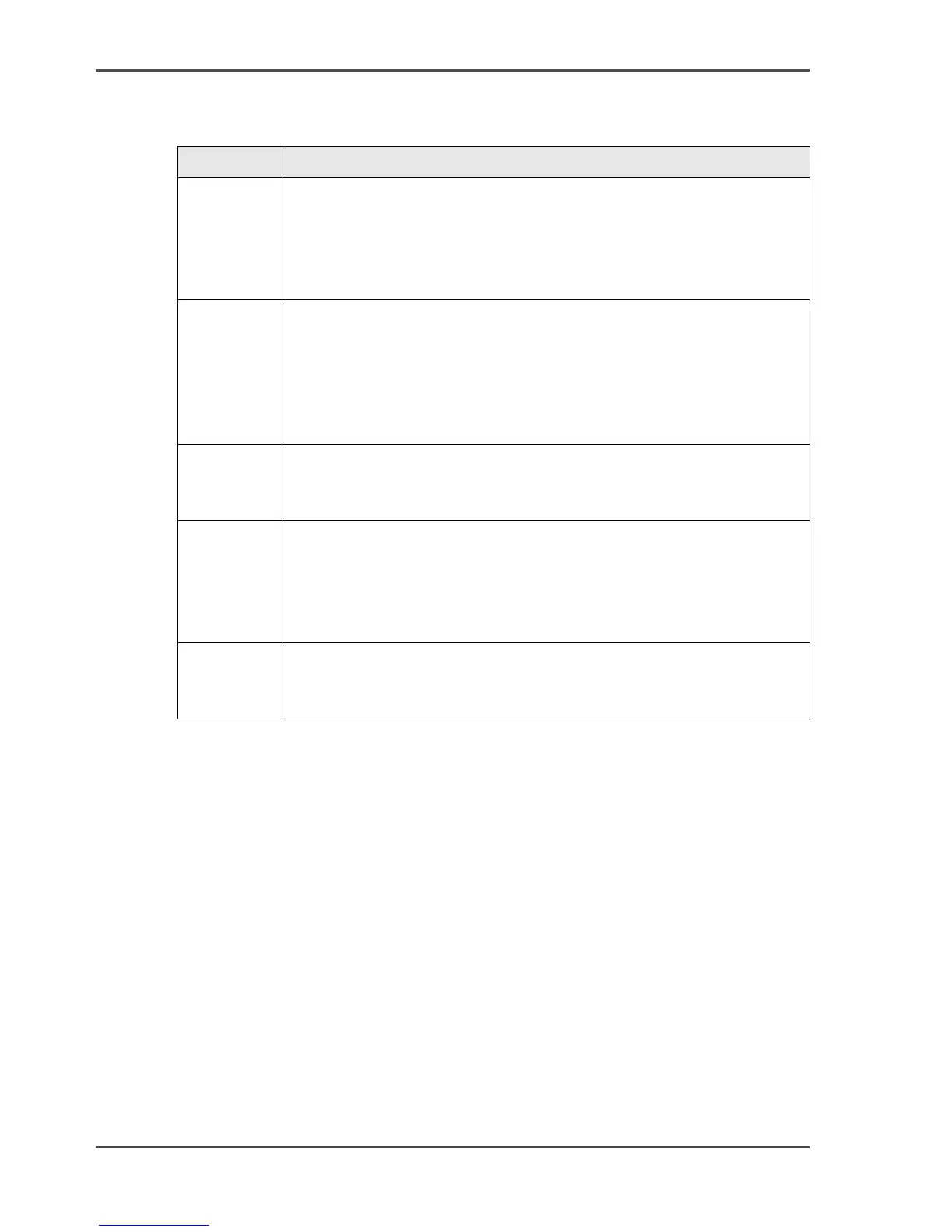
[32] The items of the menu bar
Menu Items
'File'
■ Click 'Log on' to select the user mode. Then enter the password.
■ Click 'Log off' to leave the user mode.
■ Click 'Connect to' and select a different controller (only for
remote users).
■ Click 'Close' to leave the Océ System Control panel.
'Edit' Click 'Options' to define the following.
■ The 'Host name'.
■ The 'Default system'.
■ The 'Automatic logon'. Use 'Automatic logon' to start up
automatically in the defined user mode.
■ Select the two screen languages.
'View'
■ Select one of the display languages for the application.
■ Display the items for the status control. Click an item to view the
status. The items correspond with the buttons of the toolbar.
'System'
■ Click 'Print settings' to print a report of the configuration
settings.
■ Click 'Demo print' to make a demo print.
■ Click 'Clear system' to remove all the jobs from the system.
■ Click 'Shut down' to shut down the system.
'Help'
■ Click 'Contents' to access the topics of the on-line help.
■ Click 'About' for general information about the Océ System
Control Panel.



 To Next Page