2.2 Using the radEAGLE Keys radEAGLE User Manual
Accept
Confirm your entry and have the radEAGLE check it for correctness. If your entry was
incorrect, you will be notified and the password entry will start over.
2.2.5 Saving Screenshots
You can save the contents of the radEAGLE’s display, for example, to document a certain
result or for your inhouse training material.
Ü To save a screenshot…
1. Press and hold .
2. Press .
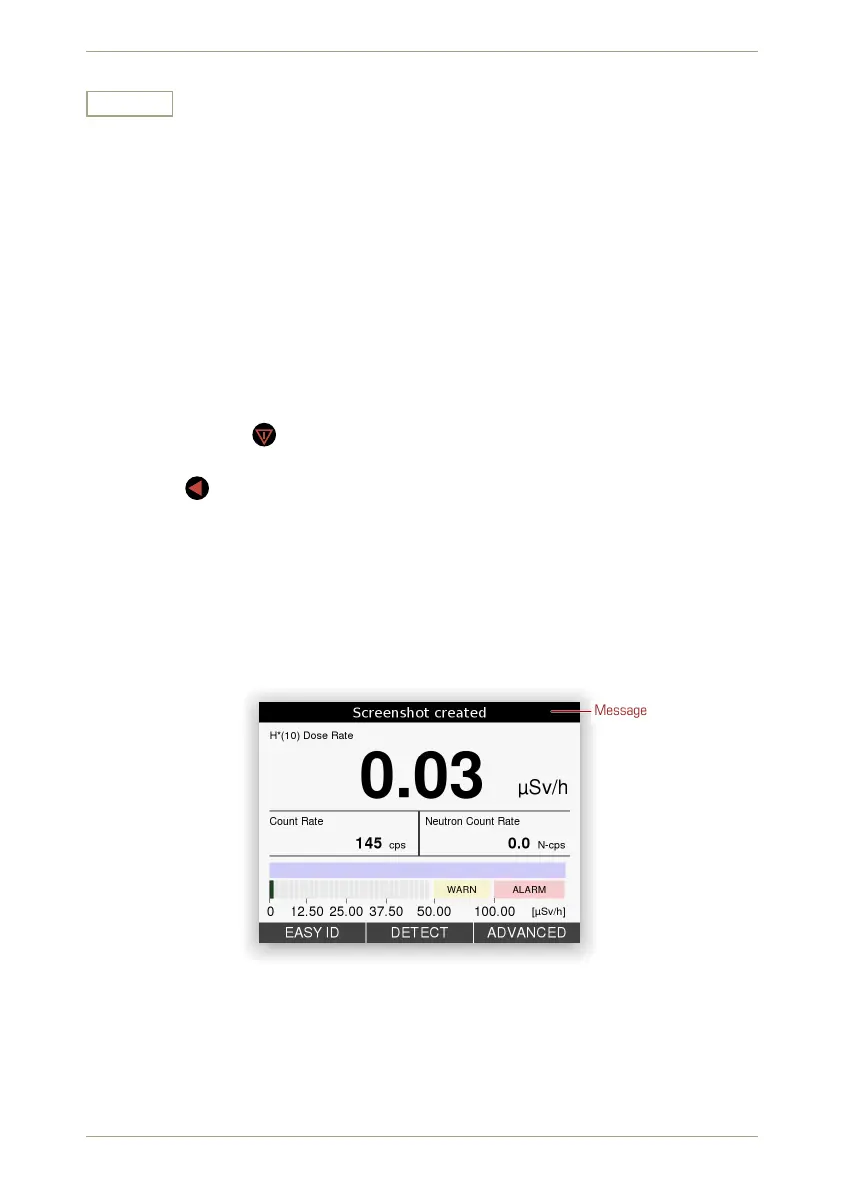
You will be informed that a screen shot was saved in the status bar of the display
(Fig. 16, p. 28). This message disappears after a moment.
The screenshot is saved as *.png image. The file name is is built from the technical
name of the current screen and the current date and time in ISO format, for example
DoseRateScreen 20181018-231111.png
.
Message
Figure 16: Status bar after saving a screenshot
For further processing screenshots, transfer them to your computer with, e.g., Storage
Management in the Web interface (see 7.10, p. 104), or a USB flash drive (see 5.11.2,
p. 59).
28/147 Software 3.2.12 • Document 3.3.0o © innoRIID GmbH • 2019-04-11



 To Next Page