5.1 Spectrum radEAGLE User Manual
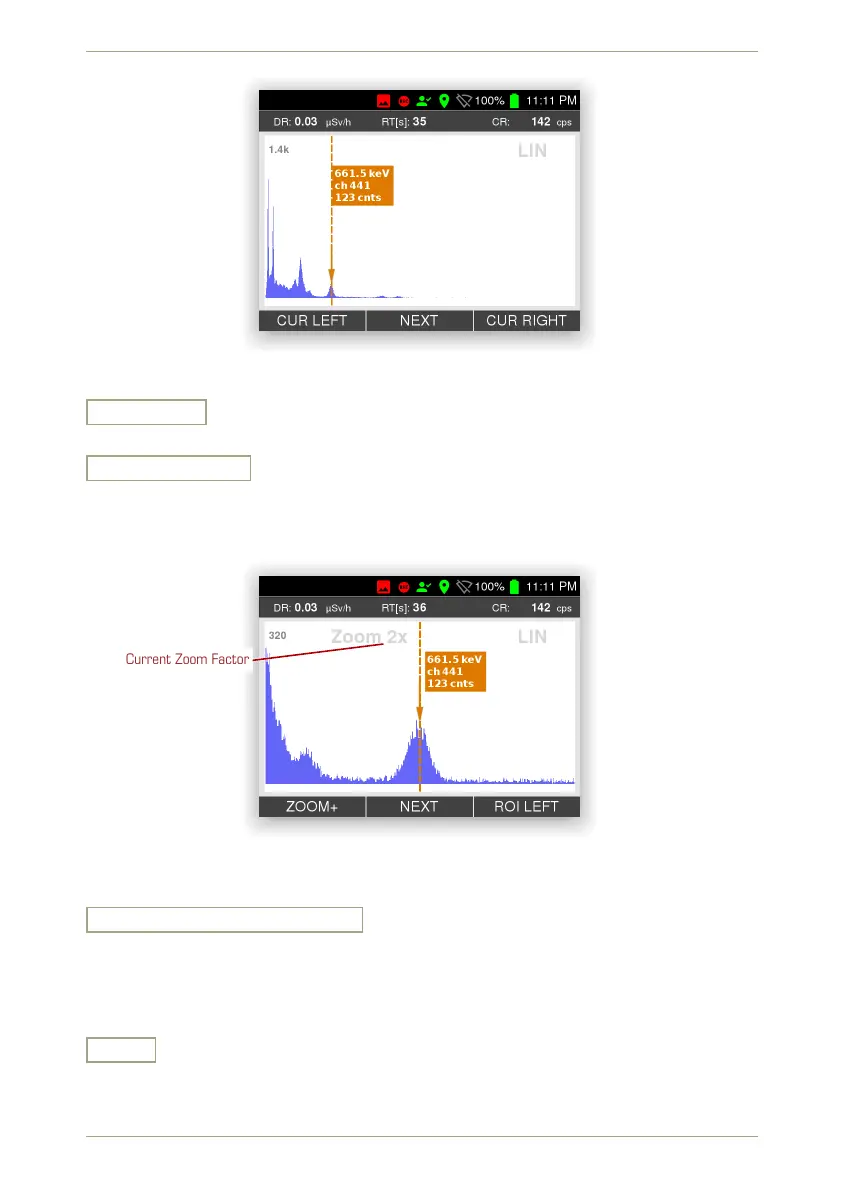
Figure 36: Spectrum with cursor
Cursor Left
Move the cursor (see above) towards the low-energy end of the horizontal axis.
Zoom + • Zoom -
Zoom into the spectrum in multiple steps. The command is available only while you
moved a cursor into the spectrum (see above) and the zoomed diagram will be cen-
tered around the cursor position.
Current Zoom Factor
Figure 37: Zoomed spectrum with cursor
The current zoom state is shown in the diagram (Fig. 37, p. 44)
ROI Left • ROI Right • Clear ROI
Specify a Region Of Interest, a part of a spectrum for closer inspection. Move the
cursor (see above) to the low-energy end of the region, set it as left end of the ROI,
move the cursor again and set the right end. The radEAGLE fits a peak to the ROI and
displays the centroid energy and the number of counts for the ROI (Fig. 38, p. 45).
Save
Save the current spectrum in the radEAGLE database. You can load saved spectra for
further analysis later (see below) or transfer them to a computer for further perusal.
44/147 Software 3.2.12 • Document 3.3.0o © innoRIID GmbH • 2019-04-11



 To Next Page