5.10 Bluetooth Settings radEAGLE User Manual
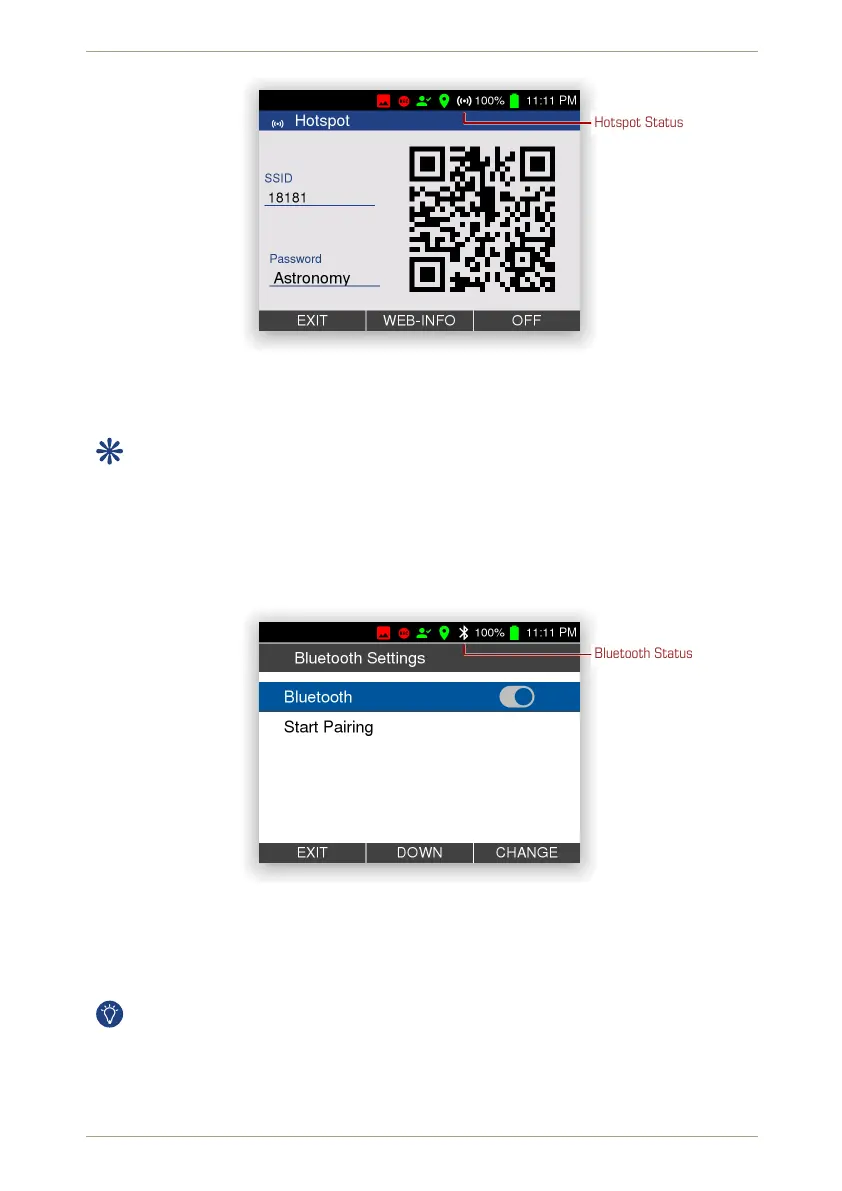
Hotspot Status
Figure 53: Hotspot: Access credentials
5.10 Bluetooth Settings
This item is available while a Bluetooth dongle is plugged into the radEAGLE’s USB-A
port.
This screen groups settings and status information to pair your radEAGLE with a Bluetooth
equipped device like a smart phone to access the radEAGLE’s Web interface or to share
the Internet connection.
You can switch Bluetooth on or off (Fig. 54, p. 56) and start pairing with an external device.
Bluetooth Status
Figure 54: Bluetooth settings
Initially the radEAGLE knows no Bluetooth devices (Fig. 55, p. 57).
Follow the instructions displayed to initiate the pairing. The paired device will be shown
(Fig. 56, p. 57) and is ready for connection.
The radEAGLE remembers all devices it has been paired to. If your desired device is
already known, just choose it from the list.
After the connection is established, the IP address to access the Web interface is shown
(Fig. 57, p. 58) as text and as QR code for devices equipped appropriately.
56/147 Software 3.2.12 • Document 3.3.0o © innoRIID GmbH • 2019-04-11



 To Next Page