Configuration Wizard
900-0117-01-00 Rev B 127
Saving the Profile to an SD Card
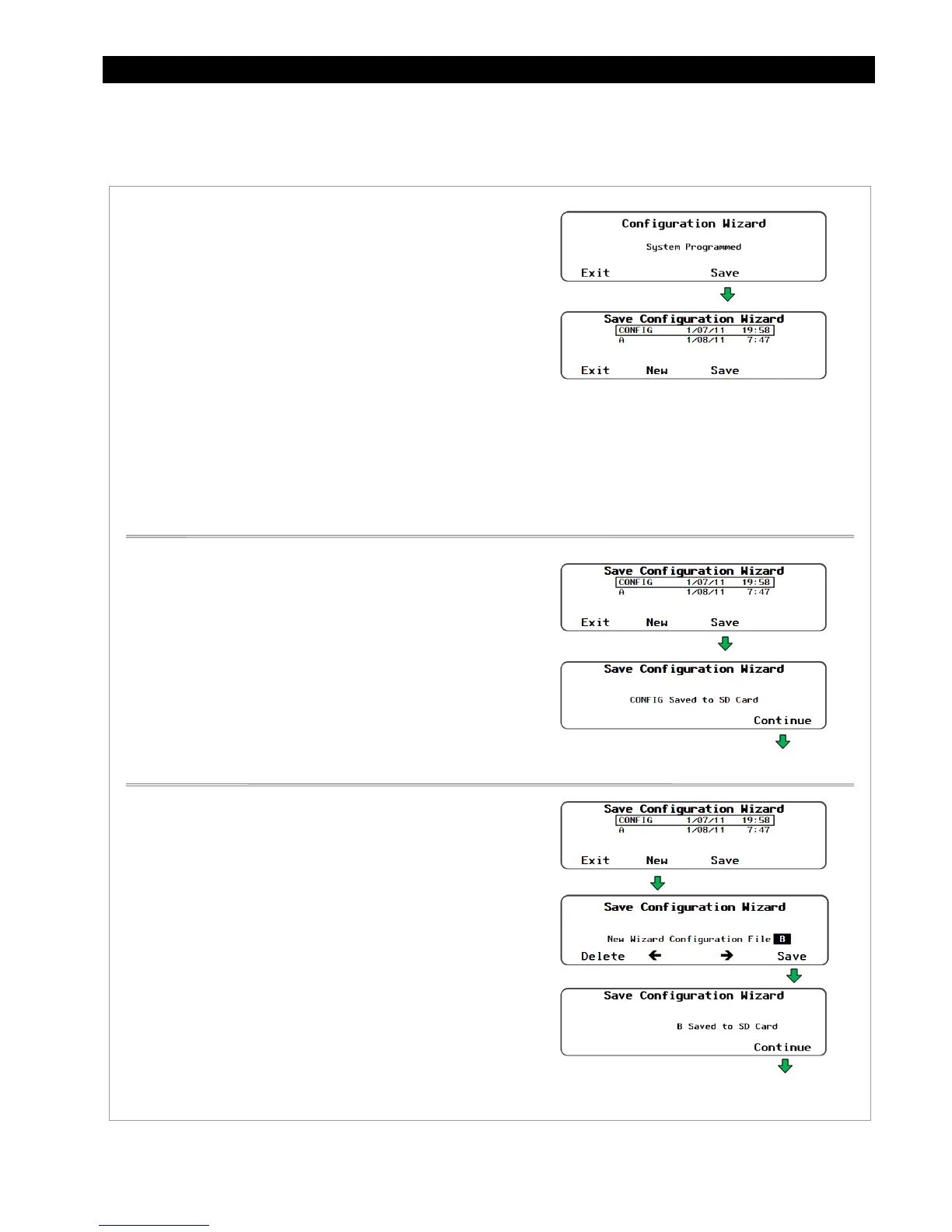
Once the settings are applied to the system, they can be saved to an SD card for future use.
Figure 152 Saving the Configuration to an SD Card
To save a configuration to an SD card:
1. From the
System Programmed
screen (see Figure 148),
press <Save>. The
Save Configuration Wizard
screen
will appear.
2. If other profiles have been saved on the SD card, a list will
be displayed. Choose one of the following options.
Press <Save> to save the new settings over the name
that is selected on the list.
OR
Press <New> to create a new name for the profile.
See the instructions below for entering a new name.
OR
Press <Exit> to exit without saving and returns the
user to the
Main Menu
.
3. After saving the profile to the SD card is complete, press
<Continue>
to return to the
Main Menu
.
To save the new profile over the name highlighted on the list:
1. Use the control wheel to scroll through the list.
2. When the name to be replaced is highlighted, press <Save>.
3. Wait for the message confirming that the profile has been saved
to the SD card.
4. Press <Continue> to return to the
Main Menu
.
To create a new name for the profile (up to 8 characters
maximum):
1. Use the control wheel to scroll through the available characters.
2. Use <> and <> to move to the next character location.
3. Press <Delete> to erase the character that is highlighted.
4. Press <Save> to save the new profile on the SD card.
5. Press <Continue> to return to the
Main Menu
.
NOTE: If the SD card is empty, pressing the
<Save> soft key will automatically
default to the
New Wizard
Configuration File
menu to allow
a name to be entered (up to
8 characters maximum).
Returns to the
Main Menu
.
Returns to the
Main Menu
.
See the sample data log on page 130.


 To Next Page