Presets 101
500ML Lighting Control Console
Operation Guide
Deleting an Effect
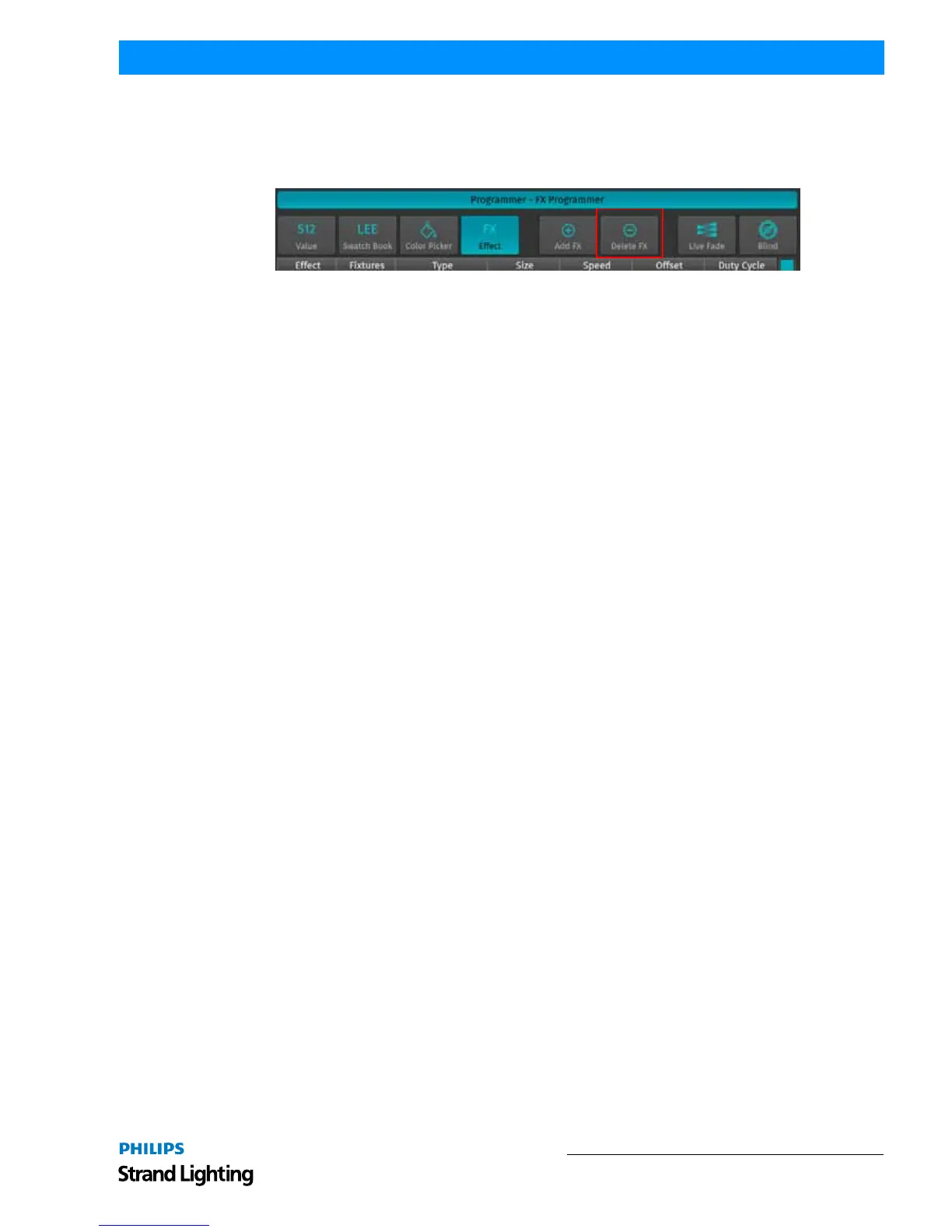
To delete an effect, you first need to select the effect you would like to delete by clicking on the button that reads the
effect type and parameter shown in the first column of the Effects Programmer. Make sure you only have the effects
selected, which you would like to delete. Now, click on the Delete FX button as indicated in Figure 182.
Figure 182: Delete FX Button
7. Presets
Working with Presets
Presets aid to simplify the programming process by allowing user-defined 'elements' to be created and then used as a
toolkit to build your cues. Once you created a Preset, such as a couple of moving lights pointing at a particular
position on stage, you may recall those settings at any point, and record them into cues.
The biggest advantage of using Presets is that they are only stored into cues as a reference, rather than the parameter
values that the Preset contains. If you later decide to change the Preset, all cues that have been recorded using this
Preset are also changed. This is especially useful if, in example, the position of a set-piece on stage is moved, and
moving lights have been programmed to light it. The preset can be updated once to accommodate the change, rather
than reprogramming the change in every cue lighting the set-piece.
This is a very powerful feature that allows you to make global changes to the show very simply and quickly, rather
than having to re-program every cue individually.
Presets allow intensity, focus (position attributes), color, and beam parameters to be recorded to be easily accessible
during programming and live operation.
• Presets are stored in Preset pools, which are divided into Sub Pools: All, Intensity, Focus, Color & Beam.
• Each Pool type will filter attributes stored into the presets by its equivalent type.
• An All Preset Pool will store all attributes, whereas a Color Preset Pool will only store color attributes.
Presets are only applicable to fixtures that had values set while storing the preset, but may be recalled by some of the
fixtures only.
For example, you have recorded a preset containing only Pan and Tilt for Fixtures 501 through 510. This preset is not
applicable to Fixtures 511 and 512. However this preset may also be recalled by fixture 501 and 504 only.
For more information on recalling presets, please see section "Recalling a Preset as a Reference" on page 106.
If you wish to use a Preset as a programming tool, where later changes to the Preset will not cause cues to be updated,
please read section "Recalling a Preset as a Hard Value" on page 106.
Storing Presets
Storing a Preset in Preset Pool Window
Once you created a look you would like to store as a preset, press and hold the [REC] key and simultaneously press
the [PRESET] key. The Preset Pool (Figure 183 on page 102) window will open. Select the Preset Pool type using the
Preset Pools toolbar and select any empty pool item to store the preset - i.e., Preset 1.



 To Next Page