Operation Guide 500ML Lighting Control Console
74 Programming
Merge Fixtures into Groups
Sometimes you may need to add some fixtures to a group that already exists. To do so, first select the fixtures you
would like to add.
Merge Fixture(s) into Group using Group Pool Window
Press and hold the [REC] key and then press the [GROUP] button. As shown in Figure 124 on page 73, the Group
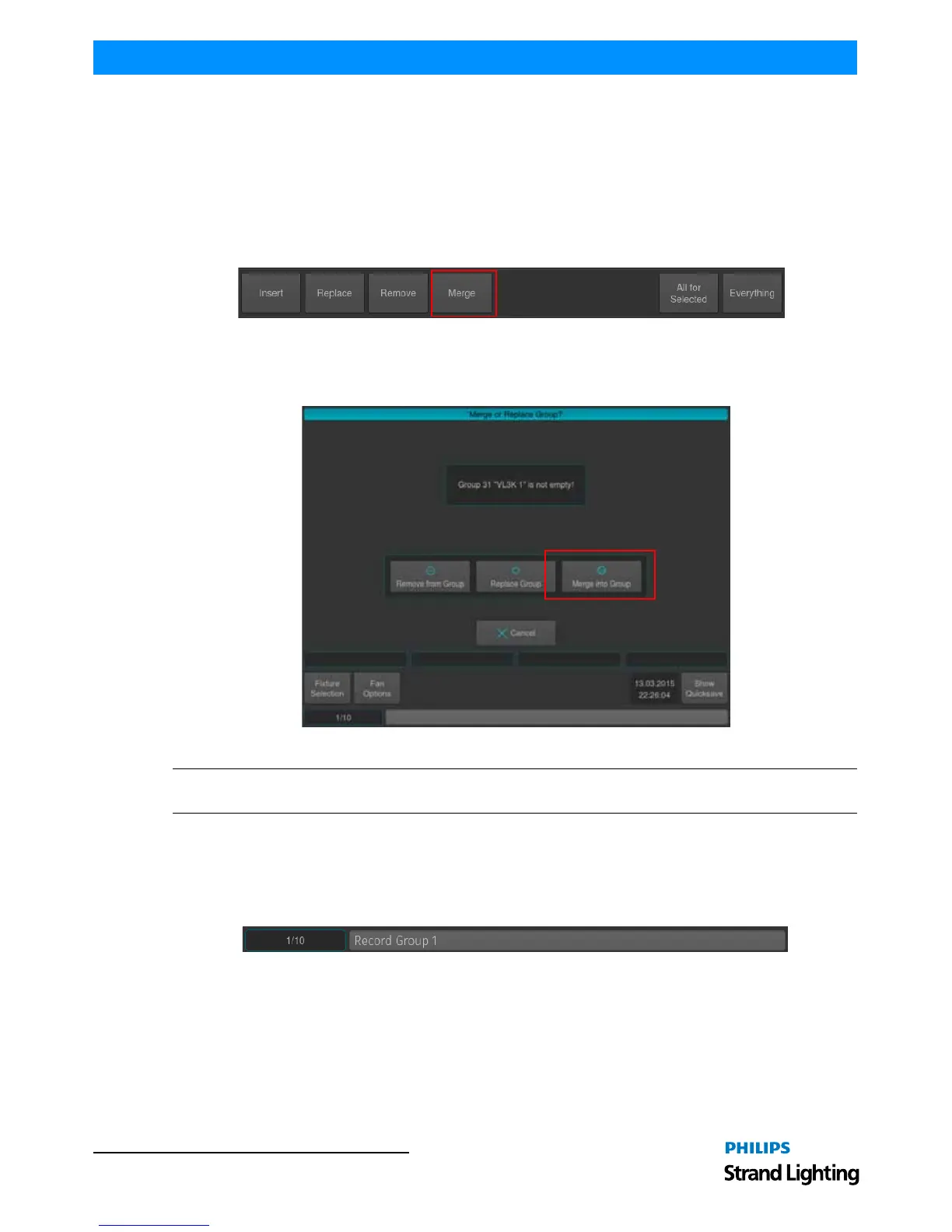
Pool window will appear. You may now select the Merge Option in the Record Toolbar (Figure 126). Select the
Group you would like to merge the new Fixture to.
Figure 126: Record Toolbar - Merge Option
If you did not select an option from the Record Toolbar, a dialog window asking you what to do will open up (Figure
127). Click on Merge into Group.
Figure 127: Merge or Replace Group? Window
Note: You may also hit the [REC] key only, and select the target Group Item in the External Monitors Group Pool
Window.
Merge Fixture(s) into Group using Command Line Interface
Press the [REC] key, followed by the [GROUP] key. You may now select the Merge Option in the Record Toolbar
(Figure 126). Now just type the number of the group you would like to add the Fixtures to via the console's keypad
such as [1] followed by [ENTER].
Figure 128: Command Line Interface
If you did not select an option from the Record Toolbar, a dialog window asking you what to do will open up (Figure
127). Click on Merge.
Removing Fixtures from Groups
To remove fixtures from a group, at first select the fixtures you would like to remove.



 To Next Page