Programmer Options 91
500ML Lighting Control Console
Operation Guide
Examples:
Fan Mode Options
By default, fanning adjusts attribute values from the center of the fixture selection. You can have fanning work in
other ways, too.
You may set the fan mode from the Fan Options toolbar. To open the fan options toolbar, hit the Fan Options button
from within the default toolbar, as shown in Figure 161.
Figure 161: Default Toolbar - Fan Options
After doing so, the Fan Options Toolbar will be shown (Figure 162).
Figure 162: Fan Options Toolbar
Note: The name of the fan indicates the fixture that will move the least.
Fan Options - Left
The first fixture in the selection order remains unchanged, while the values of the last fixture change
the most.
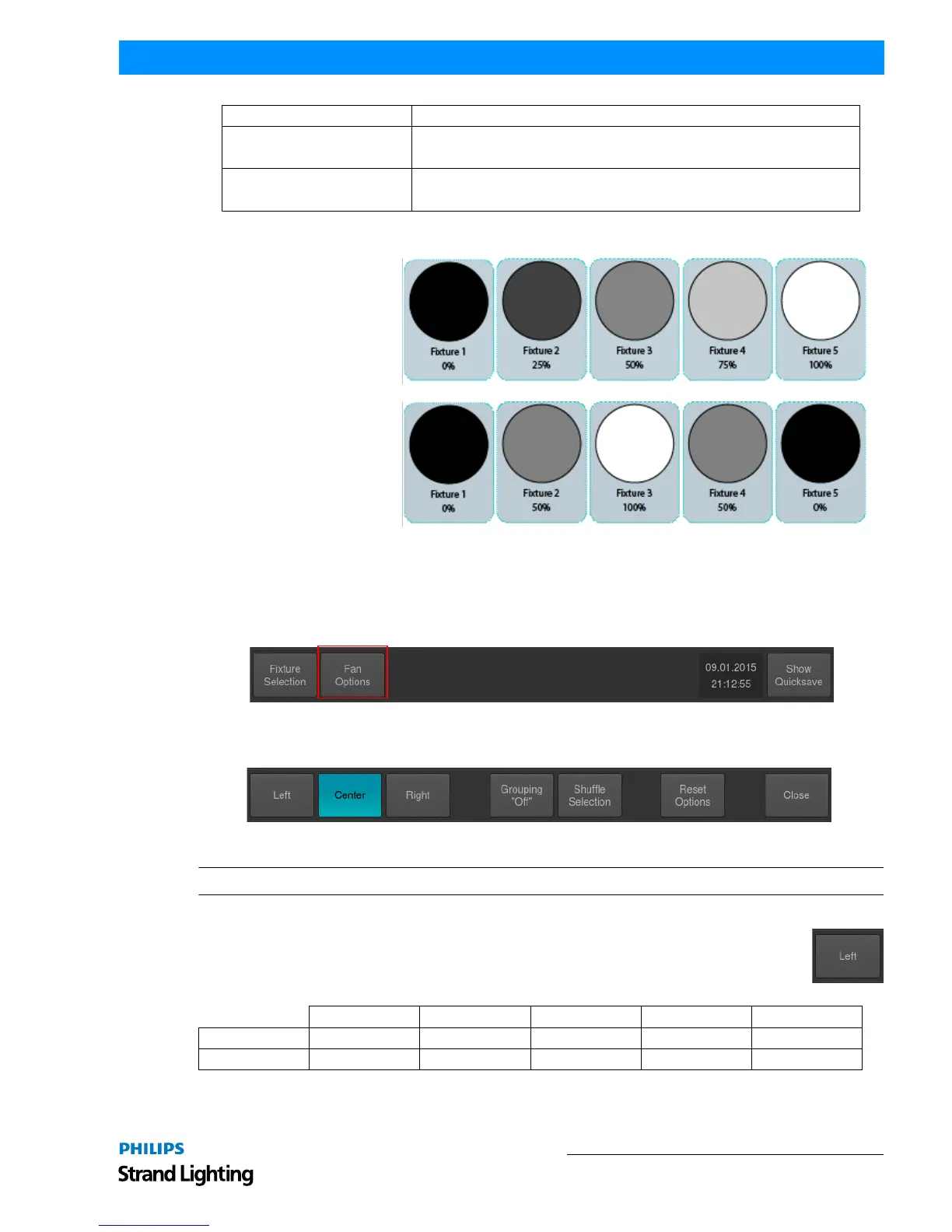
[VALUE A] [THRU] [VALUE B]
Will fan the Intensity for selected fixtures from [VALUE A] to [VALUE B]
For Example: [0] [THRU] [100] with 3 selected fixtures will set fixture 1 to 0%, fixture 2 to 50%
and fixture 3 to 100%.
[VALUE A] [THRU] [THRU] [VALUE B]
Will fan the Intensity for selected fixtures from [VALUE A] to [VALUE B] and back to [VALUE A].
For Example: [0] [THRU] [THRU] [100] with 5 selected fixtures will set fixture 1 and 5 to 0%,
fixture 2 and 4 to 50% and fixture 3 to 100%.
Fixture 1 Fixture 2 Fixture 3 Fixture 4 Fixture 5
Before Fanning 50% 50% 50% 50% 50%
After Fanning 50% 60% 70% 80% 90%
Keypad Entry Meaning



 To Next Page