Operation Guide 500ML Lighting Control Console
106 Programming
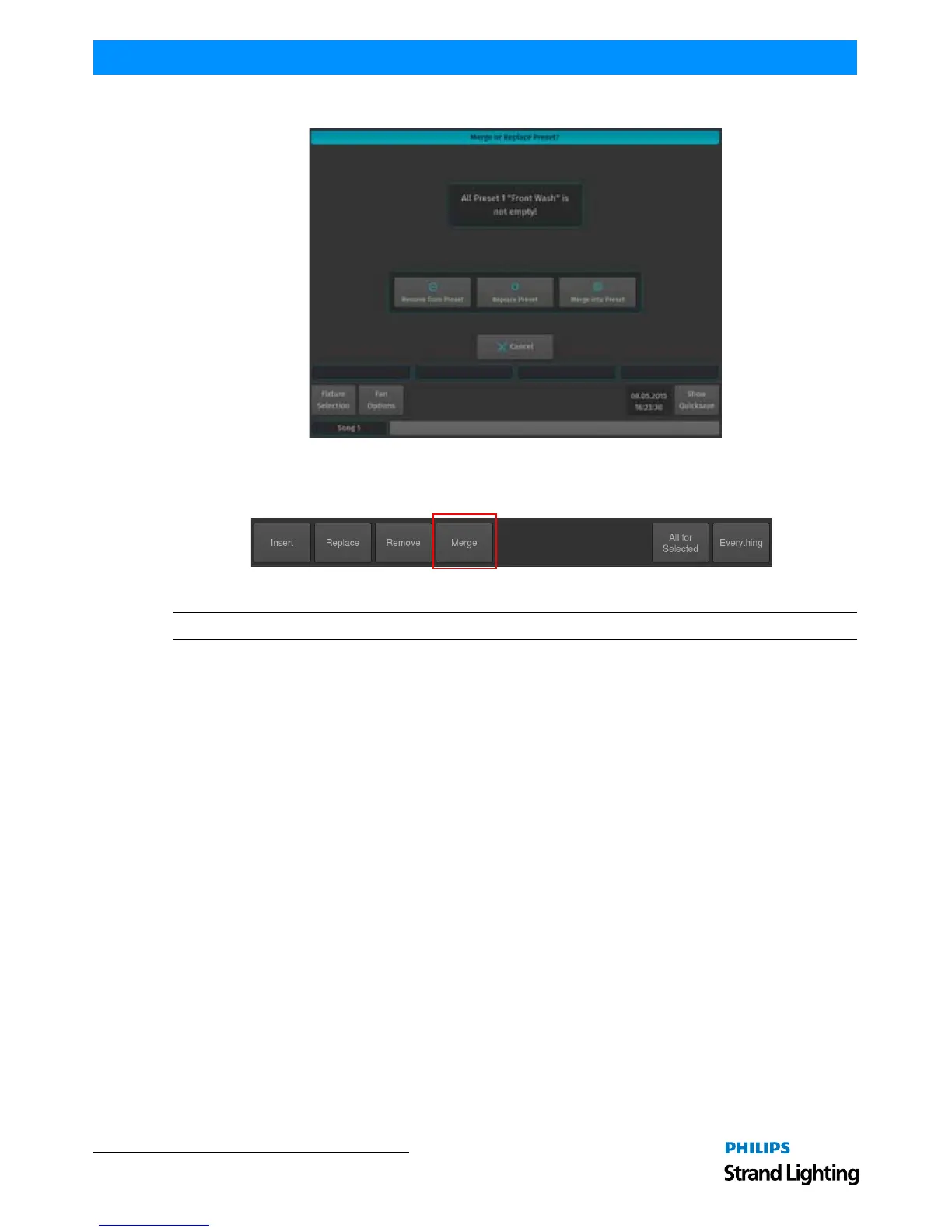
Figure 192: Merge or Replace Preset - Merge
Alternatively, you may also select Remove from the Record toolbar (Figure 193) after hitting the [REC] Key, which
will prevent the "Not Empty - What to do?" Window from opening.
Figure 193: Record Toolbar - Merge Button
Note: Merge does not remove any values from a Preset!
Recalling a Preset as a Reference
If you select Presets this way, they will be recorded into Cues as a reference, rather than the value.
Selecting Presets Using Preset Pool Window
Press and hold the [OPEN] key and press the [PRESET] button. The "Preset Pool" window (Error! Reference source
not found.) will open. Select the appropriate Preset Pool type using the Preset Pools toolbar. Now you can simply
select and deselect presets by clicking on them.
Alternatively, you may select any preset using the external monitor's Preset Pool.
Selecting Presets Using Command Line Interface
Press the [PRESET] key. In the Command Line Interface, using the keypad, type the number of the preset you would
like to select - i.e., [1] followed by [ENTER]
Recalling a Preset as a Hard Value
If you select Presets this way, they will be recorded into Cues as a hard value, rather than being referenced by the cue.
Selecting Presets Using Preset Pool Window
Press and hold the [OPEN] key and press the [PRESET] button. The Preset Pool window (Figure 183 on page 102)
will open. Now, hold down the [SHIFT] key while selecting and deselecting presets by click-ing on them to load their
values into the programmer.
Alternatively, you may select any Preset using the external monitor's Preset Pool. However, the [SHIFT] key acts as a
modifier and will cause the preset to be loaded as values, rather than the Preset reference.



 To Next Page