Operation Guide 500ML Lighting Control Console
34 OPERATION
Setting Time and Date
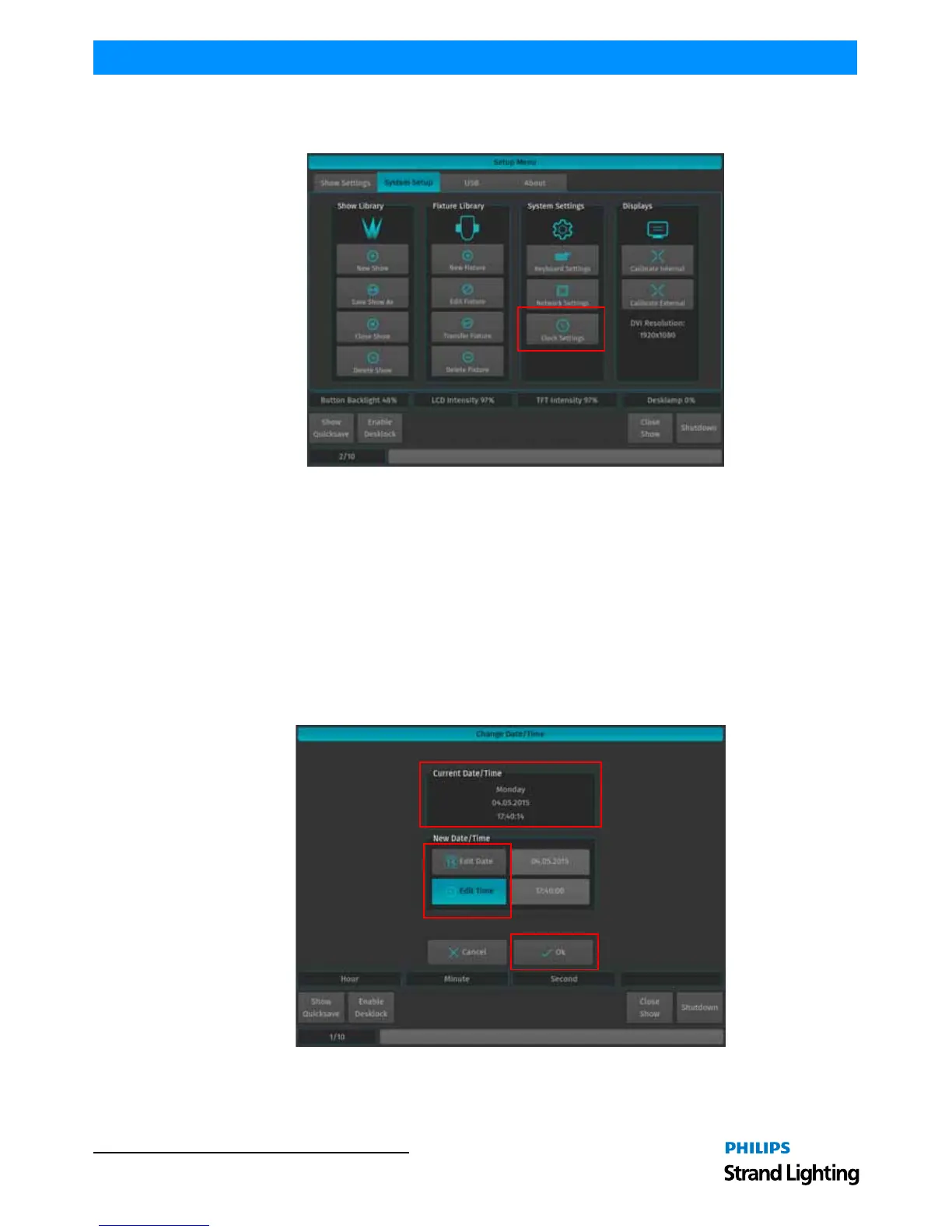
From within the System Setup Tab, click on Clock Settings to open the Change Date / Time window..
Figure 46: Clock Settings Button
The Change Date/Time window will appear (Figure 47). The current settings for Day, Date, and Time will be shown.
You can edit these settings as desired (note, the day is linked to the date).
Change the Date
To change system Date, click on Edit Date. Use the encoders to adjust the date. Please note the labels on the Encoder
Bar will change to read Day, Month and Year.
Change the Time
To change the system Time, select Edit Time. Use the encoders to adjust the time accordingly. Please note the labels
on the Encoder Bar will change to read Hours, Minutes and Seconds.
Once settings are adjusted, you can save and close the window by clicking the Ok button.
Conversely, you can abandon any changes by clicking the Cancel button.
Figure 47: Change Date / Time Window



 To Next Page