Fixture Library Editor 149
500ML Lighting Control Console
Operation Guide
14. Fixture Library Editor
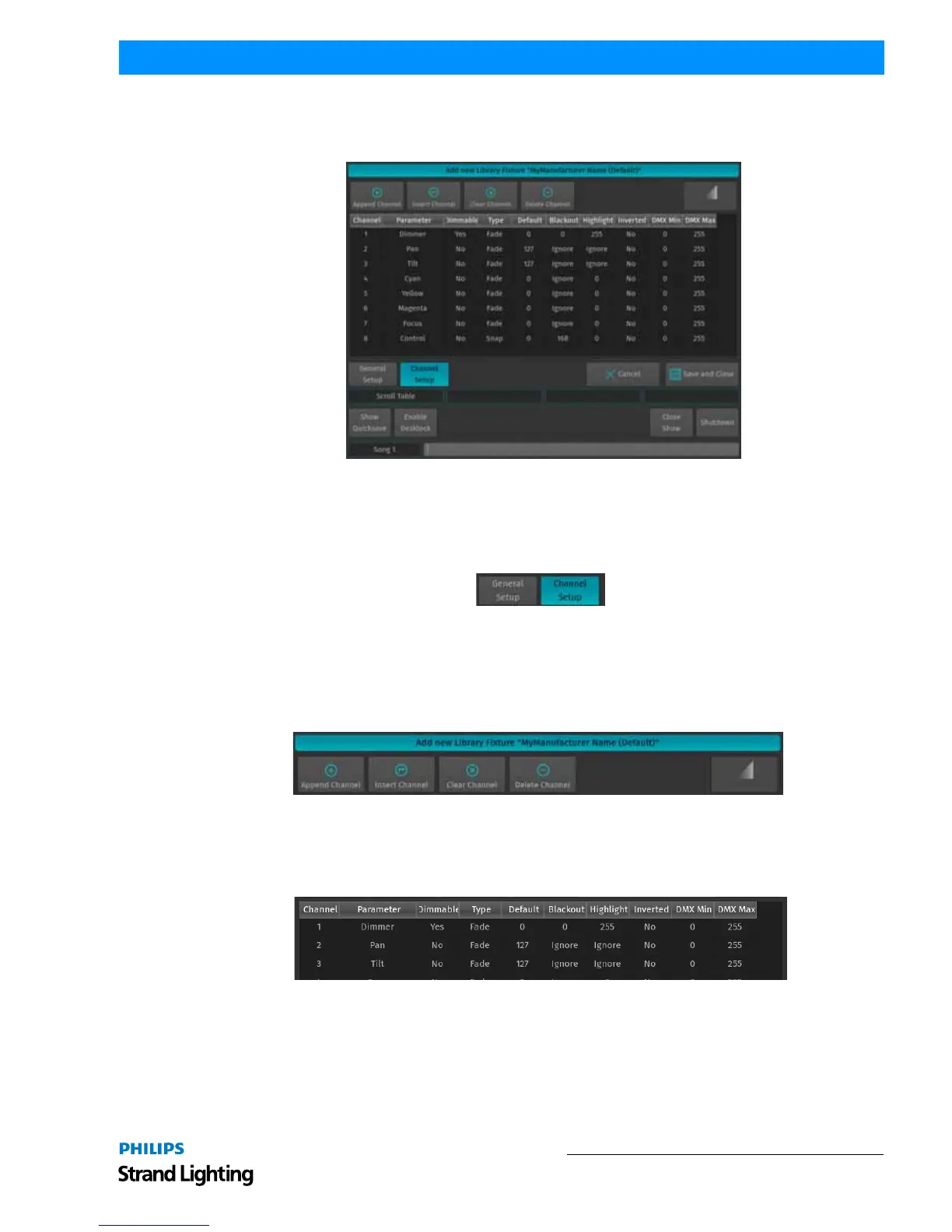
This section explains the Library Editor that is used throughout the library creation or edit process.
Figure 269: Fixture Library Editor
The Library Editor consists of two different Pages, one that contains the General Setup of a fixture (like Name, Short
Name, Mode and Pan / Tilt Range), and one that contains the Parameter Mapping. The Channel Setup page will
always be displayed first. To switch to the General Setup, press the General Setup Button in the lower left corner of
the screen.
Figure 270: General Setup / Channel Setup Options
Channel Setup Mode
In Channel Setup Mode, the top row of buttons (Figure 271) is used to append or insert new channels, clear a
channels mapping or to delete a channel completely. Additionally, it may be used to add a Virtual Dimmer to the
Fixture, if Color Mixing attributes are present.
Figure 271: Library Editor: Channel Setup Menu Bar
With Channel Setup page shown, a table showing the mapping of the DMX Channels of a Fixture to the Fixtures
Parameters is shown. Select the cell with the value you would like to change. Press the [SET] key and enter the
desired value.
Figure 272: Library Editor: Channel Mapping Table
• Channel: This column indicates the Channel number, which may not be changed. You may append or Insert chan-
nels using the Menu Bars Add Channel or Insert Channel Button.
• Parameter: This is the parameter that is mapped to this channel. To open the Parameter Selection Screen, select this
cell and press the [SET] key.



 To Next Page