Working with Groups 79
500ML Lighting Control Console
Operation Guide
Deleting Groups
Deleting Groups using Group Pool Window
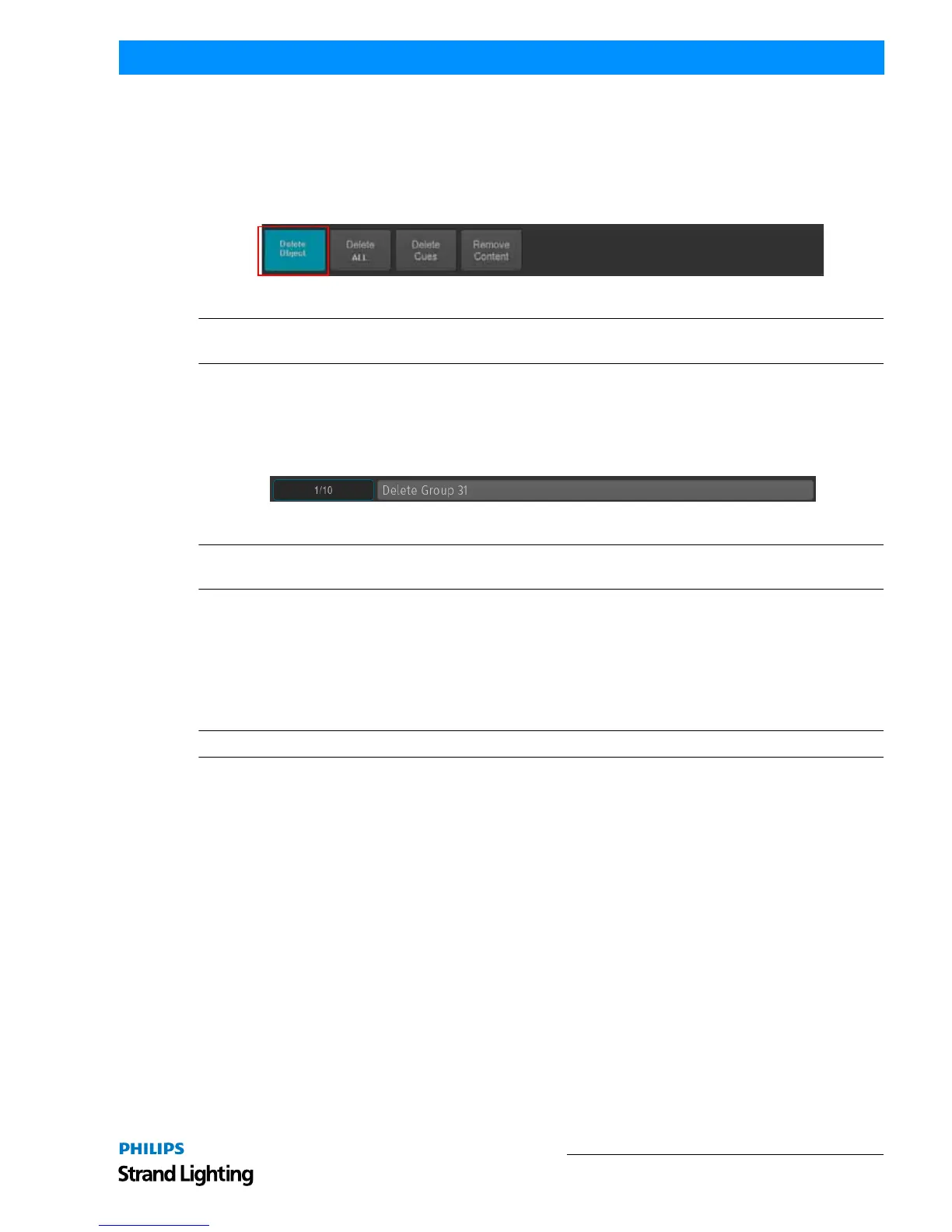
Press and hold the [DELETE] key while holding down the [GROUP] key. The Group Pool window and delete toolbar
will be shown. Make sure Delete Object is selected on the delete Toolbar. Now select the Group you would like to
delete.
Figure 140: Delete Toolbar
Note: When holding the [DELETE] Key while selecting a Group for deletion the confirmation of deletion dialog will
be omitted and the Delete Keyword in the command line will remain active.
Deleting Groups using Command Line Interface
You may delete groups using the command line approach by pressing the [DELETE] followed by the [GROUP] key
and the ID of the Group you would like to delete, ie. [31]. Please note you may delete multiple groups by extending
the selection using the [+], [-] and [THRU] keys. Hit [ENTER] to complete the command.
Figure 141: Command Line Interface - Delete Group
Note: When holding the [DELETE] Key while selecting a Group for deletion the confirmation of deletion dialog will
be omitted and the Delete Keyword in the command line will remain active.
Creating a Group Dimmer Master
Group Dimmer Masters allow you to limit the intensity of a specific fixture group. If the Group Master is at full, then
the fixtures that this group contains will be at the level determined by the playbacks, Programmer, and so on. When
the master's level is reduced, the contained fixtures intensity will be reduced in proportion to the master. For example,
if you have the fixture at 80% intensity in a cue that is being output, and the master of the group is at 50%, a fixture
intensity value of 40% will be output.
Note: Group and Fixture Dimmer Masters are compared HTP, so the highest master will take precedence.
There are two ways to assign a Group to a Dimmer Master:
Using the Command Line Interface
Press the [ASSIGN] key, followed by the Group's ID, in example: [GROUP] [1]. Now select the [GO], or [PAUSE/
BACK] key of the fader that should act as the Dimmer Master.
Using the Fixture Pool Window
You may also use the Command Line Interface paired with visual fixture selection:
Hit the [GROUP] key while striking the [ASSIGN] key. The Group Pool window will be shown. Now select the
Group from within the Pool Window followed by the [GO], or [PAUSE/BACK] key of the fader that should act as the
Dimmer Master.
For more information on how to configure the Master Dimmer Faders, please see the Off Window (Figure 142 on
page 80).
The Off Window may be used to easily switch off running cuelists and to get an overview of the current Playback
state.
To Open the Off Window, press the [OFF] button and select Off Window from the Off Toolbar.



 To Next Page