Operation Guide 500ML Lighting Control Console
72 Programming
Edit Fixture Window
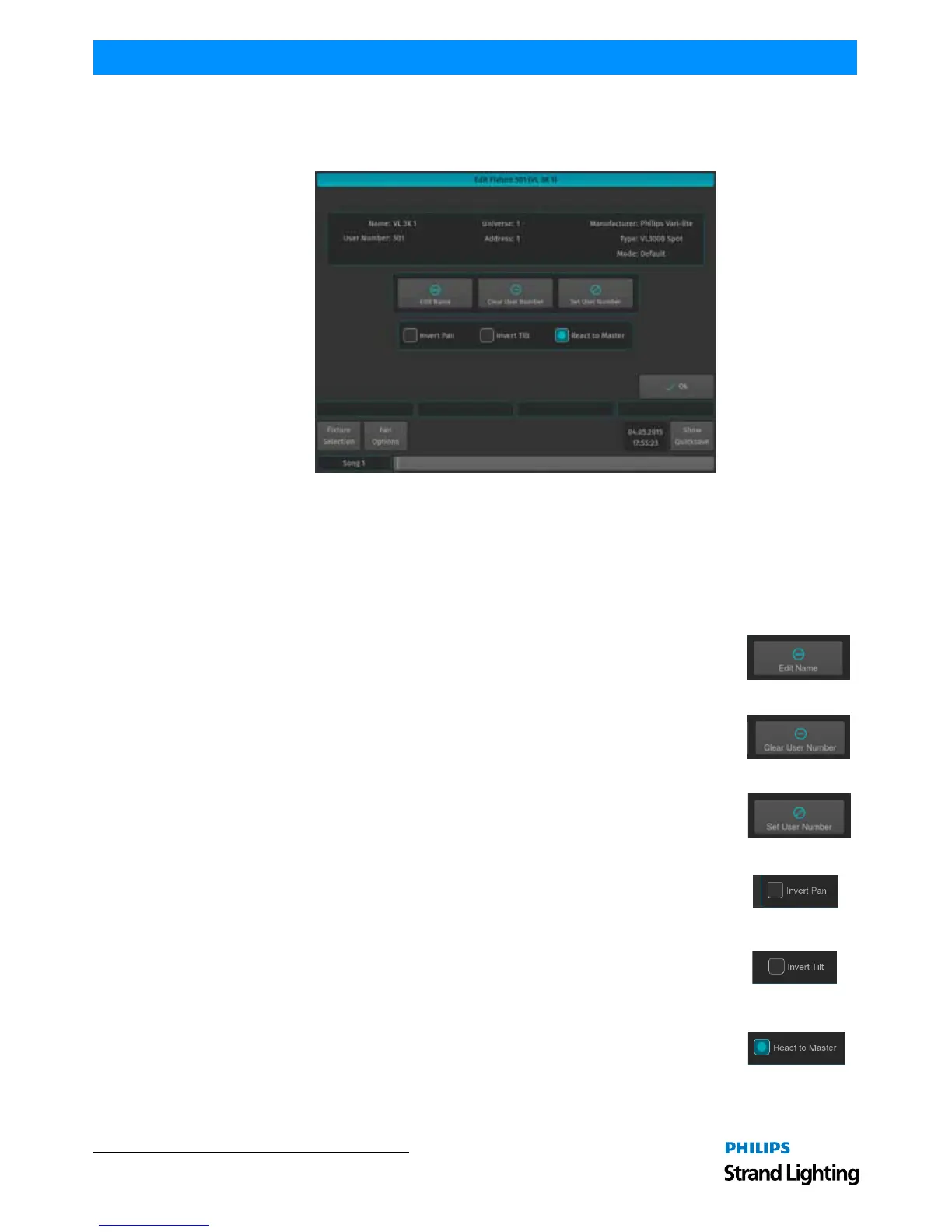
The Edit Fixture window (Figure 123) may be used as a quick way to read fixtures DMX universe / address, fixture
type and set options like invert of movement, the User Number or Fixture Name.
Figure 123: Edit Fixture Window
To open the Edit Fixture Window, type [EDIT] followed by the User Number of the fixture you would like to edit, eg.
[501]. Finish the command by pressing [ENTER].
Alternatively, you may use the Fixture Pool window to select the fixture:
Press and hold the [EDIT] key and then the [FIXTURE] key. Select the fixture you would like to edit from within the
shown Fixture Pool Window.
Edit Name
Clicking on the Edit Name button will open up an on-screen keyboard allowing you to rename
this particular fixture.
Clear User Number
Clicking on the Clear User Number button will remove a fixture's User Number. Please note that
after you did this, the only way to select this fixture is to use the Fixture Pool Window.
Set User Number
The Set User Number button will open up a dialog window asking you to enter a new User
Number for this particular fixture.
Invert Pan
The Invert Pan checkbox will either invert or normalize the direction of pan movement for this
particular fixture.
Invert Tilt
The Invert Tilt checkbox will either invert or normalize the direction of tilt movement for this
particular fixture.
React to Master
The React to Master checkbox defines if this fixture reacts to the Grandmaster fader.



 To Next Page