Cuelists 115
500ML Lighting Control Console
Operation Guide
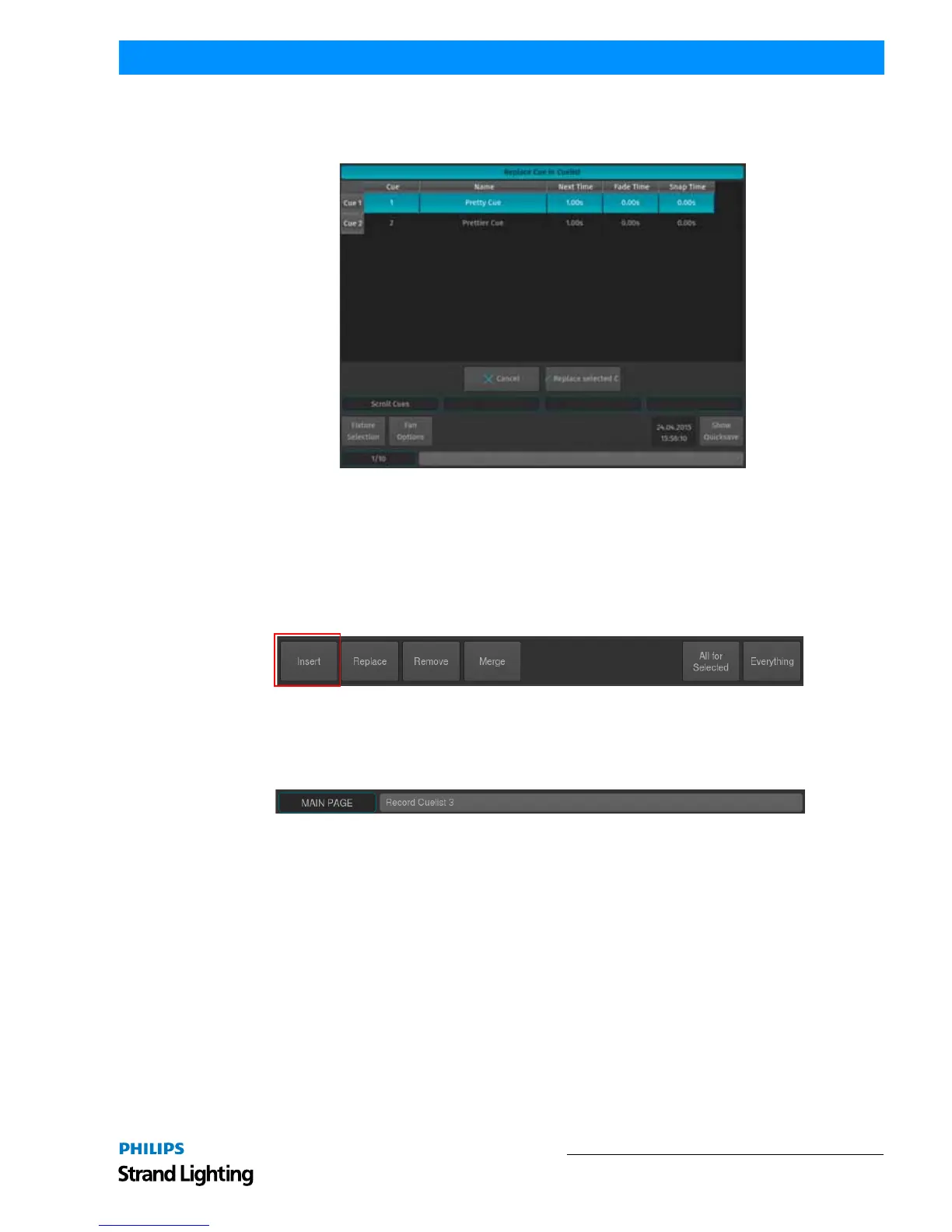
If the cuelist only contains one cue, the replace action will be executed right away. If the cuelist contains more than
one cue a window will be opened asking you to select the cue you would like to replace. See Figure 211 for more
details. Click on Replace after selecting the appropriate cue.
Figure 211: Replace Cue in Cuelist
Inserting Cues into Cuelists
First, set up the new look you would like to insert in front of an existing cue. Now press the [REC] key, select the
Insert option from the record toolbar and select the appropriate cuelist by the either a master's (Figure 196 on page
109) Play [] or Pause / Back Key [❚ ❚], or by selecting the cuelist in a Cuelist Pool Window.
If the Cuelist Pool window is not yet shown, keep the [REC] key pressed while pressing the [CUELIST] button on the
keypad prior to selecting Insert from the record toolbar.
Figure 212: Record Toolbar - Insert Button
You may also use the command line approach by, press the [REC] key followed by the [CUELIST] key. Type the
number of the cuelist you would like to insert a cue in - i.e., [1]. Before executing the command, make sure you
selected Insert from the record toolbar. Now press [ENTER] to execute the command (Figure 210).
Figure 213: Command Line Interface - Record Cuelist



 To Next Page