Operation Guide 500ML Lighting Control Console
104 Programming
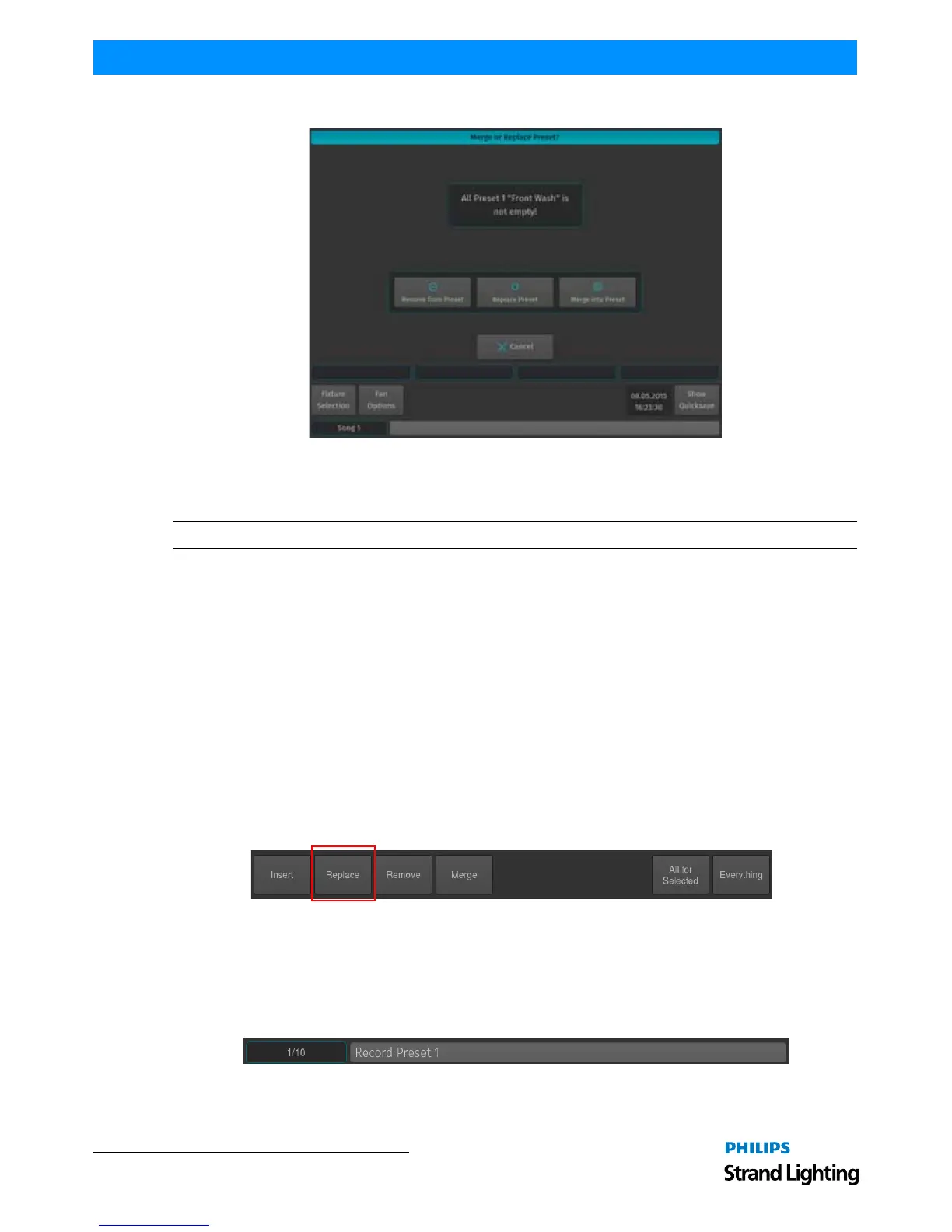
Figure 188: Merge or Replace Preset
Alternatively, you may also select Remove from the Record toolbar (Figure 187 on page 103) after hitting the [REC]
Key, which will prevent the "Not Empty - What to do?" Window from opening.
Note: Removing attributes from a preset may break cues that are already referencing to this Preset.
Replacing a Preset
Sometimes it may be more convenient to replace a Preset than merging and removing attributes separately. However,
it is important to understand that replacing a preset will remove values that are present in the "old" Preset but are not
present in the programmer, and will add new values that were not present before. Replacing a preset does not break
cue references, and hence may break cues that have been already programmed with this preset.
Replace a Preset using the Preset Pool Window
Once you changed your values accordingly to replace a previously stored preset, press and hold the [REC] key and
simultaneously press the [PRESET] key. The "Preset Pool" window will open. Select the Preset Pool type using the
Preset Pools toolbar and select the preset you would like to replace within the pool window, i.e. Preset 1.
A window asking you what to do will open (Figure 188). Select Replace to replace the entire presets content with the
touched attributes in the programmer.
Alternatively, you may also select Replace from the Record toolbar after hitting the [REC] Key, which will prevent
the "Not Empty - What to do?" Window from opening.
Figure 189: Record Toolbar - Replace Button
Replace a Preset Using the Command Line Interface
Once you changed your values accordingly to replace a previously stored preset, press the [REC] key and then press
the [PRESET] key. On the keypad, enter the number of the pool item you wish to replace - i.e., [1] followed by
[ENTER].
A window asking you what to do will be opened. Select Replace to replace the entire presets content with the touched
attributes in the programmer.



 To Next Page