Working with Shows 37
500ML Lighting Control Console
Operation Guide
2. Working with Shows
Show files contain all of your show related settings like fixture schedule and patching, input settings, groups, presets,
cues, master assignments, etc. Multiple shows may reside on the console and the amount of shows is only limited by
hard disk memory. However it is advised to regularly backup old shows to a USB key and delete them off the
consoles memory.
3. To Create or Load a Show
When the Welcome screen appears, you are given two options:
• Create a New Show or,
• Load an Existing Show (via a saved showfile*)
Note: *Showfiles contain all of your show related settings like fixture schedule and patching, input settings, groups,
presets, cues, master assignments, etc.
Creating a New Show
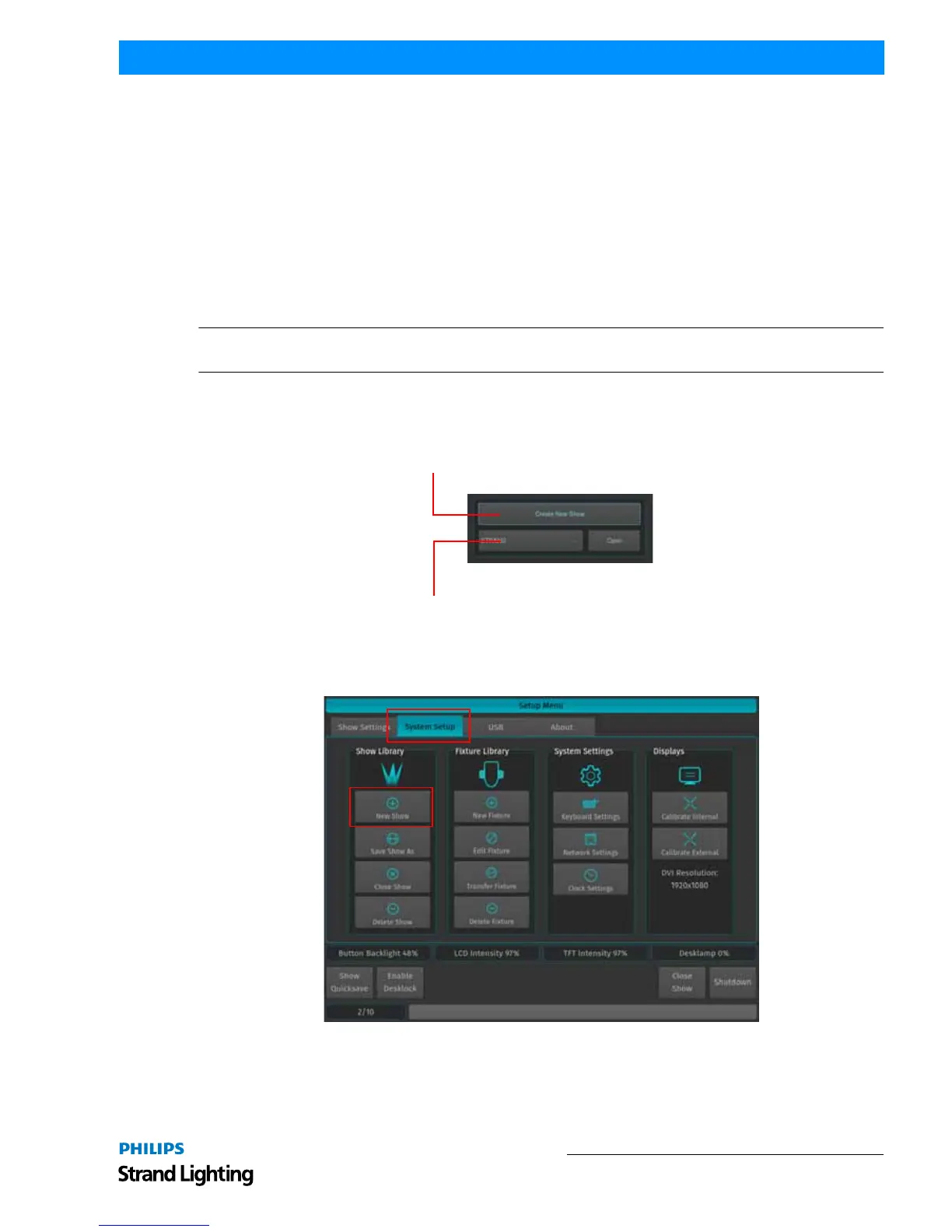
On the console’s 8-inch TFT touchscreen display, hit the Create New Show button on the Welcome Screen (refer
to Figure 51).
Figure 51: Create New Show Option
Alternatively you may open the Setup Dialog by hitting the SETUP key on the console’s faceplate. Once the dialog is
shown, click the System Setup tab and hit New Show as illustrated in Figure 52.
Figure 52: Setup Menu Screen - System Settings Tab
Either of these two steps will open up a virtual keyboard (Figure 53 on page 38) to enter the name of the show to be
created.



 To Next Page