Pool Windows and Pool Items 23
500ML Lighting Control Console
Operation Guide
A toolbar shown on the bottom of the Pool View provides quick access to useful functions.
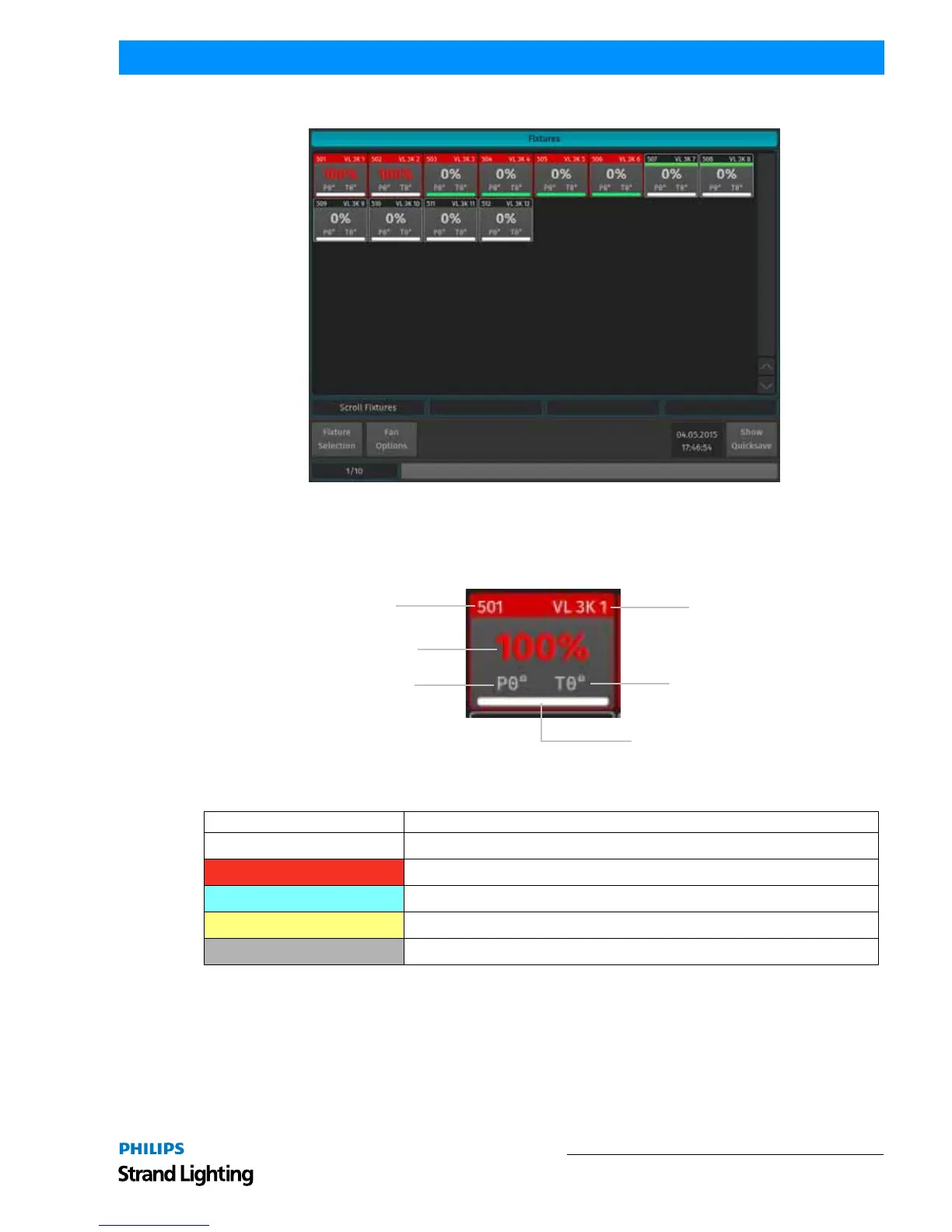
Figure 24: Fixture Level View Item
Selected fixtures will show a green bar just below the header, like all other Pool Items do. By default the header and
border of a Level View Item look similar to those of a regular Pool Item. However, the header and border of the Item
will change to a red color if the appropriate fixture has values set in the programmer.
The text color of the Dimmer or Pan / Tilt value also gives a hint about where this value comes from:
Scrolling in Screens and Pools
Many screens provide the ability to scroll using the Encoder or the Multifunction Wheel. If a Screen supports
Scrolling using the Encoders, the Encoder labels will read "Scroll", together with an explanation of what will be
scrolled.
All screens that contain scrollable contents (refer to Figure 25 on page 24) may be scrolled by pressing the [SHIFT]
key while turning the multifunction wheel.
Background Color State
White This value is output using the Default Value set in the Fixture Library.
Red This value is in the programmer.
Cyan This value is being output by a cuelist.
Yellow This value is being output by the "Highlight" function.
Grey This value is set to the "Blackout" value defined in the Fixture Library.



 To Next Page