Presets 107
500ML Lighting Control Console
Operation Guide
Deselecting (Knocking Out) a Preset
To deselect a Preset, click on it again or press the [OFF] Key followed by the Preset.
Copying a Preset
Copying Presets using the Preset Pool Window
Press and hold the [COPY] key while holding down the [PRESET] key. The Preset Pool window will be shown. Now
select the Preset Pool type using the Preset Pools toolbar and select the Preset you would like to copy, followed by the
destination Pool Item.
To copy a Preset shown on the external monitor, just press [COPY], first select the source preset followed by the
destination Preset from the external monitor’s Preset Pool.
Copying Presets using the Command Line Interface
You may copy Presets using the command line approach by pressing [COPY]. Then hit the [PRESET] key, followed
by the source Preset ID, in this case [1]. Now enter the destination Preset ID, ie [5]. Hit [ENTER] to complete the
command.
Moving Presets
Moving Presets using the Preset Pool Window
Press and hold the [MOVE] key while holding down the [PRESET] key. The Preset Pool window will be shown.
Now select the Preset Pool type using the Preset Pools toolbar and select the preset you would like to move, followed
by the destination Pool Item.
Moving Presets using the Command Line Interface
You may move presets using the command line approach by pressing the [MOVE] key. Then hit the [PRESET] key,
followed by the source Preset ID, in this case [1]. Now enter the destination Preset ID, ie [5]. Hit [EN-TER] to
complete the command.
Deleting a Preset
Deleting Presets using the Preset Pool Window
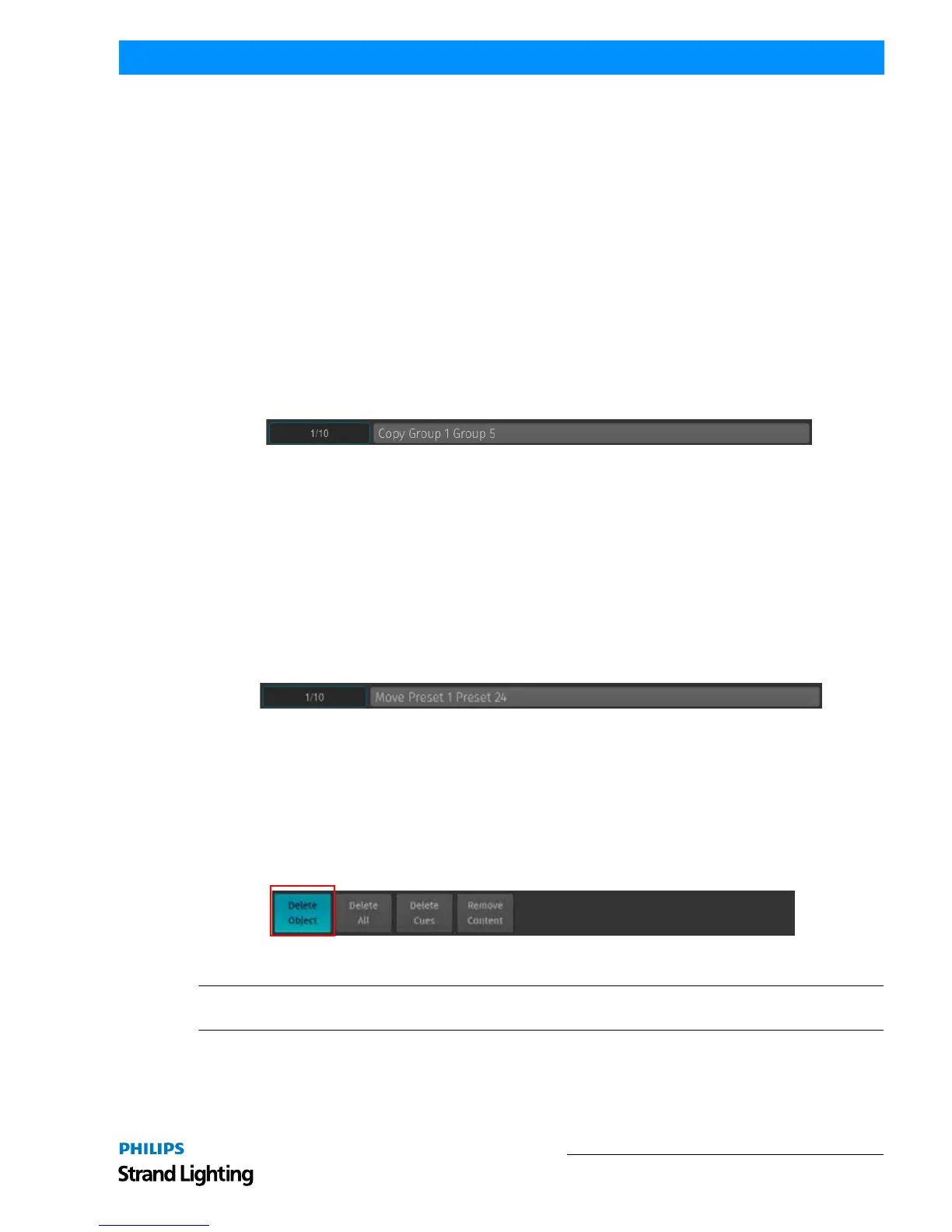
Press and hold the [DELETE] key while holding down the [PRESET] key. The Preset Pool window and delete
toolbar will be shown. Make sure Delete Object is selected on the delete toolbar. Now select the preset the Preset Pool
type using the Preset Pools toolbar and select you would like to delete.
To delete a preset shown on the external monitor, just press [DELETE], make sure Delete Object is selected on the
Delete Toolbar (Figure 194) and select the appropriate preset from the external monitor’s Preset Pool.
Figure 194: Delete Toolbar
Note: When holding the [DELETE] key while selecting a preset for deletion, conformation of your selection will be
omitted and the Delete Keyword in the command line will remain active.



 To Next Page