Operation Guide 500ML Lighting Control Console
38 OPERATION
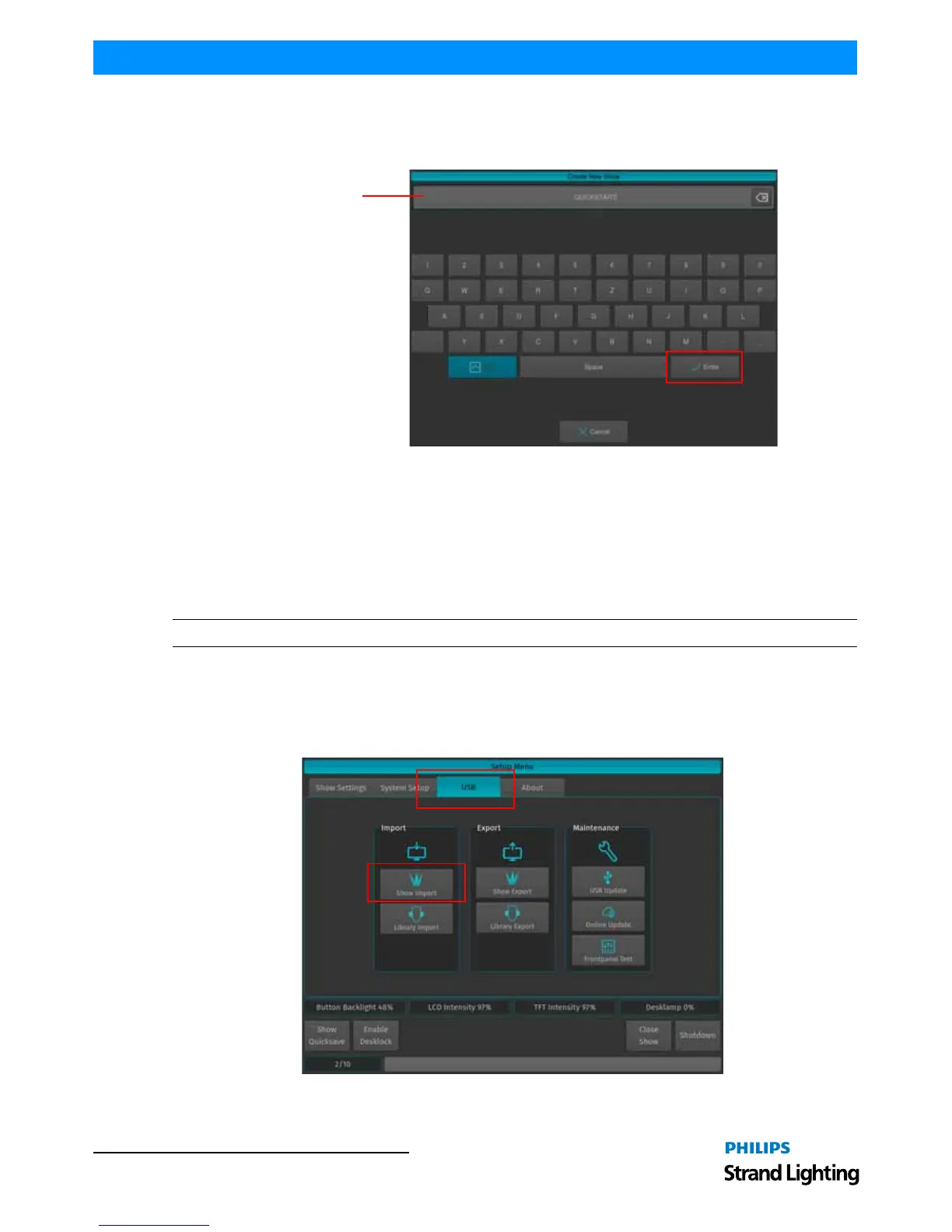
You may also enter values by using an external USB keyboard (by others, sold separately) anytime the keyboard
dialog is shown. As soon as you hit the Enter button a showfile with a name given is created.
Figure 53: Touchscreen Keyboard & Showfile Name Field
Loading an Existing Show
To be able to open a show, you first need to close any open shows. Do this by pressing [SETUP] and hitting the Close
Show button on the Setup Toolbar. As soon as all shows are closed, the console will return to the Welcome Screen as
shown in Figure 51 on page 37.
After selecting the show file name from the drop down menu (refer to Figure 51 on page 37) a, hit the Open button
the console’s 8-inch TFT touchscreen display.
Note: Shows stored on a USB Key need to be imported into the console memory before they can be opened.
Importing Shows from a USB Key
From the Welcome Screen hit the Settings button as shown in Figure 41 on page 31. Or, you can open the Setup
Dialog by selecting the [SETUP] key on the front panel instead.
Once the Setup Menu is shown, switch to the USB tab and hit the Show Import button as illustrated in Figure 54.
Figure 54: Setup Menu - USB Tab - Show Import



 To Next Page