Operation Guide 500ML Lighting Control Console
118 Programming
Note: Loading a Cue to the programmer will replace the programmer’s current contents with the contents from the
cue. Because of tracking, the contents of the programmer may look different from what you see on stage.
Assigning Cuelists to Masters
Assigning a Cuelist to a Master Using Cuelist Pool Window
To assign a cuelist (in the Cuelist Pool) to a Master, press and hold the [OPEN] key and press the [CUELIST] key on
the keypad. The Cuelist Pool window will open (Figure 198 on page 110). Now press the [ASSIGN] key, tap on the
Cuelist you would like to assign to the master followed by the either a master's (Figure 196 on page 109) Play [] or
Pause / Back Key [❚ ❚].
Assigning a Cuelist to a Master Using Command Line Interface
Press the [CUELIST] key followed by the number of the cuelist, you would like to assign i.e., [1]. Then press the
desired master's Play [] or Pause / Back Key [❚ ❚].
Figure 220: Command Line Interface - Assign a Cuelist to a Master / Fader
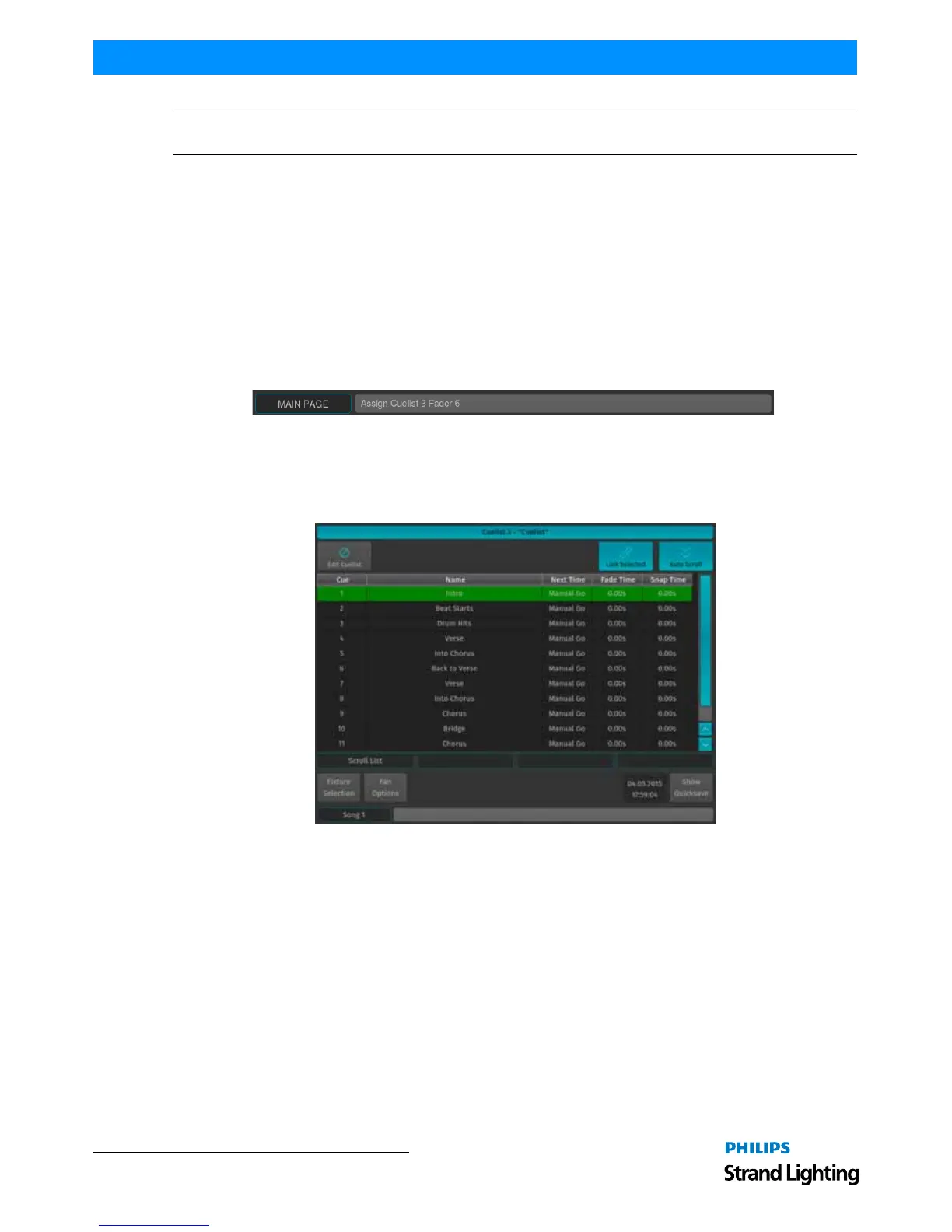
Cuelist View (Cue Sheet) Window
To change cuelist timing or cue names, you need to do so in a Cuelist window. Cuelist View (Figure 221) may also be
used as a Cue Sheet, indicating the current, previous, and next cues.
Figure 221: Cuelist View (Cue Sheet) Window
Open the Cuelist View Window Using Cuelist Pool
Press and hold the [OPEN] key and press the [CUELIST] key. The Cuelist Pool window will open up. Now press and
release the [OPEN] key again - the command line interface will now read Open. Select a cuelist from within the
Cuelist Pool Window.
Open Cuelist View Window Using Command Line Interface
Press the [Open] key followed by the Cuelist key. Now type the number of the cuelist followed by [ENTER] - for
example: [OPEN] [CUELIST] [1] [ENTER].
Open Cuelist View Window Using Masters
To open the cuelist window for a Cuelist that is assigned to a Master, press [OPEN] followed by the Play [] or
Pause / Back Key [❚ ❚] on a master.



 To Next Page