Working with Fixtures 63
500ML Lighting Control Console
Operation Guide
Delete Fixtures
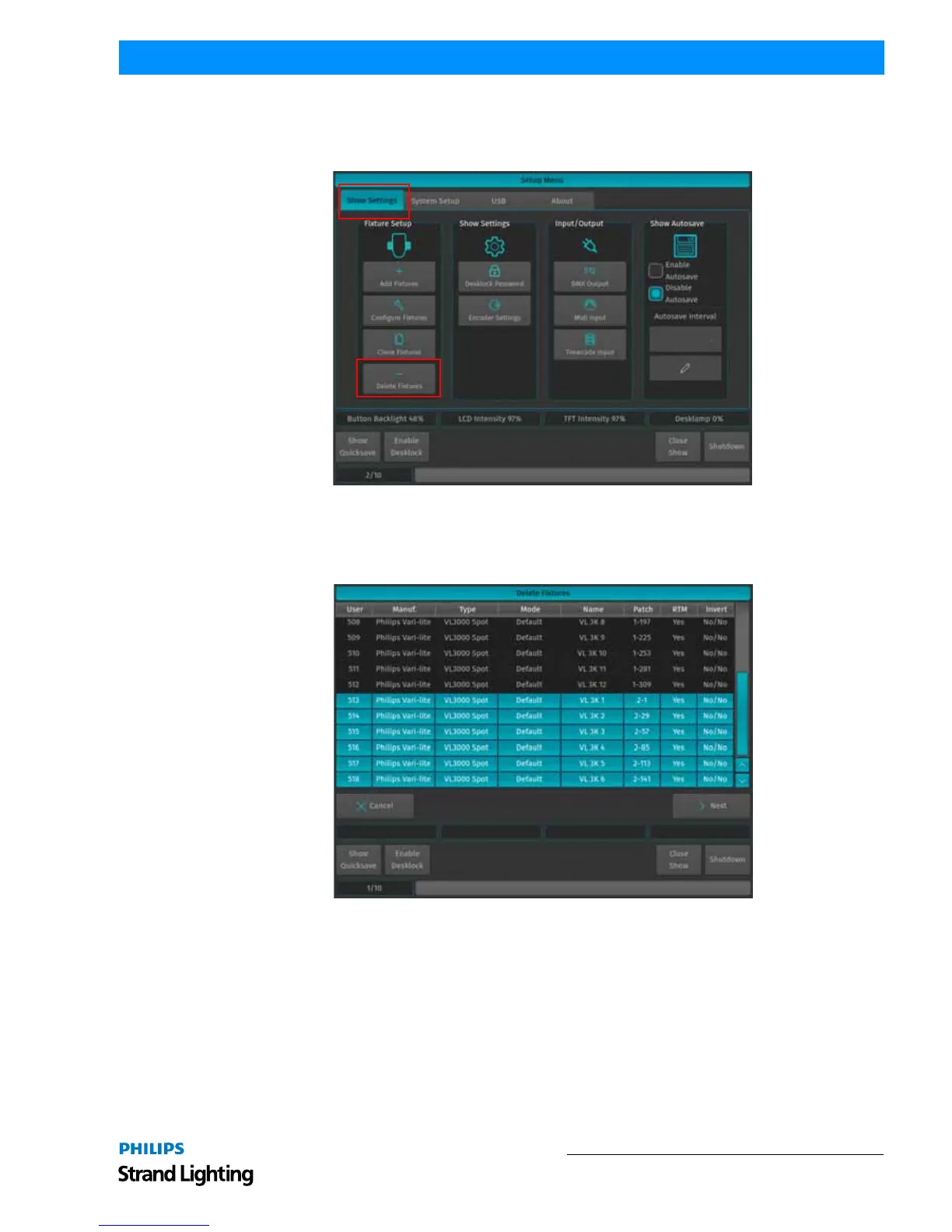
Should you wish to delete fixtures and all of their programming from the showfile, press the [SETUP] key, select the
Show Settings tab and click on Delete Fixtures as illustrated in Figure 105.
Figure 105: Setup Window - Show Settings - Delete Fixtures Option
A new screen will appear (Figure 106) asking you to select the Fixtures which you would like to delete. You may also
select the fixtures using the Keypad or the external Screen. After your selections, click Next. The console will ask for
confirmation of your selections.
Figure 106: Delete Fixtures Selection Window
2. Working with Fixtures
Selecting Fixtures
Before you can start altering any values or programming, you need to select the fixtures you would like to work with.
There are four different ways to select your fixtures.
Selection Order
The order in which you select fixtures determines how sub-selection and fanning are applied to them. For example,
applying a fanned value or an odd sub-selection to them after selecting fixtures 501 thru 505 will appear different
than if you selected fixtures 501 + 503 + 502 + 505 + 504.



 To Next Page