Operation Guide 500ML Lighting Control Console
168 MAINTENANCE
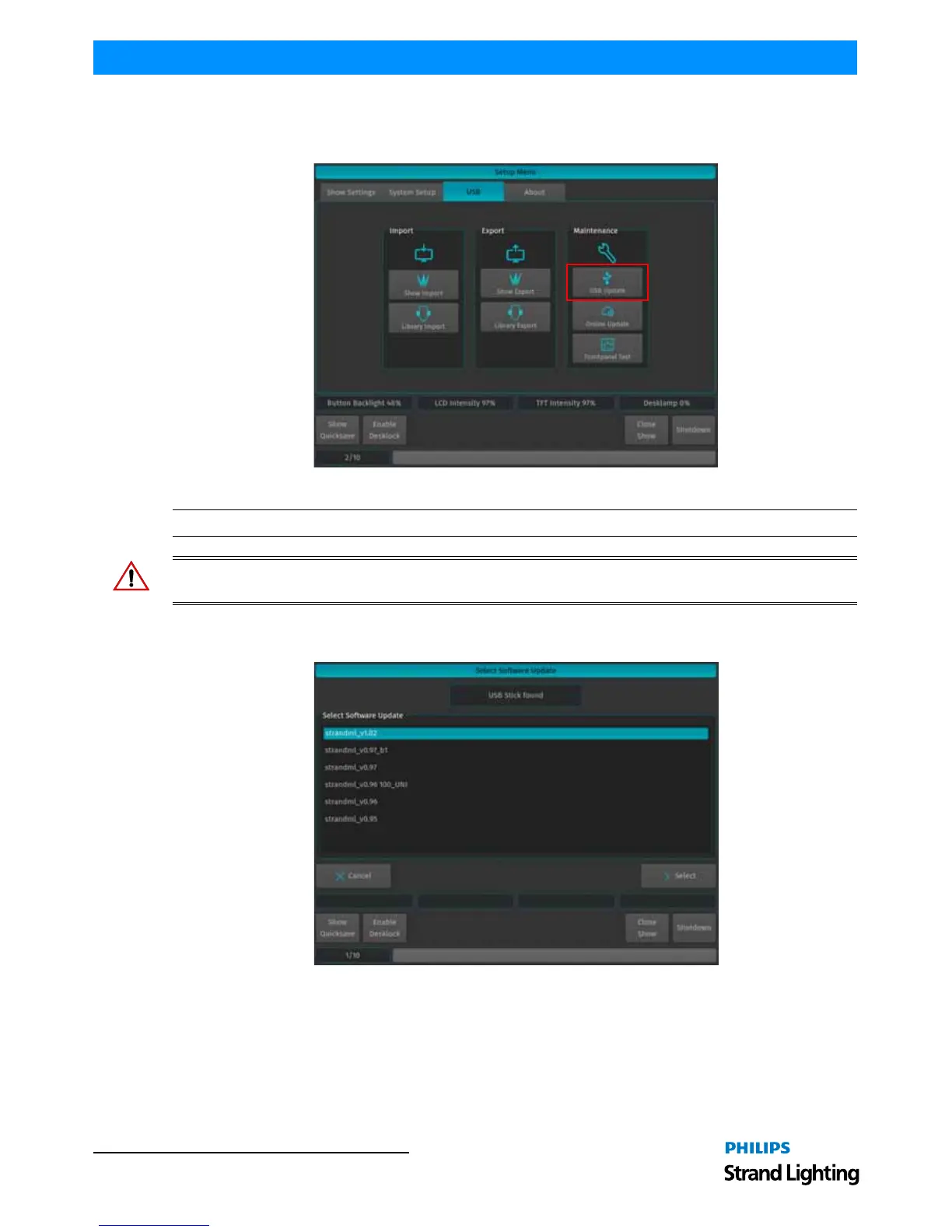
Connect the USB key into one of the console’s USB Ports (refer to Figure 1 on page 8 or Figure 2 on page 10) and
navigate to the Setup Menu by pressing [SETUP] and selecting the USB Tab. Click on USB Update in the
Maintenance section.
Figure 306: Setup Menu Window - Updating Console Software via USB
Note: You must reboot / restart the console in order for the new software to take effect.
WARNING! During the update process, DO NOT disconnect power OR switch off the console. This may render the
console un-bootable! Allow the the process to finish completely.
The console’s screen will present you with a list (if applicable) of available software updates found on your USB Key.
Select the appropriate file and click on Select.
Figure 307: Select Software Update Window - Software Selection Example



 To Next Page