Polycom RealPresence Collaboration Server (RMX)1500/2000/4000 Deployment Guide for Maximum Security Environments
4-4 Polycom, Inc.
Step 4: Into the RMX’s USB port, insert a USB key containing a file named
RestoreToFactoryDefault.txt and also containing a lan.cfg file.
Step 5: Restart the RMX.
Step 6: From the workstation, connect to the RMX’s Alternate Management Network.
Step 7: Apply the Product Activation Key.
Step 8: Unplug the USB key.
Step 9: Restart the RMX.
Step 10: Restore the System Configuration from the backup by applying the backup files
created in procedure Step 1.
Step 11: Restart the RMX.
(If the RMX is unresponsive after these procedures a further restart may be necessary.)
Step 1: Backup Configuration Files
The Software Management menu is used to backup and restore the RMX's configuration files
and to download MCU software.
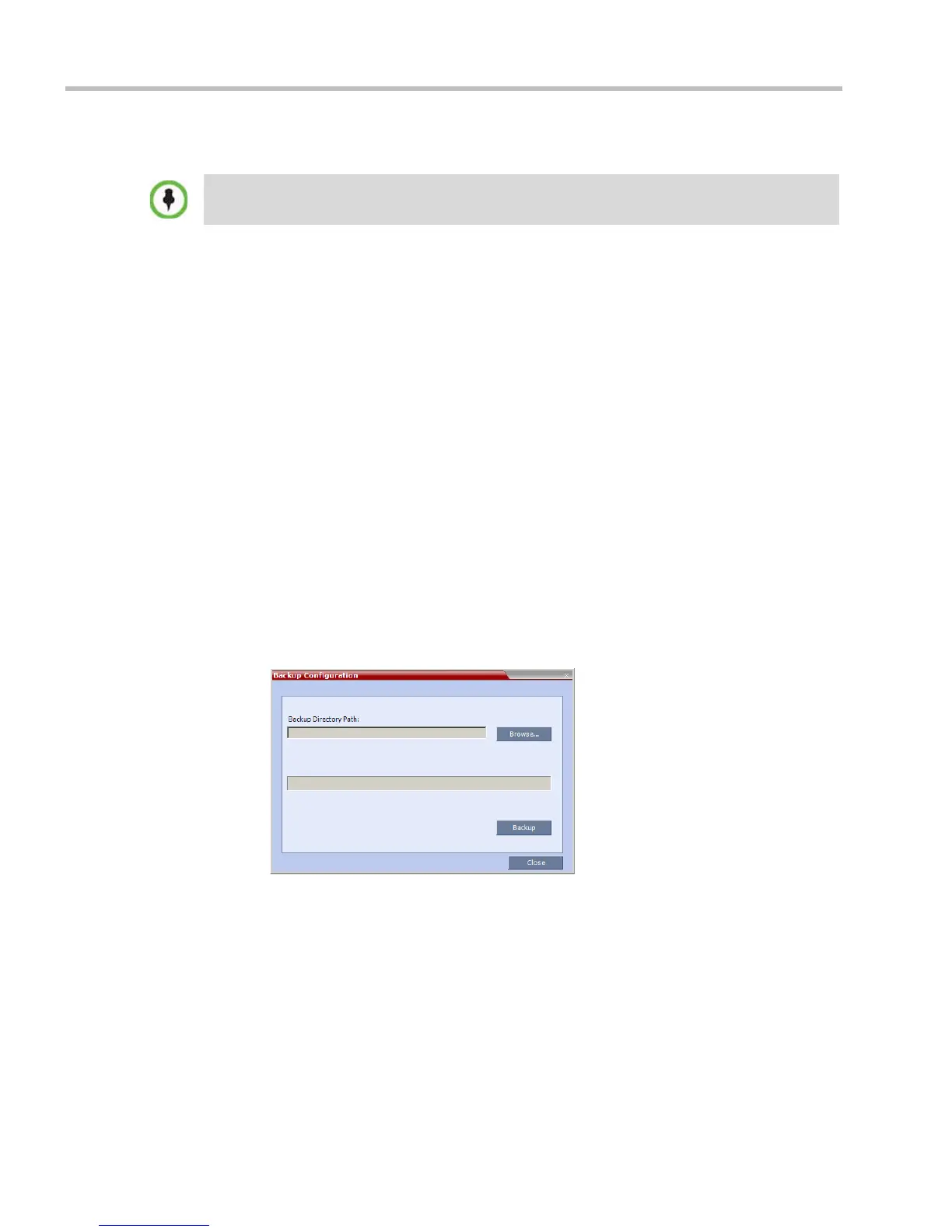
To backup configuration files:
a On the RMX menu, click Administration > Software Management > Backup
Configuration.
The Backup Configuration dialog box opens.
b Browse to the Backup Directory Path and then click Backup.
Step 2: Configure a Workstation for Direct Connection
The following procedures show how to modify the workstation’s networking parameters
using the Windows New Connection Wizard.
For non-Windows operating systems an equivalent procedure must be performed by the
system administrator.
Do not insert a USB key containing a file named RestoreToFactoryDefault.txt if the USB key does
not also contain a lan.cfg file.














 To Next Page