Chapter 4-Restoring the RealPresence® Collaboration Server (RMX®) 1500/2000/4000 Using the USB Port
Polycom, Inc. 4-13
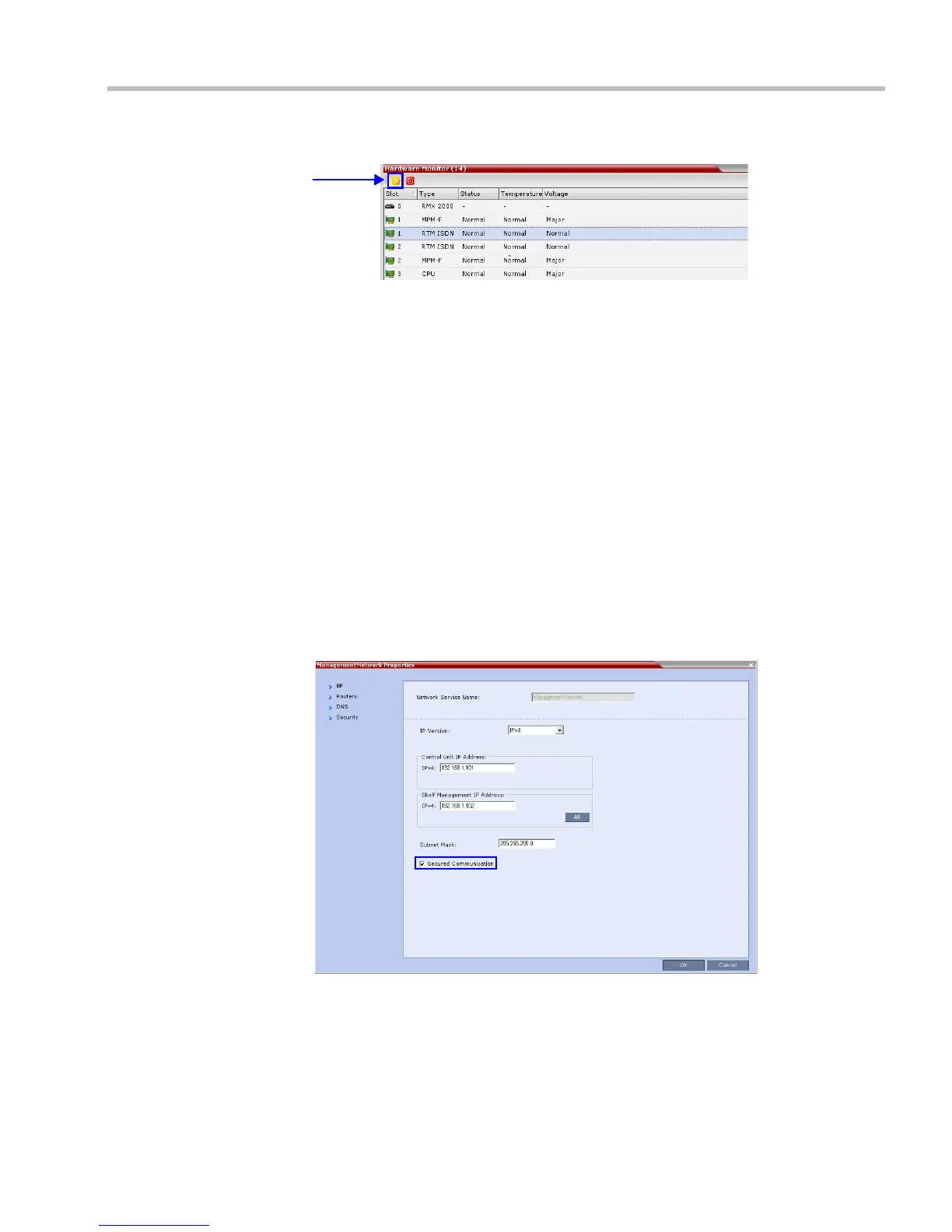
The Hardware Monitor pane is displayed.
d Click the Reset button.
The RMX restarts. System restart can take 5 - 10 minutes, depending on the RMX’s
configuration.
Using the RMX Manager:
e In the MCUs list, select the RMX to be updated.
f Right-click in the MCUs list entry and select Connect.
g Click Accept to accept the warning banner.
h Enter an administrator Username and Password.
i Click OK.
Step 7: Re-enable Secured Communications Mode.
Using the RMX Manager:
a In the RMX Management pane, click the IP Network Services button. (Depending
on the RMX Manager configuration, you may have to click Rarely Used first.)
b In the IP Network Services list pane, double-click Management Network.
The Management Network Properties dialog box is displayed.
c Select the Secured Communication check box.
d Click OK.
A message informs you that your session will be disconnected and that you must
re-connect the RMX using https in the browser URL.
e Click OK.














 To Next Page