Setting Destinations and a Subject
131
5
Note
❒ To select another destination,
highlight the destination you
want to select with the {
{{
{1
11
1}
}}
}
or {
{{
{0
00
0}
}}
} key and press [Se-
lect].
❒ To clear the selected destina-
tion, press [Clear] while the
destination is highlighted.
Check mark will disappear
when the destination is not
selected.
C Press [OK].
To search destination from the
address book
In this section, we will search for
the destination “John” with “E-
mail Address”.
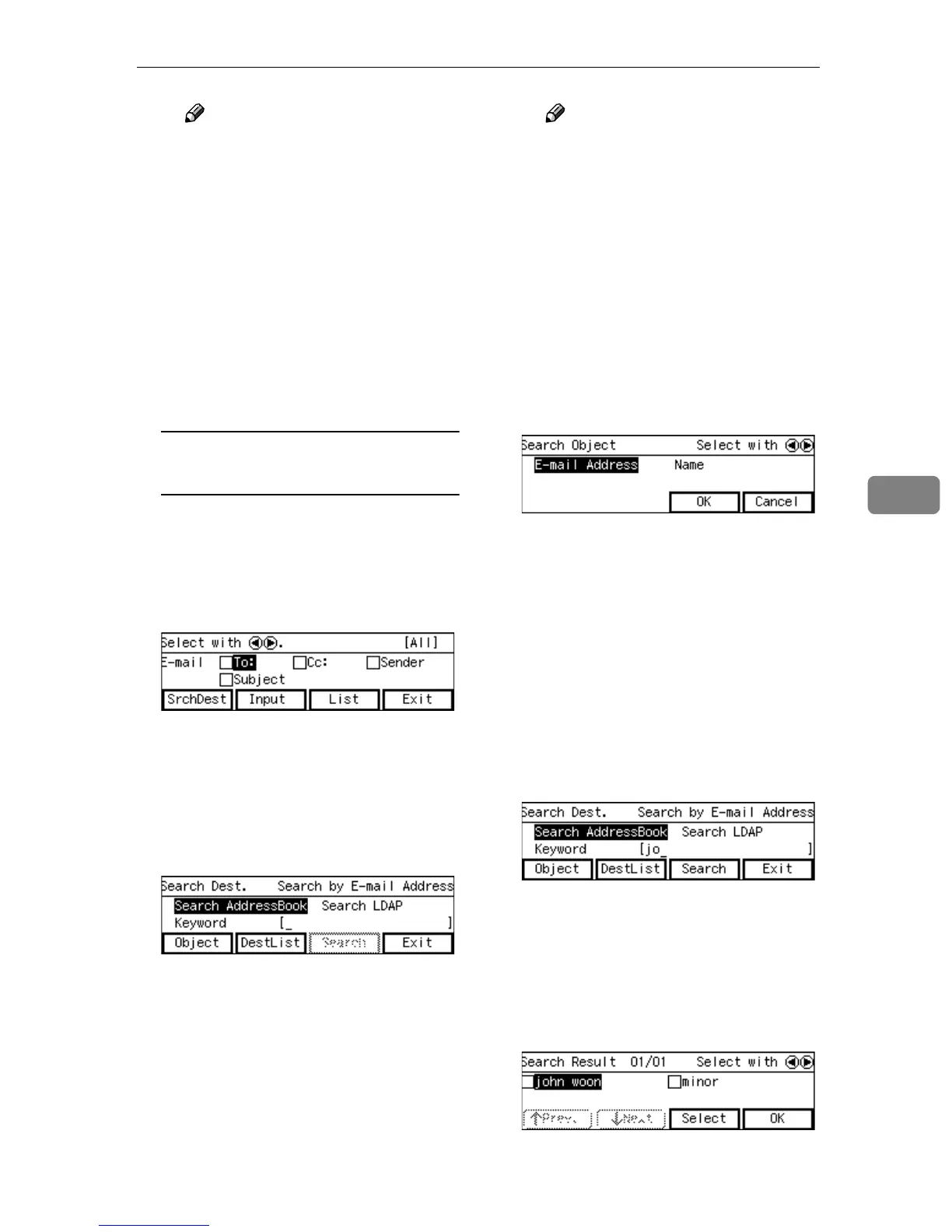
A Press [SrchDest] while [To:] is
highlighted.
B Confirm that [Search Address-
Book] is highlighted, and press
[Object].
If [Search AddressBook] is not se-
lected, select it with the {
{{
{1
11
1}
}}
} or
{
{{
{0
00
0}
}}
} key.
Note
❒ Press [DestList] to confirm the
destinations which are al-
ready selected. To clear the
previous seleced destination,
press [Clear] while the desti-
nation is highlighted. Check
mark will disappear when
the destination is not select-
ed.
C Select the item to search with.
Select from either [E-mail Ad-
dress] or [Name] with the {
{{
{1
11
1}
}}
} or
{
{{
{0
00
0}
}}
} key.
D Press [OK].
Press [Cancel] to return to the
previous screen without mak-
ing changes.
E Enter a keyword to search the
destination from the keyboard
of the machine. In the sample
screen, “jo” is entered as a key-
word as an example.
[Search] will be enabled when
the keyword is entered.
F Press [Search].
The search result will be shown.
G Highlight the destination you
want to send E-mail with the
{
{{
{1
11
1}
}}
} or {
{{
{0
00
0}
}}
} key and press [Se-
lect].


 To Next Page