Scan Settings
81
3
F
FF
F
While the option you want to se-
lect is displayed, press [OK].
This saves the setting you have se-
lected, and returns to the Default
Scan Settings menu.
Note
❒ Pressing [Cancel] discards the
selected option, and returns to
the Default Scan Settings menu.
G
GG
G
Press [↓
↓↓
↓Next].
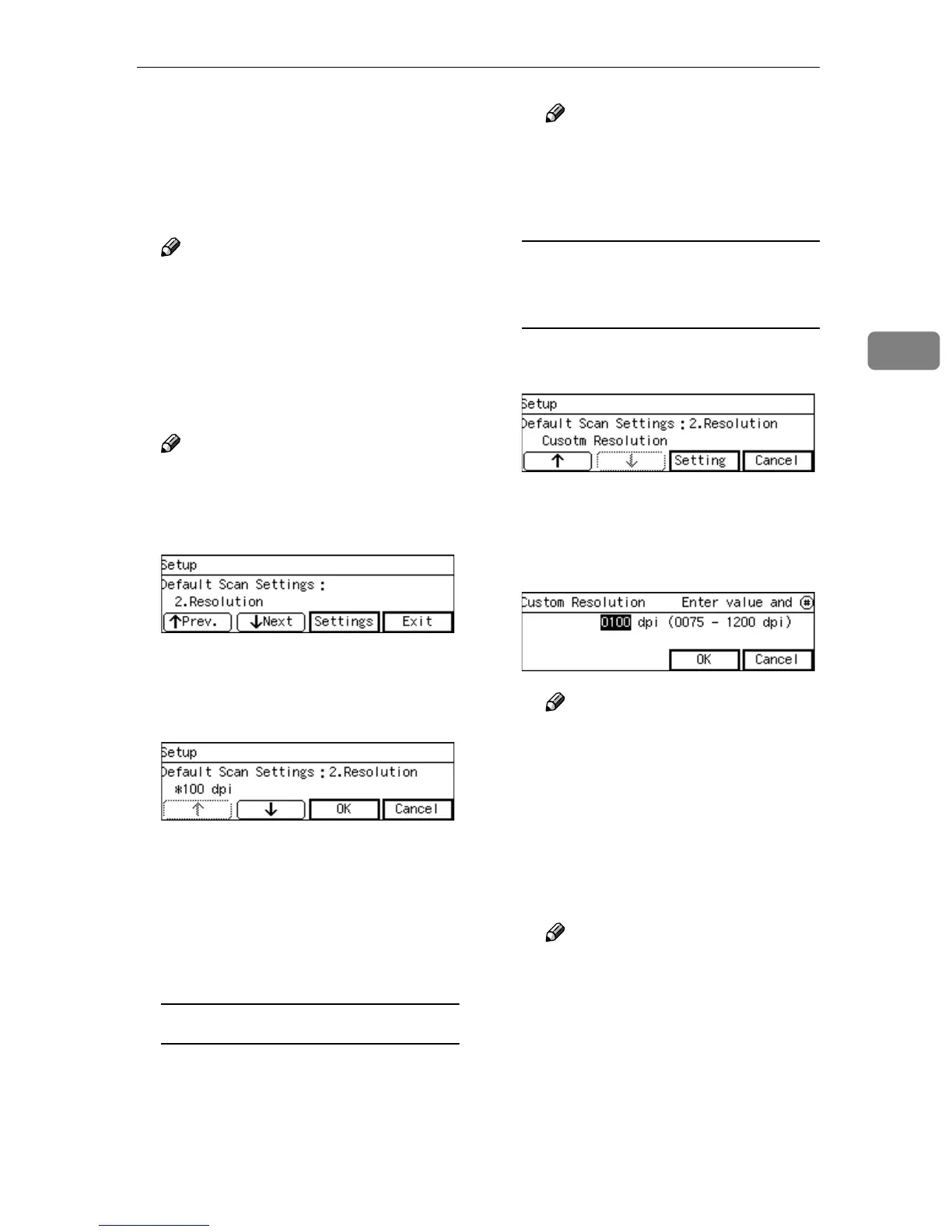
“2. Resolution” appears as the set-
up item currently selected.
Note
❒ Press [Exit] to return to the par-
ent menu screen.
H
HH
H
Press [Settings].
The setting screen for “2. Resolu-
tion” appears.
I
II
I
Select the resolution you want.
• The option that is currently se-
lected is displayed first.
•“*” mark appears along with the
option currently selected.
• Use [↑
↑↑
↑] and [↓
↓↓
↓] to display the
option you want to select.
To select a preset resolution
A While the preset resolution
you want to select is displayed,
press [OK].
This saves the setting you have
selected, and returns to the De-
fault Scan Settings menu.
Note
❒ Pressing [Cancel] discards the
selected option, and returns
to the Default Scan Settings
menu.
To specify the resolution
manually using [Custom
Resolution]
A While [Custom Resolution] is dis-
played, press [Settings].
The setting screen for “Custom
Resolution” appears.
B Specify the resolution manual-
ly by using the number keys.
Note
❒ To correct the number, press
the {
{{
{Clear/Stop}
}}
} key to clear
the number you have en-
tered.
C Press [OK].
This saves the setting you have
entered, and returns to the De-
fault Scan Settings menu.
Note
❒ Pressing [Cancel] discards the
values you have entered, and
returns to the Default Scan
Settings menu.
J
JJ
J
Press [↓
↓↓
↓Next].
“3. Scan Size” appears as the setup
item currently selected.



 To Next Page