.......
-
--\
-,--.
hllc4"
r
ji:!i!l
.
~E~~:al!!!~~ifj
=~:::~
,~~:::::::~:~::
~
~:::~:::::
~Foldtrl
ZIIHZ-ZO P
•.
~~oldef'"
ZIIIHZ-lOP
..
UFDldefS
lO'HUU
P .
10
....•
-~
-.
.~_,"lcl.
..
g~:~
Ae
•••
_
.....................
PC
,~
.....
s.,
...
:
§~QI4er1
bfllldlr4
-
-
OFolderS
C
I
I
--,.
..
_-
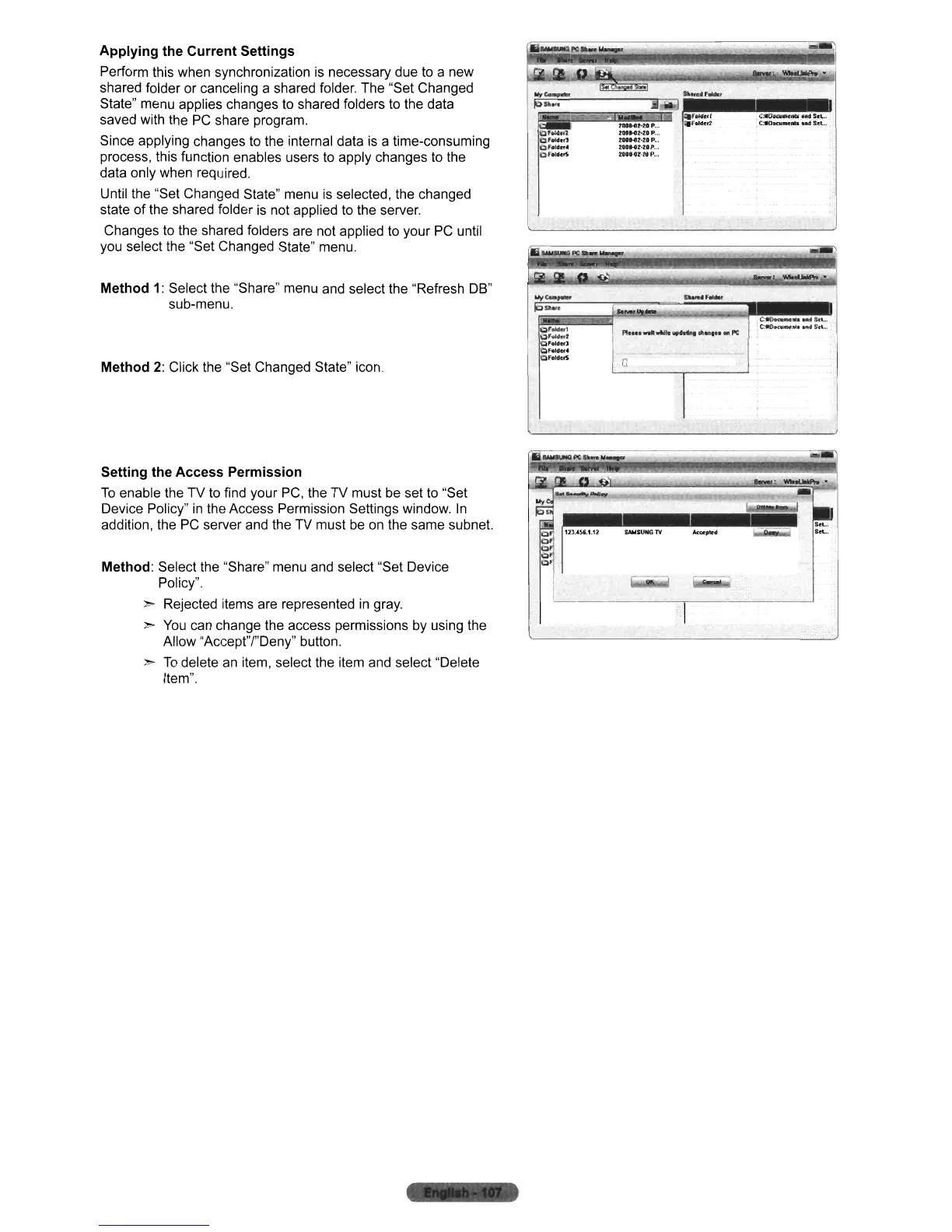
Applying the Current Settings
Perform this when synchronization is necessary due to a new
shared folder or canceling a shared folder. The "Set Changed
State" menu applies changes to shared folders to the data
saved with the
PC
share program.
Since applying changes to the internal data is a time-consuming
process, this function enables users to apply changes to the
data only when required.
Until the "Set Changed State" menu is selected, the changed
state of the shared folder is not applied to the server.
Changes to the shared folders are not applied to your
PC
until
you select the "Set Changed State" menu.
Method
1:
Select the "Share" menu and select the "Refresh DB"
sub-menu.
Method
2:
Click the "Set Changed State" icon.
Setting the Access Permission
To
enable the TV to find your
PC,
the TV must
be
set to "Set
Device Policy"
in
the Access Permission Settings window.
In
addition, the PC server and the TV must
be
on the same subnet.
Method: Select the "Share" menu and select "Set Device
Policy".
> Rejected items are represented
in
gray.
>
You
can change the access permissions by using the
Allow "Accept"I"Deny" button.
>
To
delete
an
item, select the item and select "Delete
Item".
""'
....












 To Next Page