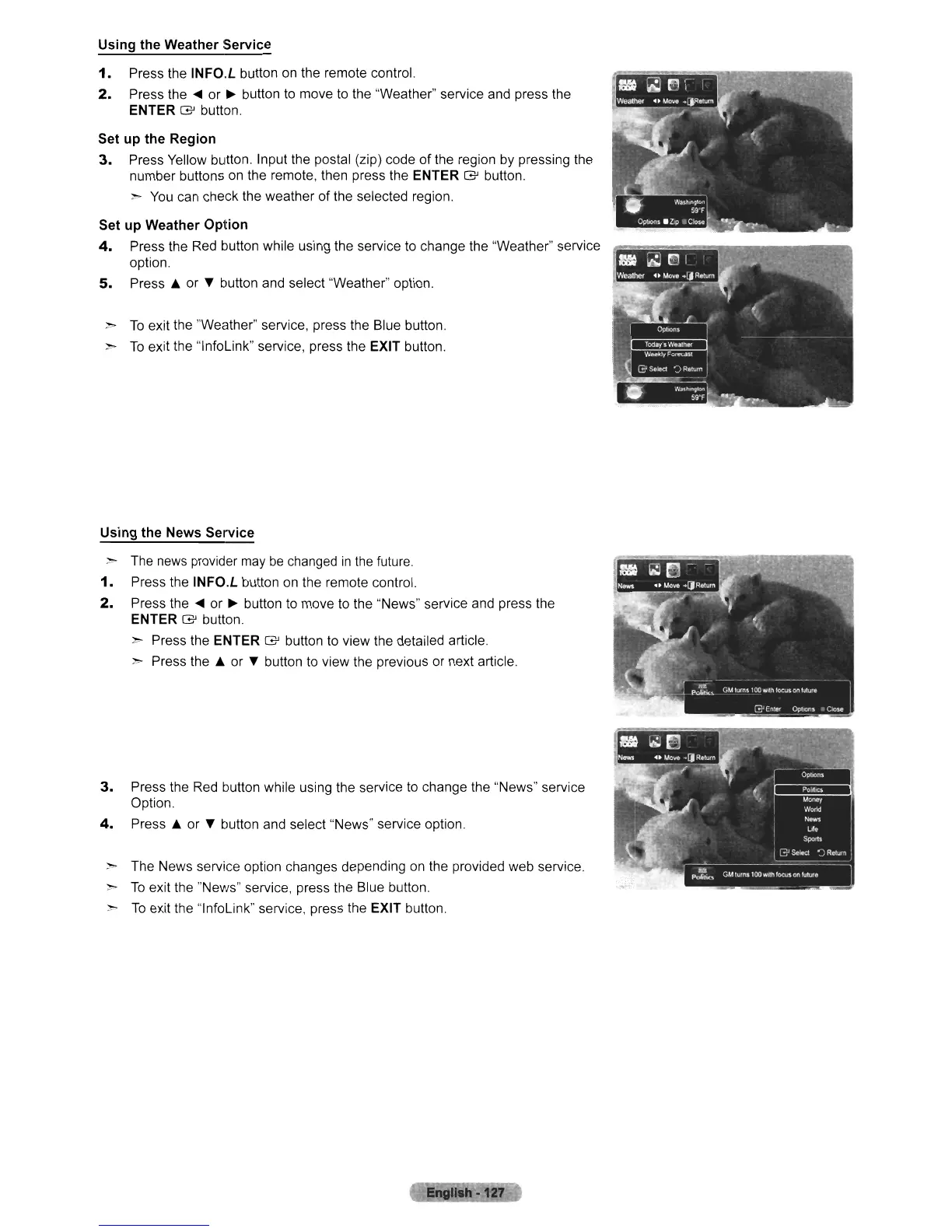
Using the Weather Service
1.
Press the INFO.L button
on
the remote control.
2.
Press the
....
or
~
button
to
move to the "Weather" service and press the
ENTER
G'
button.
Set up the Region
3.
Press Yellow button. Input the postal (zip) code
of
the region
by
pressing the
number buttons
on
the remote. then press the ENTER
G'
button.
>
You
can check the weather of the selected region.
Set up Weather Option
4.
Press the Red button while using the service to change the "Weather" service
option.
5.
Press
6.
or
~
button and select 'Weather" option.
>-
To
exit the "Weather" service. press the Blue button.
>
To
exit the "lnfoLink" service, press the EXIT button.
Using the News Service
> The
news
provider
may
be
changed
in
the
future.
1.
Press the INFO.L button
on
the remote control.
2.
Press the
....
or
~
button to move
to
the "News" service and press the
ENTER
G'
button.
",. Press the ENTER
G'
button to view the detailed article
",.
Press the 6. or
~
button to view the previous or next article.
3.
Press the Red button while using the service to change the "News" service
Option.
4.
Press
6.
or
~
button and select "News" service option.
",.
The News service option changes depending
on
the provided web service.
>-
To
exit the "News" service. press the Blue button.
>
To
exit the "lnfoLink" service, press the EXIT button.












 To Next Page