Using
the
Stock
Service
1.
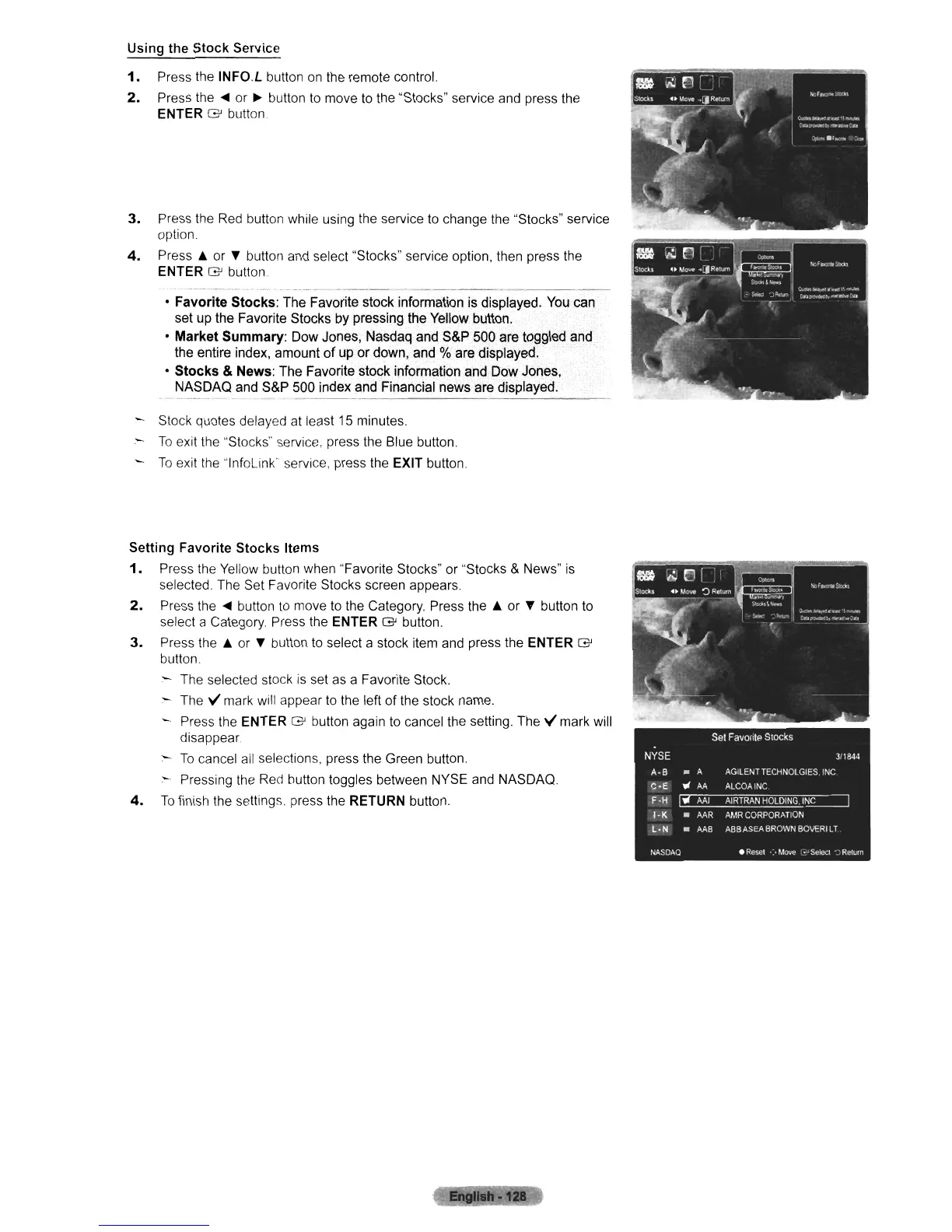
Press the INFO.L button
on
the remote control.
2.
Press
the'"
or
~
button to move to the "Stocks" service and press the
ENTER
G button
3.
Press the
Red
button while using the service to change the "Stocks" service
option.
4.
Press.& or • button and select "Stocks" service option, then press the
ENTER
G button
•
Favorite
Stocks:
The Favorite stock information is displayed. You can
set up the Favorite Stocks by pressing the Yellow button.
•
Market
Summary:
Dow Jones, Nasdaq and S&P 500 are toggled and
the entire index, amount
of
up
or
down, and % are displayed.
•
Stocks
& News: The Favorite stock information and Dow Jones,
NASDAQ and S&P 500 index and Financial news are displayed.
Stock quotes delayed at least 15 minutes.
-
To
exit the "Stocks" service, press the Blue button.
To
exit the "lnfoLink' service, press the EXIT button.
Setting
Favorite
Stocks
Items
1.
Press the Yellow button when "Favorite Stocks" or "Stocks & News"
is
selected. The Set Favorite Stocks screen appears
2.
Press the
...
button
to
move
to
the Category. Press the
.&
or
".
button to
select a Category. Press the ENTER
G button,
3.
Press the
.&
or • button to select a stock item and press the ENTER G
button.
The selected stock
is
set as a Favorite Stock.
- The
>./
mark will appear to the left
of
the stock name.
Press the ENTER
G button again
to
cancel the setting. The
>./
mark will
disappear
-
To
cancel all selections, press the Green button.
:-
Pressing the Red button toggles between NYSE and NASDAQ.
4.
To
finish the settings, press the RETURN button.












 To Next Page