EasyManua.ls Logo

Samsung 950 - Page 160

Samsung 950
182 pages
Print Icon
To Next Page IconTo Next Page
To Previous Page IconTo Previous Page
Loading...
Co
nec
ing
a
DVD/BI
-Ray
To
0)
C 0
en
a
layer
or
Cab
e
Box/Satellite
receiver
(Set-
e
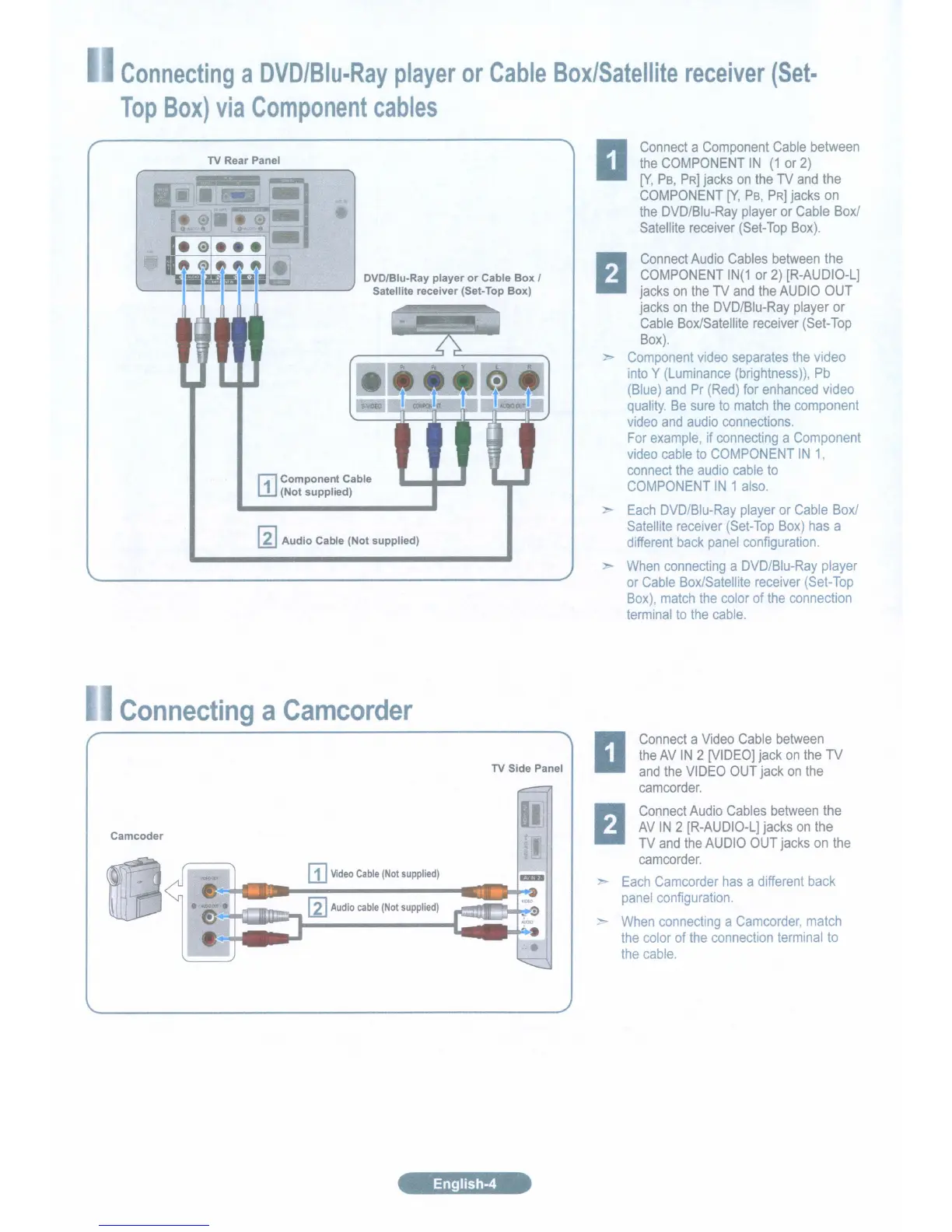
TV Rear Panel
DVD/Blu-Ray
player
or
Cable
Box
I
Satellite receiver (Set-Top Box)
r:;-t1
Component
Cable
W (Not
supplied)
[1]
Audio
Cable (Not supplied)
Connecting
a
Camcorder
TV Side Panel
Camcoder
[j]
Video
Cable
(Not
supplied)
''''~~iE=
...
~
Audio
cable
(Not
supplied)
English-4
Connect
a
Component
Cable
between
the
COMPONENT
IN
(1
or
2)
[V,
PS,
PRJ
jacks
on
the
TV
and
the
COMPONENT
[V,
PS,
PRJ
jacks
on
the
DVD/Blu-Ray
player
or
Cable
Boxl
Satellite
receiver
(Set-Top
Box).
Connect
Audio
Cables
between
the
COMPONENT
IN(1
or
2)
[R-AUDIO-L]
jacks
on
the
TV
and
the
AUDIO
OUT
jacks
on
the
DVD/Blu-Ray
player
or
Cable
Box/Satellite
receiver
(Set-Top
Box).
Component
video
separates
the
video
into
Y
(Luminance
(brightness)),
Pb
(Blue)
and
Pr
(Red)
for
enhanced
video
quality.
Be
sure
to
match
the
component
video
and
audio
connections.
For
example,
if
connecting
a
Component
video
cable
to
COMPONENT
IN
1
connect
the
audio
cable
to
COMPONENT
IN
1
also.
Each
DVD/Blu-Ray
player
or
Cable
Boxl
Satellite
receiver
(Set-Top
Box)
has
a
different
back
panel
configuration.
When
connecting
a
DVD/Blu-Ray
player
or
Cable
Box/Satellite
receiver
(Set-Top
Box),
match
the
color
of
the
connection
terminal
to
the
cable.
Connect
a
Video
Cable
between
the
AV
IN
2
[VIDEO]
jack
on
the
TV
and
the
VIDEO
OUT
jack
on
the
camcorder.
Connect
Audio
Cables
between
the
AV
IN
2
[R-AUDIO-L]
jacks
on
the
TV
and
the
AUDIO
OUT
jacks
on
the
camcorder.
Each
Camcorder
has
a
different
back
panel
configuration.
When
connecting
a
Camcorder,
match
the
color
of
the
connection
terminal
to
the
cable.

Table of Contents

Related product manuals