Adjusting
the White Balance
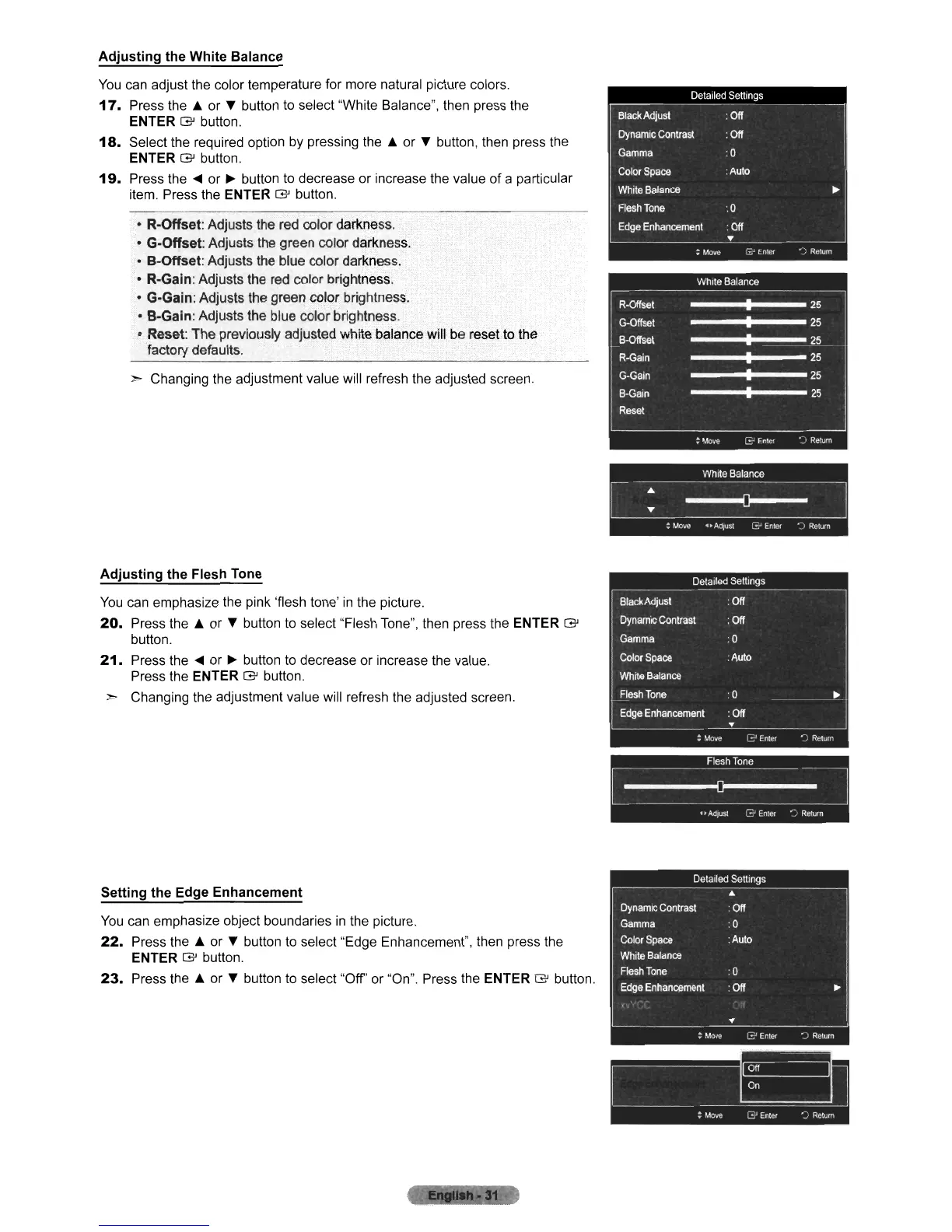
You
can adjust the color temperature for more natural picture colors.
17.
Press the A or
...
button
to
select "White Balance", then press the
ENTER G button.
18.
Select the required option
by
pressing the A or
...
button, then press the
ENTER G button.
19.
Press the
-<Ill
or
~
button
to
decrease or increase the value
of
a particular
item. Press the ENTER
G button.
• R-Offset: Adjusts the red color darkness.
• G-Offset: Adjusts the green color darkness.
• B-Offset: Adjusts the blue color darkness.
• R-Gain: Adjusts the red color brightness.
• G-Gain: Adjusts the green color brightness.
• B-Gain: Adjusts the blue color brightness.
• Reset: The previously adjusted white balance will be reset to the
factory defaults.
",..
Changing the adjustment value will refresh the adjusted screen.
Adjusting
the Flesh Tone
You
can
emphasize the pink 'flesh tone'
in
the picture.
20.
Press the A or
...
button
to
select "Flesh Tone", then press the ENTER G
button.
21.
Press the
-<Ill
or
~
button
to
decrease or increase the value.
Press the ENTER
G button.
",..
Changing the adjustment value will refresh the adjusted screen.
Setting the Edge Enhancement
You
can emphasize object boundaries
in
the picture.
22.
Press the A or
...
button to select "Edge Enhancement", then press the
ENTER G button.
23.
Press the A or
...
button
to
select "Off' or "On". Press the ENTER G button.
While Balance
~
: Move
1.
AdJuSI
8
Enter
")
Return
Flesh
Tone
~
.,
AdJusl
e
Enter
..
)
Return












 To Next Page