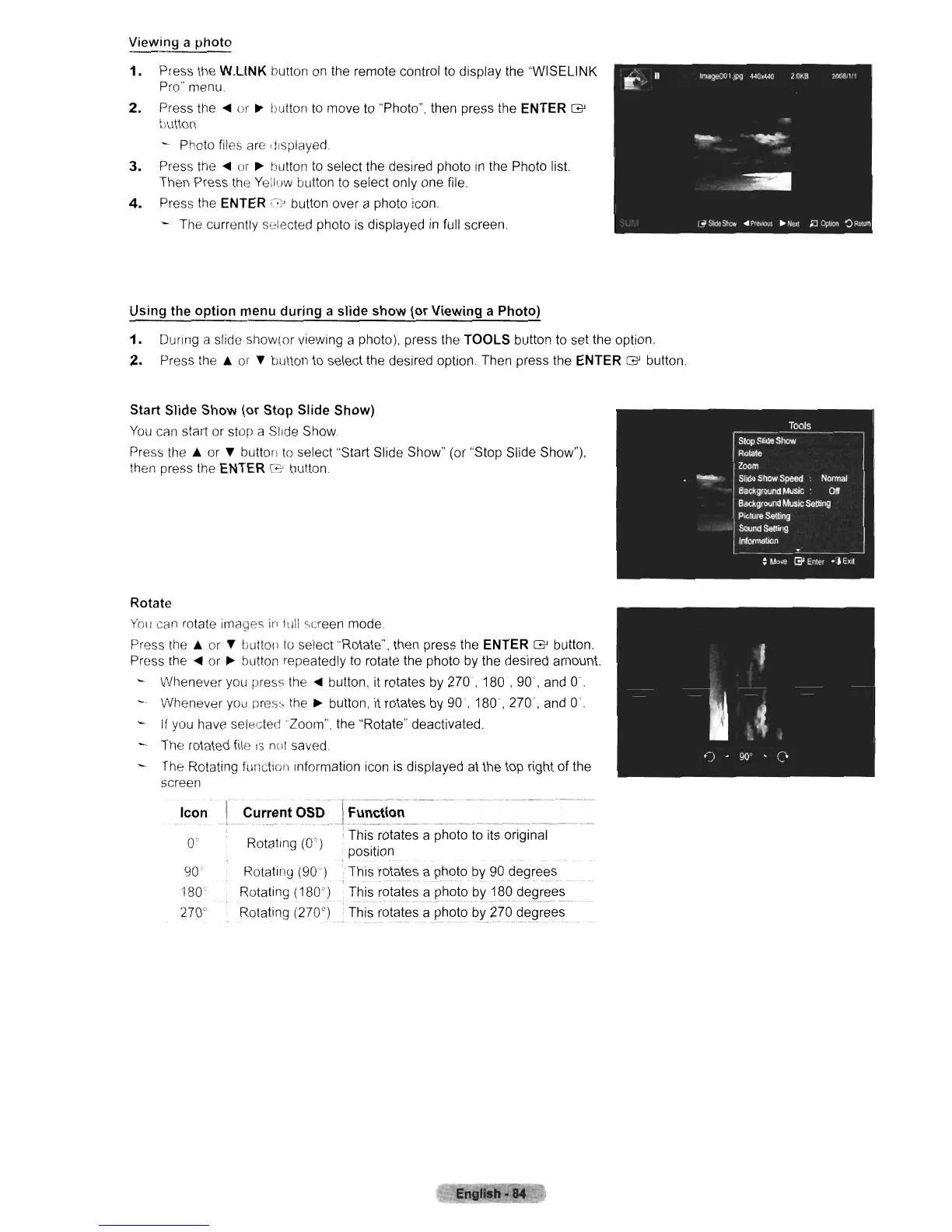
Viewing a photo
1.
Press the
W.L1NK
button
on
the remote control
to
display the "WISELINK
Pro" menu
2.
Press the
<Ill
or
~
button
to
move
to
"Photo". then press the ENTER G
button
~
Photo files are displayed.
3.
Press the
<Ill
or
~
button
to
select the desired photo
in
the Photo list.
Then Press the Yellow button
to
select only one file
4.
Press the ENTER 0 button over a photo icon
- The currently selected photo
is
displayed
in
full screen.
Using the option menu during a slide show (or Viewing a Photo)
1.
During a slide show(or viewing a photo), press the TOOLS button
to
set the option.
2.
Press the A or
~
button
to
select the desired option. Then press the ENTER G button.
Start Slide Show (or Stop Slide Show)
You
can start or stop a Slide Show.
Press the
A or
~
button
to
select "Start Slide Show" (or "Stop Slide Show"),
then press the
ENTER
['OJ
button.
Rotate
You
can rotate images
in
full screen mode.
Press
the.
or
~
buttoll
to
select "Rotate", then press the ENTER G button.
Press the
<Ill
or
~
button repeatedly
to
rotate the photo by the desired amount.
- Whenever you press the
<Ill
button, it rotates by 270', 180
,90',
and
0'.
Whenever you press the
~
button, it rotates by
90',180',270',
and
0".
If you have
selected'
Zoom", the "Rotate" deactivated.
- The rotated file
IS
not saved.
The Rotating function Information icon
is
displayed at the top right
of
the
screen
I
Icon
.1
Current
OS.D
...
_
..
LF
..
u
.....
"
...
c._t._io_n.
_
Rotating (0")
0'
90
'j
80
c
270"
, This rotates a photo
to
its original
position
Rotating
(90')
This rotates a
p~oto
by
90 degrees
Rotating (180") This
rotCl!~SClpho!?by.1~'O.
d.E)~!E)es
Rotating (270°) : This rotates a photo
~y_
270
degr~es












 To Next Page