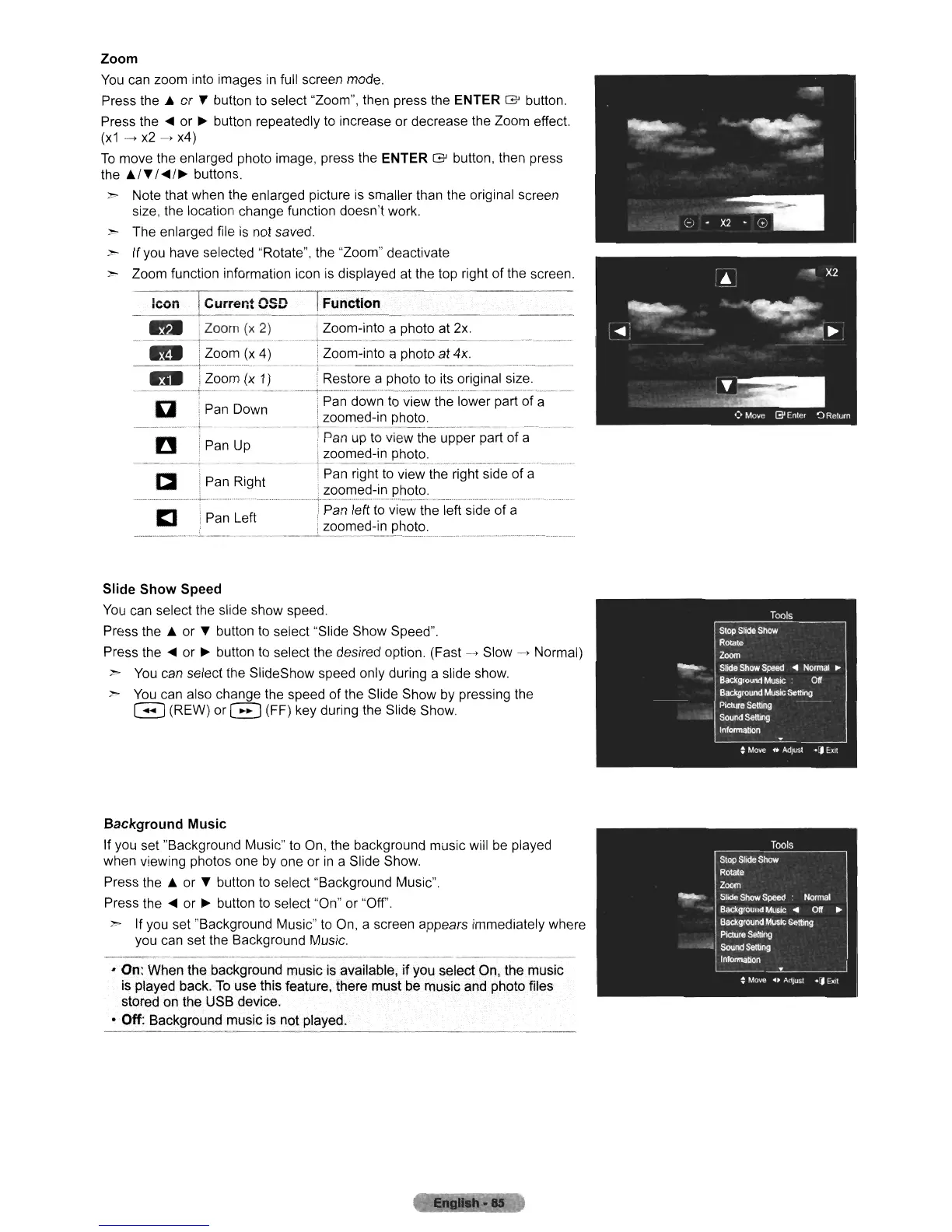
Zoom
You
can zoom into images
in
full screen mode.
Press the A or " button to select "Zoom", then press the ENTER
G'
button.
Press the
~
or
~
button repeatedly to increase or decrease the Zoom effect.
(x1
---->
x2
-->
x4)
To
move the enlarged photo image, press the ENTER
G'
button, then press
the
A/"/~/~
buttons.
:;,,-.
Note that when the enlarged picture is smaller than the original screen
size, the location change function doesn't work.
> The enlarged file is not saved.
:;,,-.
If you have selected "Rotate", the "Zoom" deactivate
> Zoom function information icon is displayed at the top right
of
the screen.
Icon
@urrent
OsU~Fu_n_c_t_io_n
_
..
; Zoom
(x
2) !Zoom-into a photo at 2x.
-
--_..
- - -
'-'---
-+-----
--
-
--
- - - -
-_._-----.
..
IZoom
(x
4) i Zoom-into a photo at 4x.
------+.-.
__
._-_._-
----'-
------
------
---,,-~_
..
_----
..
IZoom
(x
1)
! Restore a photo to its original size.
~~=~-j~~~
D-own
r:~~~~;~~i~~~~~::~;~:--p~rt_~~~_-~.
...
i
.•
Pan
Up
j Pan up to view the upper part of a
La
i zoomed-in photo.
- -
--
- .
1-
-
__
-
----.-.-----
...
----.--.--.--
.....
------
....
--.
...
i P
R'
ht i Pan right to view the right side
of
a
...
!
an
Ig
I zoomed-in photo.
__
~
__
•••.•.•
_
•.•....•..
~_._._.~.
...••.
_
..
_.
. .
._
•.
_._+-.
..
_
...
h
••••
h
.••••
h •
__
•
~
_
.h.h_
••
_._.
••••
h_.
h.h
•••
~_
••
••
_
Pan
Left iPan left to view the left side of a
1:1.
~i
zoomed-in photo:
._.
_.
__
.
Slide
Show
Speed
You
can select the slide show speed.
Press the A or " button to select "Slide Show Speed".
Press the
~
or
~
button to select the desired option. (Fast
-->
Slow
-->
Normal)
>
You
can select the SlideShow speed only during a slide show.
~
You
can also change the speed
of
the Slide Show by pressing the
G (REW) or G (FF) key during the Slide Show.
Background Music
If you set "Background Music" to On, the background music will
be
played
when viewing photos one
by
one or
in
a Slide Show.
Press the A or " button to select "Background Music".
Press the
~
or
~
button to select "On" or "Off'.
> If you set "Background Music" to On, a screen appears immediately where
you can set the Background Music.
• On: When the background rnusic is available, if you select On, the music
is played back, To use thisfeature, there must be music and photo files
stored on the USB device.
• Off: Background music is not played.












 To Next Page